How do I also send a thread reply to the channel?
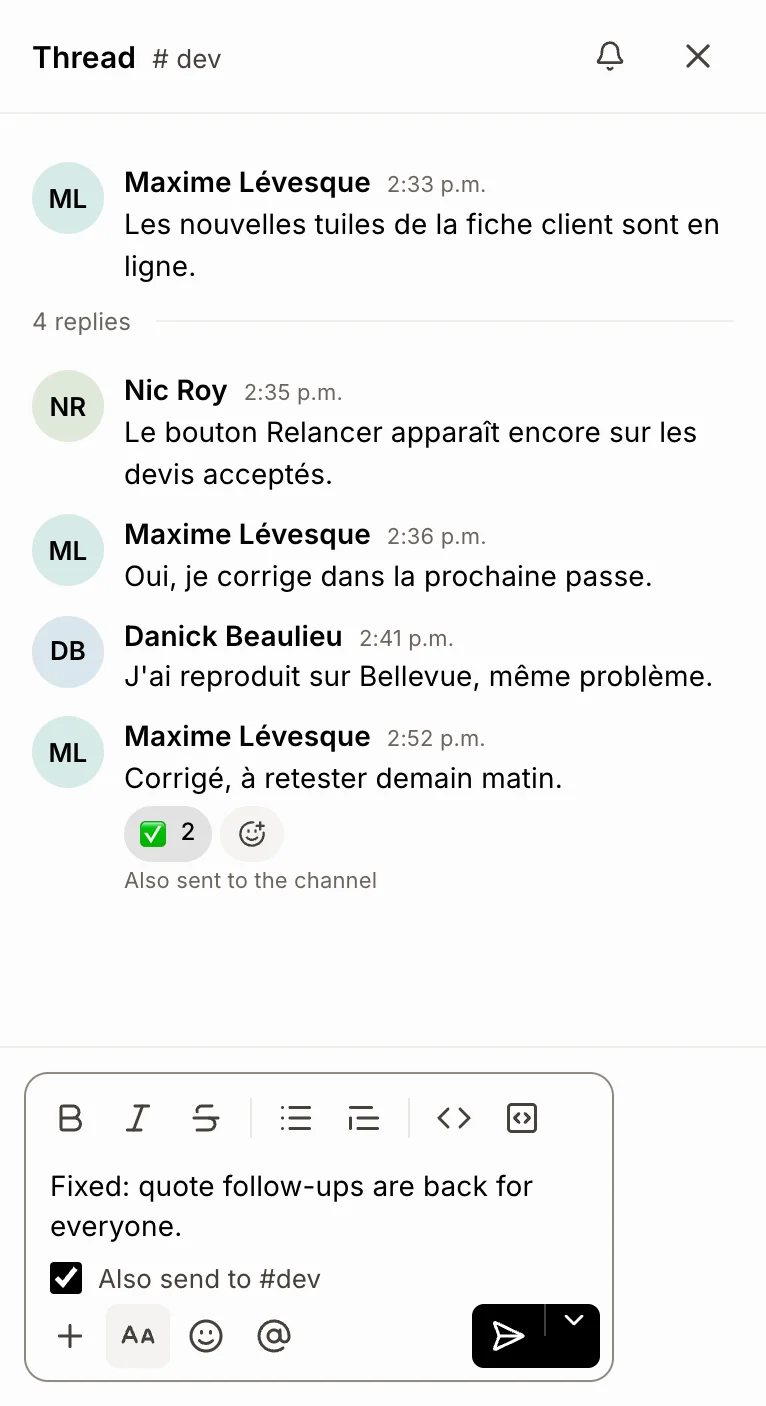
Tick "Also send to #channel" under the reply box before you send. The reply stays in its thread and shows in the channel too.
In a Team chat thread, tick Also send to #channel under the reply box, then send. Your reply stays in the thread and also shows in the channel, so everyone sees it, even people who don't follow the thread.
Also called: repost, share to channel, send to channel, broadcast a reply, repartager, envoyer dans le canal, aussi envoyer
Step 1: Tick the box and send your reply
Open the thread, write your reply, and tick Also send to #channel under it. In a direct message it says Also send to the conversation. Press Enter or click the send button. The box unticks itself after each send, so your next reply stays in the thread unless you tick it again.
Click: Team chat › your channel › replies under a message › Also send to #channel › Send
Step 2: See it in the channel
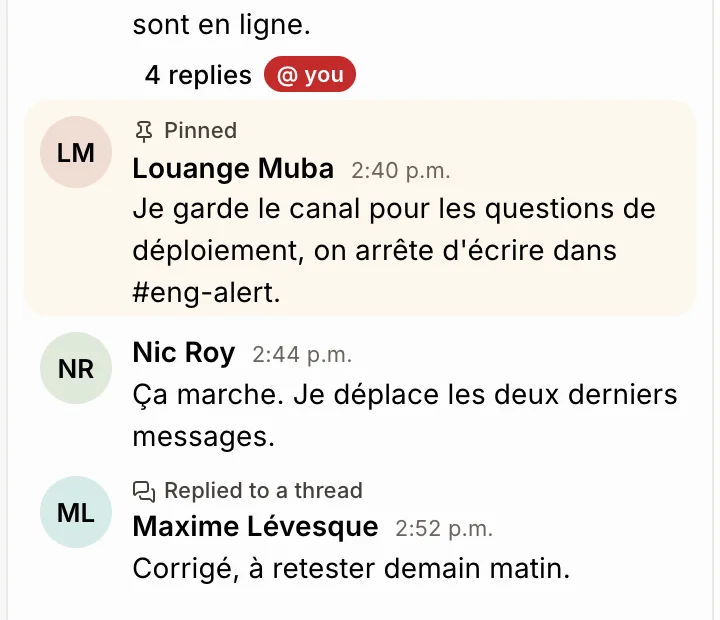
The reply shows at the bottom of the channel under Replied to a thread. Click Replied to a thread to open the whole thread. In the thread, the reply is marked Also sent to the channel.
Good to know
It's one message: if you edit it in the thread or in the channel, both change. If you remove it, it goes from both.
People you tagged in the reply are told once, not twice.
Reactions, pins and saves are separate in the thread and in the channel.