How do I change Nora's name, photo and first message?
In Front desk, under Nora on your website, type a name and click the picture to add a photo. Type the First message visitors read.
In Front desk, under Nora on your website, type her Name and click the round picture to add a photo. Then type the First message visitors read when they open the chat. Each change saves on its own.
Also called: Nora, bot name, avatar, profile picture, greeting, welcome message, nom du bot, photo, message d'accueil, premier message
Nora is the support bot that answers your website chat. Give her the name and photo you want, like a teammate. If a visitor asks, she still says she's an AI assistant.
Step 1: Open Front desk
In your CRM, click Front desk in the menu.
Click: Front desk › Settings
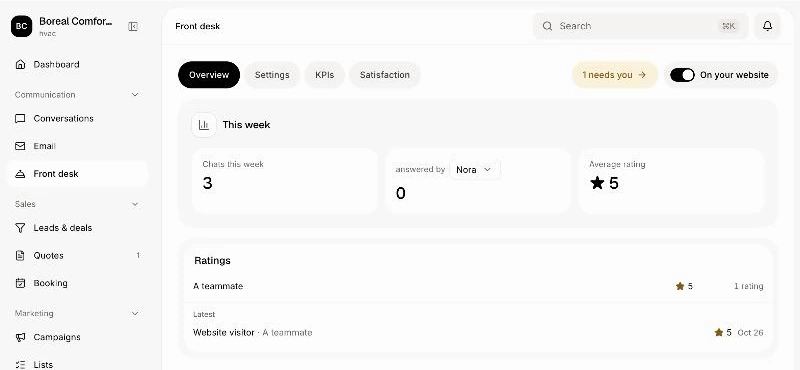
Step 2: Name her
Under Nora on your website, the Name starts as "Nora". Type another one, like "Julie". It saves when you click outside the field. If you empty it, it goes back to "Nora". Visitors see her name and picture at the top of the chat and next to each of her answers.
Click: Nora on your website › Name
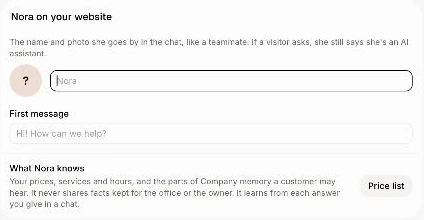
Step 3: Add a photo
Until you add one, the bot shows Nora, a drawn helper who waves when you point at her. Click the round picture and pick a JPG, PNG or WebP photo, 5 MB at most. To change it, click it again. To take it off, click the small x. The other pictures of the chat (at the top, on Talk to your team and on Help articles) change under What visitors see.
Click: Nora on your website › the round picture
Step 4: Write the first message
In First message, type what visitors read first, like "Hi! How can we help?" (200 characters at most). It saves when you click outside the field.
Click: Front desk › Settings › First message
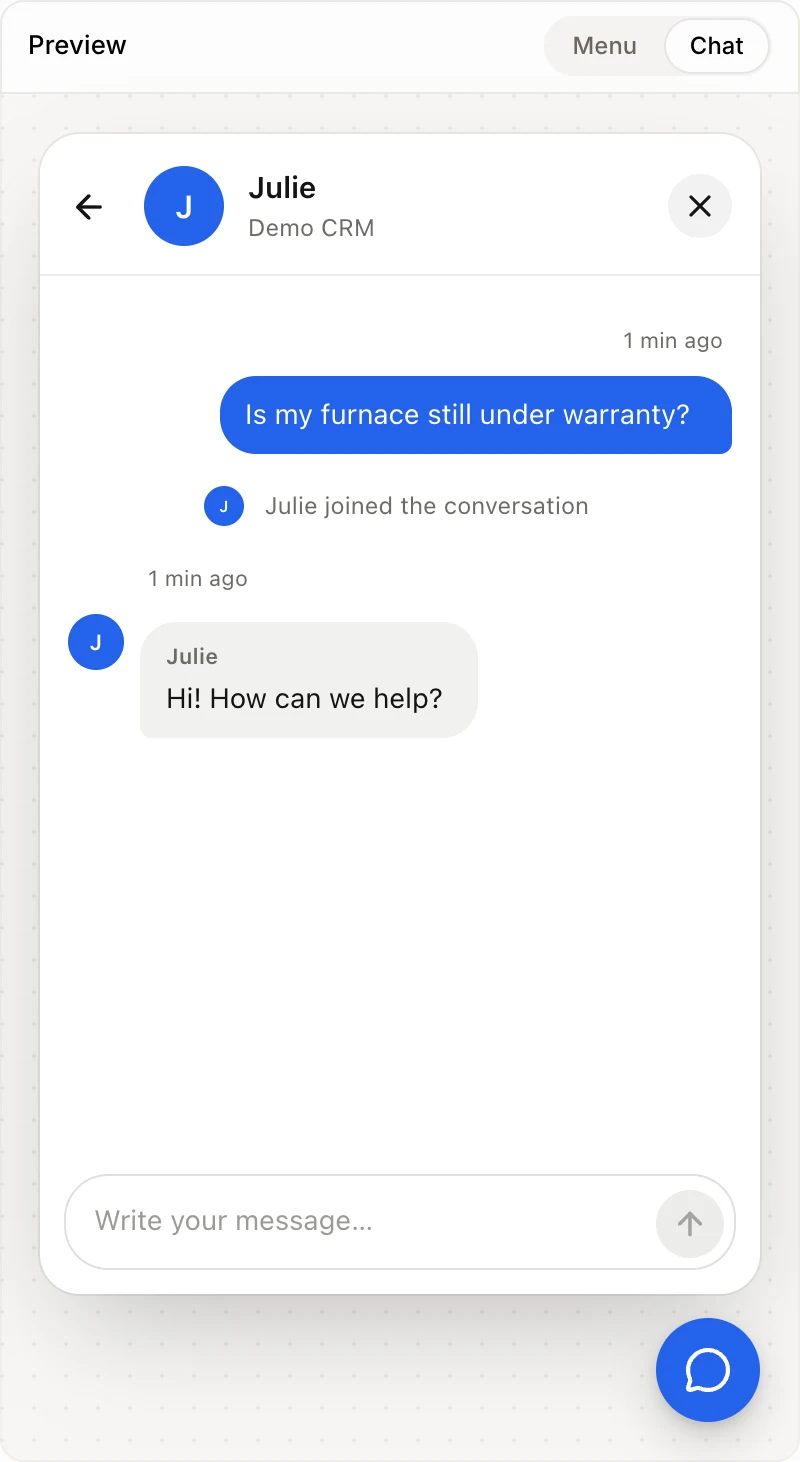
More choices
Common questions: under Before they write, visitors can tap one before they write. The 3 fields start with examples ("Can I book a visit?", "What services do you offer?", "How much does it cost?"): change them to fit your business, and see them in the Preview's Chat. Until you change them, visitors read the examples in their own language. Turn the switch off to show none.
Require an email: after their first message, visitors must leave their email to keep chatting.
You can also ask Alori: "Rename Nora to Julie and make the first message 'Hi! Need a hand?'"
If it doesn't work
"That picture is too big (5 MB at most)." Pick a smaller photo.
"Use a JPG, PNG or WebP picture." Save your photo in one of those types, then try again.
The fields are grey. Your role can't change them. Ask the owner.