How do I create a booking link?
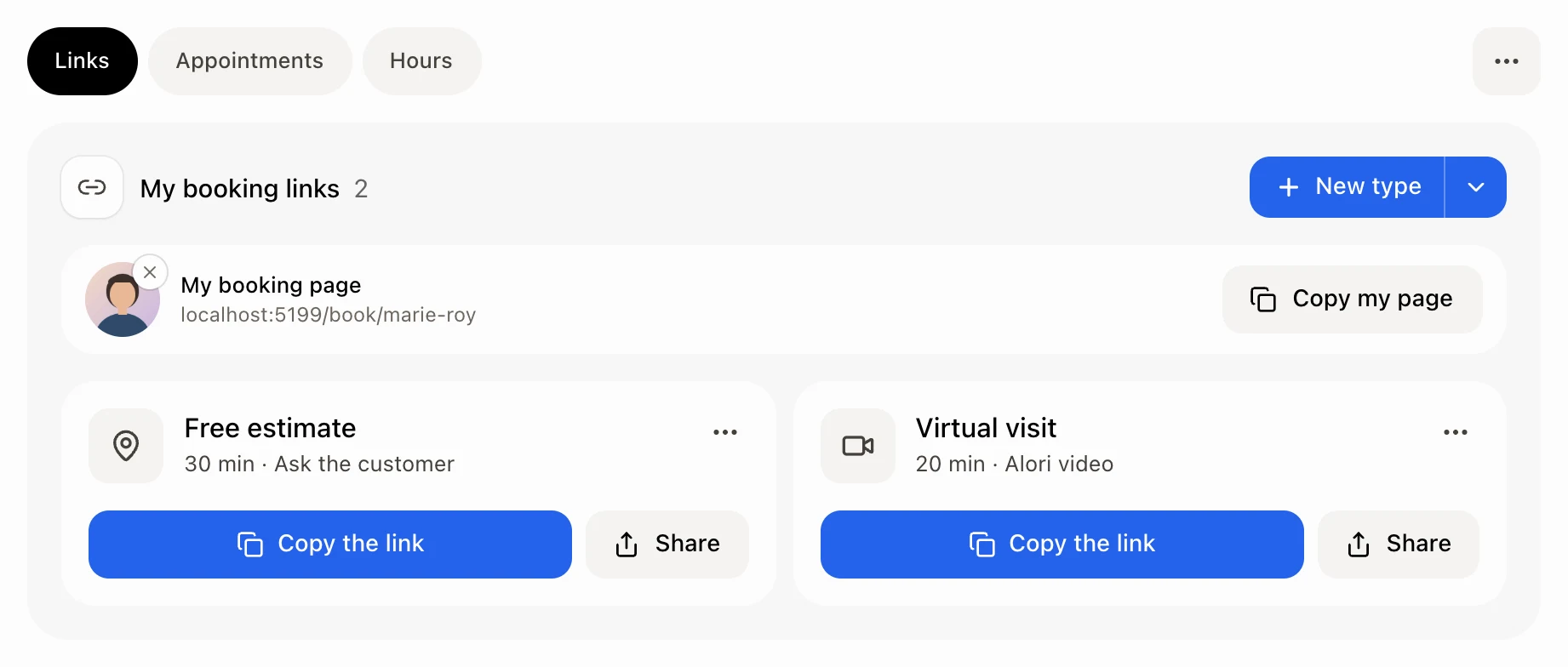
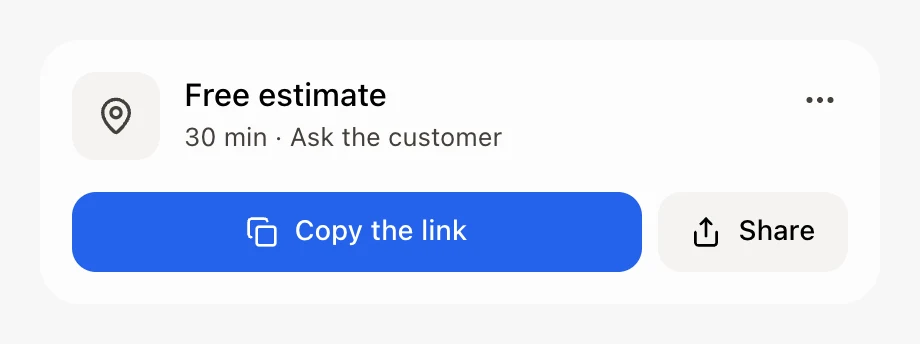
In Booking, click New link, name it, pick its length and place, then click Create. Click Copy the link on its card to send it.
Open Booking and click New link. Give it a name, pick how long it lasts and where it happens, then click Create. Each link has its own address: click Copy the link on its card and send it.
Also called: appointment type, booking link, event type, scheduling link, Calendly link, type de rendez-vous, lien de réservation, lien de prise de rendez-vous
Step 1: Start a new link
In Booking, on the Links tab, click New link. The editor opens, with a live preview of what customers see. Its settings are closed sections, each with a one-line summary: click one to open it. The appointment is open at first.
Click: Booking › Links › New link
Step 2: Name it and pick its length
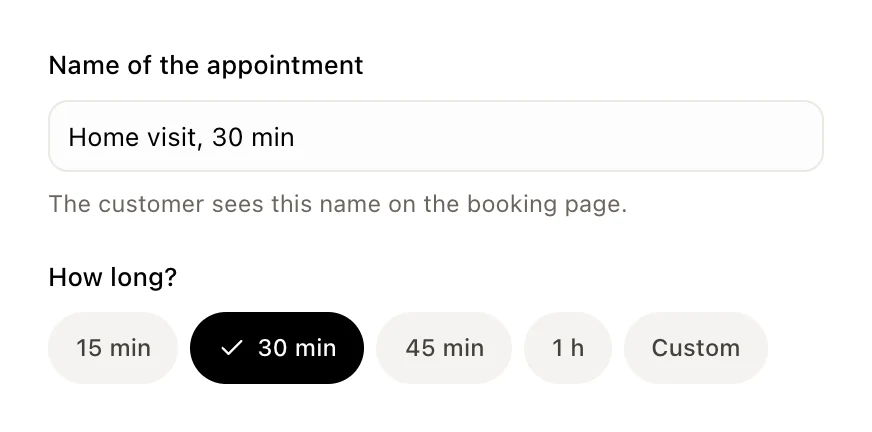
Under The appointment, type the Name of the appointment: the customer sees it on the booking page. Under How long?, pick 15, 30, 45 or 60 minutes, or Custom.
Step 3: Pick where it happens
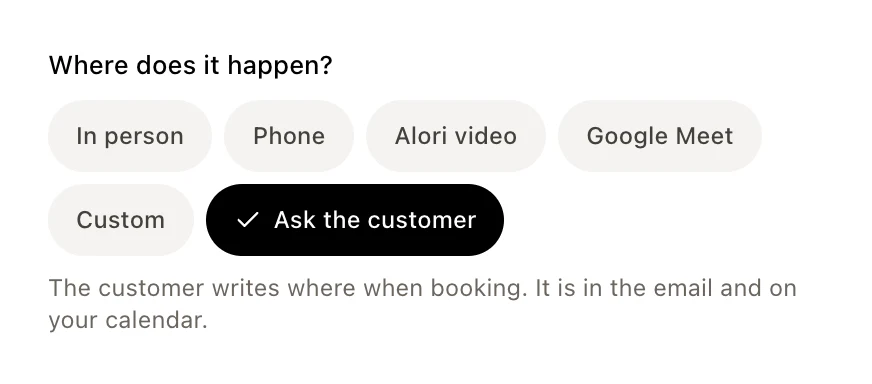
Under Where does it happen?, pick one or more: In person, Phone, Alori video, Google Meet (with Google Calendar connected), Custom or Ask the customer. With several, the customer picks one. Each shows what it needs, like your address or your number. With Alori video, Record the meeting is on: you get the transcript and a summary after each call. Turn it off to not record this link's calls.
Step 4: Check the other sections and create it
Open the sections you need:
Who: One customer at a time or Several customers together. With two or more people taking appointments, also Taking turns and The whole team together.
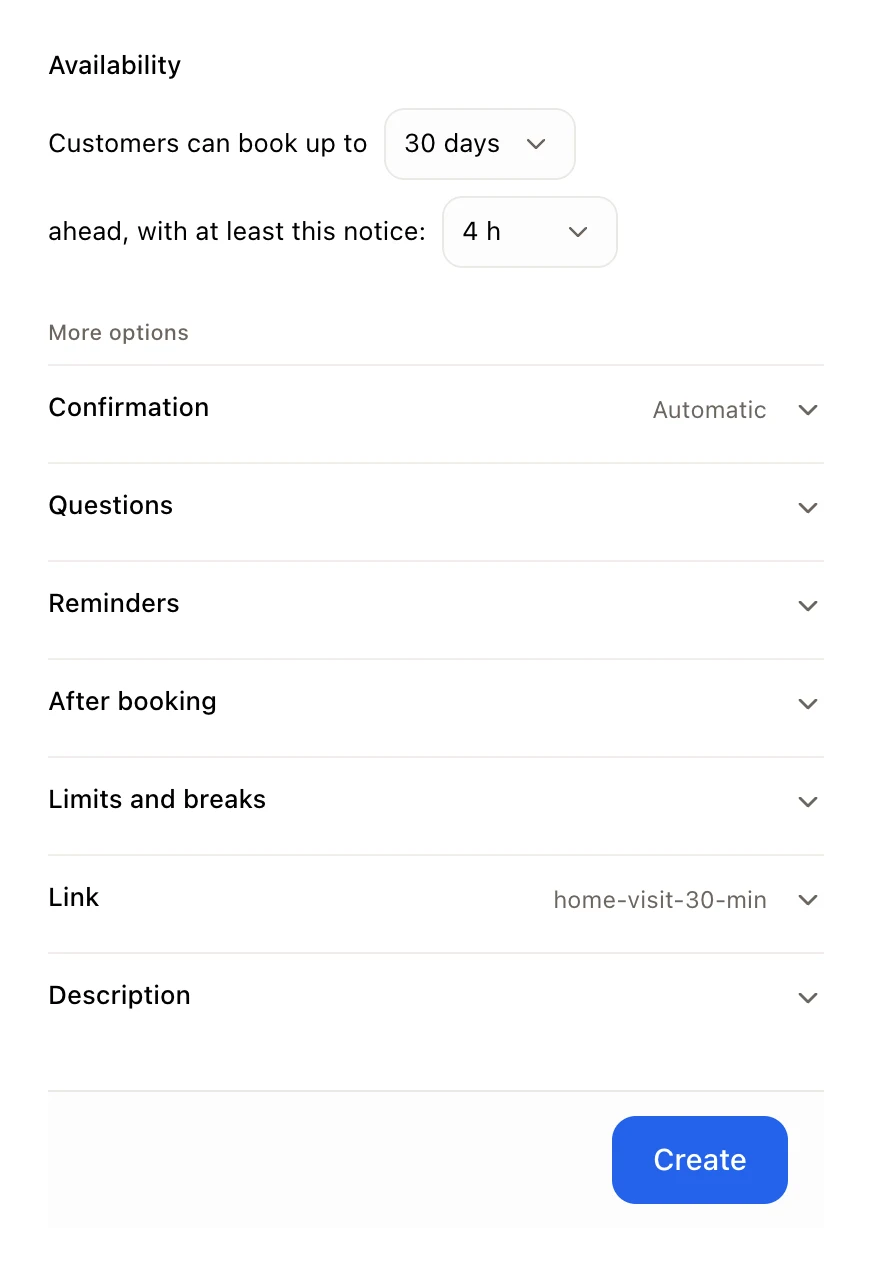
When: how far ahead customers can book, the notice you need, and which hours apply: My hours or other hours made in Hours.
Questions: what else to ask the customer.
Confirmation and reminders: Automatic or I confirm each request, then the reminder emails.
After booking: the message the customer sees, or your own page.
Advanced: Limits and buffers, the End of the link and a description.
Click Create.
Click: Create
Step 5: Copy the link
You see … is online. Click Copy, or See the public page to open what customers see. Back on Links, each card has Copy the link and Share.
Click: Copy the link
Good to know
The calendar invitation of each booking shows the appointment's description, how to join or where to go, the customer's answers, and a link to cancel or reschedule.
To delete a link, open it and click Delete this link at the bottom.
A card's ⋯ menu has Close link, Preview, Edit and Duplicate. A copy stays closed until you click Reopen.
Copy my page copies one page with all your links.
Turning Record the meeting on or off changes the calls booked after that. Calls already booked keep their setting.
You can also ask Alori: "Stop recording the meetings booked on my Estimate link."
Under Questions, Add a question asks the customer more. Name and email are always asked.
If it doesn't work
"Give it a name." Type a name.
"That end of link is already used. Choose another." Change it under Advanced › End of the link.
"Type the number the customer calls." For Phone, add your number.
"Give the custom location a text or a link." Fill in Custom.
"The link must start with https://." Fix the link.
"This link has appointments, so it cannot be deleted. Close it instead." Use Close link instead.