How do I get Alori to draft my email replies?
On your Email page, click the gear beside the search and turn on Draft my replies. Alori writes a reply to each email that needs one, in your Drafts.
On your Email page, click the gear beside the search and turn on Draft my replies. When an email needs an answer, Alori writes a reply in your voice and leaves it in your Drafts. Nothing is ever sent without you.
Also called: auto drafts, automatic replies, AI replies, reply suggestions, write it for me, brouillons automatiques, réponses suggérées, rédiger mes réponses
Step 1: Open your Email settings
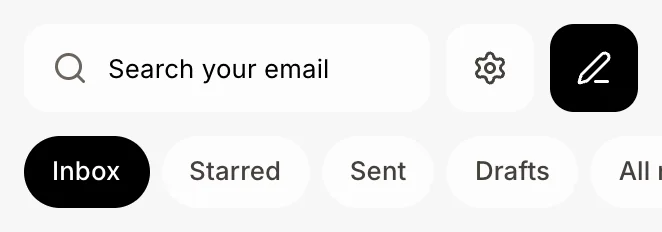
Click Email in the left menu, then the gear (Email settings) beside the search. Your Gmail must be connected.
Click: Email › Email settings
Step 2: Turn on drafted replies
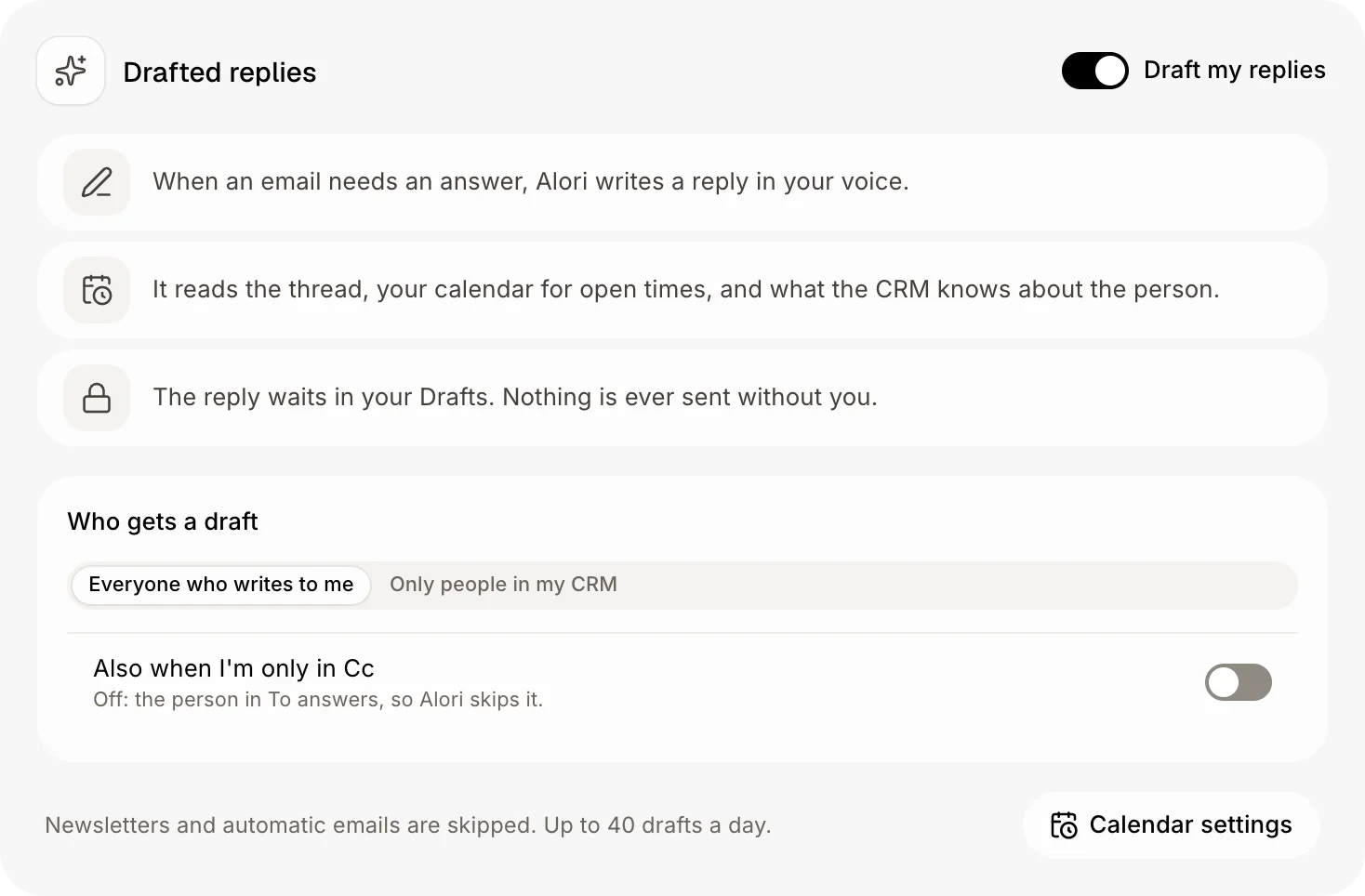
In Drafted replies, turn on Draft my replies. Then pick Who gets a draft: Everyone who writes to me or Only people in my CRM. Emails where you're only in Cc are skipped; turn on Also when I'm only in Cc to get drafts for them too. Each choice saves right away.
Click: Email settings › Draft my replies
Step 3: Check how you write
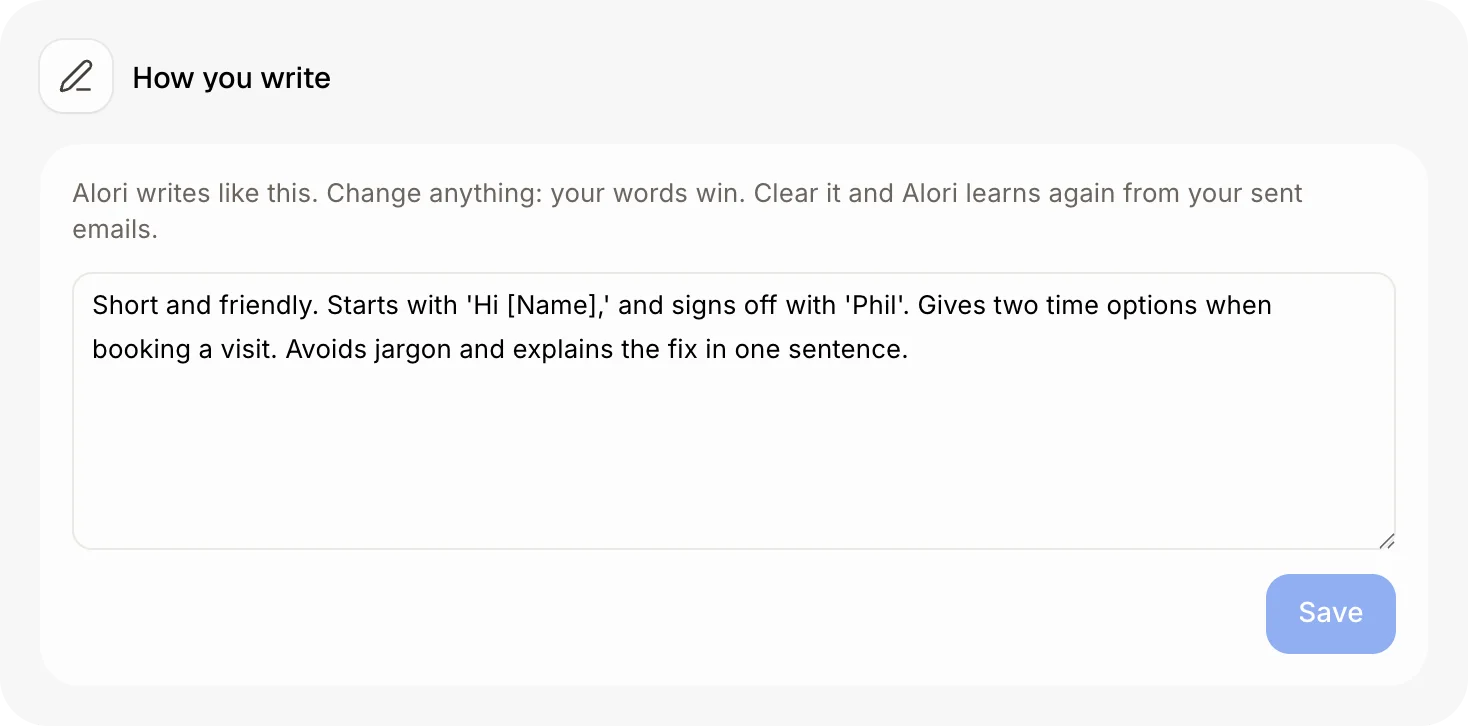
In How you write, Alori keeps a short note on your greetings, length and tone, learned from your sent emails. Change anything: your words win. Click Save. Clear it and Alori learns again.
Click: How you write › Save
Step 4: Check the draft and send
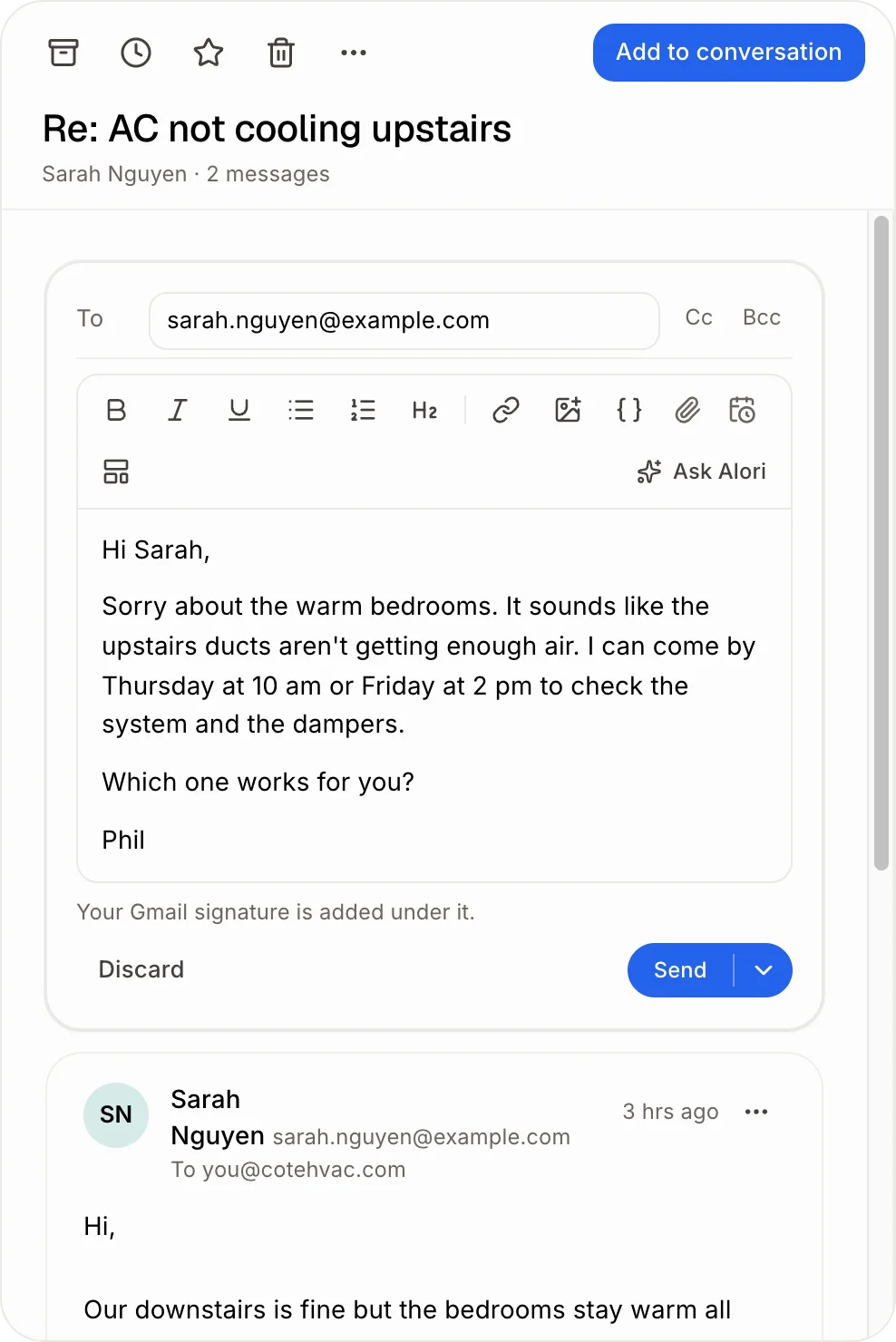
Open the email in your Email page. Under it you see "Alori wrote this reply. Check it, change what you need, then send." Change what you need, then click Send. It also waits in Drafts.
Click: Drafts › the reply › Send
Good to know
Alori reads the thread, your calendar for open times, and what your CRM knows about the person.
No draft on a reply? Click Reply, then Ask Alori (the sparkle in the toolbar) and Let Alori write it. Alori writes the reply from the email in a few seconds. The choice shows only while the reply is empty.
Meetings: when a reply offers times, Alori holds them on your calendar until the person picks one. The line under "Alori wrote this reply" says which times. When they pick one, Alori's reply confirms it, puts the meeting on your calendar, and removes the other held times. When you send that reply, the person gets the calendar invite with a video link, and a message tells you it went.
Booking links: when a reply asks the person to pick a time, Alori puts in your real booking link (from Booking), the one that fits the meeting best, never a blank like [calendar link].
Change the times: click Ask Alori in the editor and say when you're free, like "I'm free today and tomorrow". Alori picks open times on those days from your calendar, writes them in the reply, and moves the held times to them.
Newsletters and automatic emails are skipped, and so are emails where you're only in Cc (unless you turned on Also when I'm only in Cc). Up to 40 drafts a day.
Each draft uses credits. See What uses credits?
Recent activity shows what Alori did with your latest emails: Draft ready, No reply needed, You already replied and so on.
Calendar settings opens your calendars, so Alori offers the right times.
You can ask Ask Alori "only draft replies for my CRM contacts" or "also draft replies when I'm only in Cc".
If it doesn't work
"Daily limit reached" in Recent activity. Alori wrote 40 drafts today. It starts again tomorrow.
"Out of credits" Add credits; new emails get drafts again.
"You had started a draft" or "You had changed Alori's draft" Alori leaves your own draft alone.
"You were only in Cc" You were in Cc, not To. To get drafts for these too, turn on Also when I'm only in Cc.
"Not in your CRM" You picked Only people in my CRM.
"Couldn't write it" Open the email, click Reply, then Ask Alori › Let Alori write it. Or write it yourself.