How do I give new leads to my reps in turn?
Ask Sam to share new leads among your reps.
Written by Philippe Genois
Give new leads to your sales reps in turn, and choose what happens next.
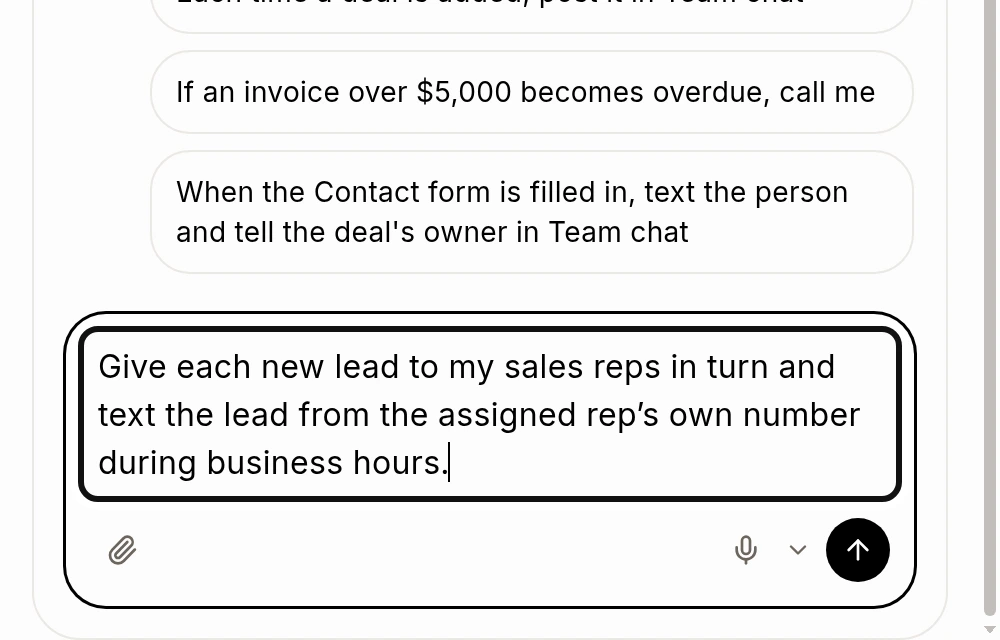
Tell Sam which reps should take turns and what to do when a new lead arrives. For example: “Give each new lead to my sales reps in turn and text the lead from the assigned rep’s own number during business hours.” Include the reps, the text, and the days and hours you want.
See How do I make an automation? for reviewing and turning on Sam’s plan. Check that it gives the lead to the reps in turn before the text, and that the text uses the rep’s own number.
The rep needs their own number that can send texts; otherwise the text uses the business number. A text limited to business hours is skipped outside those hours; ask for a separate after-hours message if you want one.
Let a teammate claim a lead instead
Ask Sam to post new, unassigned leads in a Team chat channel with a Claim lead button. The first teammate to press it gets the lead. A lead already given to a rep does not show Claim lead, so use claiming instead of assigning that lead in turn.
Did this answer your question?