How do I interview an applicant and comment on the video?
In a step of an applicant's page, plan, move or cancel the interview, or attach its video. Read Alori's evaluation, comment at a moment and @mention a teammate.
Written by Nicolas Thibault
Open the applicant on Hiring, then the step's tab, like 1st interview: plan the interview there, or attach the video of one held elsewhere. Alori writes her opinion of the interview, the team comments right on the video, and a video in the wrong step moves in two clicks.
Also called: interview, interview recording, attach a Zoom recording, Teams recording, reschedule an interview, move an interview, cancel an interview, interview evaluation, AI evaluation, mention a teammate, @mention, comment at a moment, video in the wrong step, move a video, remove an interview, entrevue, enregistrement d'entrevue, joindre une vidéo, vidéo à la mauvaise étape, déplacer une vidéo, retirer une entrevue
Step 1: Plan the interview or attach its video
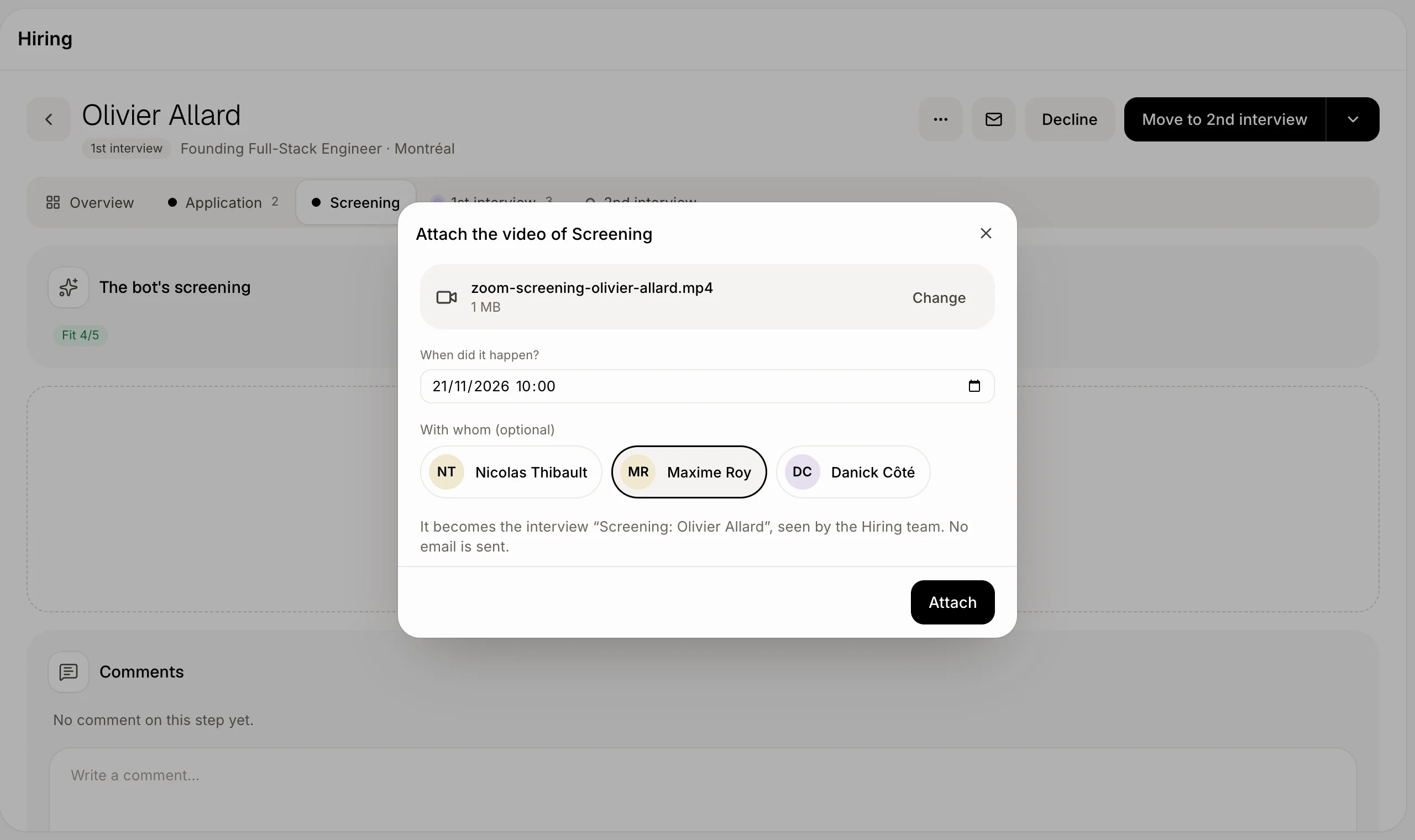
In the step's tab, click Plan, pick the time and who meets them. Join shows when it's time. Already in Meetings? Click Link a meeting. Held it on Zoom or Teams? Click Attach a video (or drop the file), pick when and with whom, then Attach. Stay on their page until it's sent.
In Meetings, New meeting shows its type under the title: pick Interview, then the candidate (or New candidate) and the step. Interviews stay out of the CRM: only the hiring team and those invited see them.
Click: Team › Hiring › an applicant › a step › Attach a video
Step 2: Move, add guests to or cancel a planned interview
A planned interview can be changed right in its step, as long as nobody has joined yet, it isn't cancelled or missed, and it wasn't made through a booking.
Click the applicant, then the step with the planned interview.
To move it, click its date and time, then pick the new time. Its guests are told, as from Meetings.
To change who is invited, add or take out people under the date.
To cancel it, click ⋯ beside Join, then Cancel the interview. Change the time is in the same menu.
You need the right to edit Hiring. Someone who can only view Hiring sees the interview as it is. A missed or cancelled interview only says so.
Step 3: Read Alori's evaluation
A few minutes after the video is in, Alori writes her opinion of the interview. It shows above the video: a score like Interview 4/5 and a one-sentence opinion. Under the video, Interview evaluation lists Strengths, Doubts and Key answers. Click a time like 12:40 to play the video from there.
It is advice only ("Alori's opinion · the team decides"). You decide with the step's buttons.
While she writes it, you see "Alori is watching the video" and can leave the page. If it fails, click Try again.
An interview from before this feature shows Evaluate this interview. Click it to get the opinion.
If nobody talks in the video, Alori says so. Click Remove this video if it's the wrong file, then attach the right one.
Until the evaluation is ready, the meeting's ordinary summary shows if it has one.
Step 4: Comment on the video
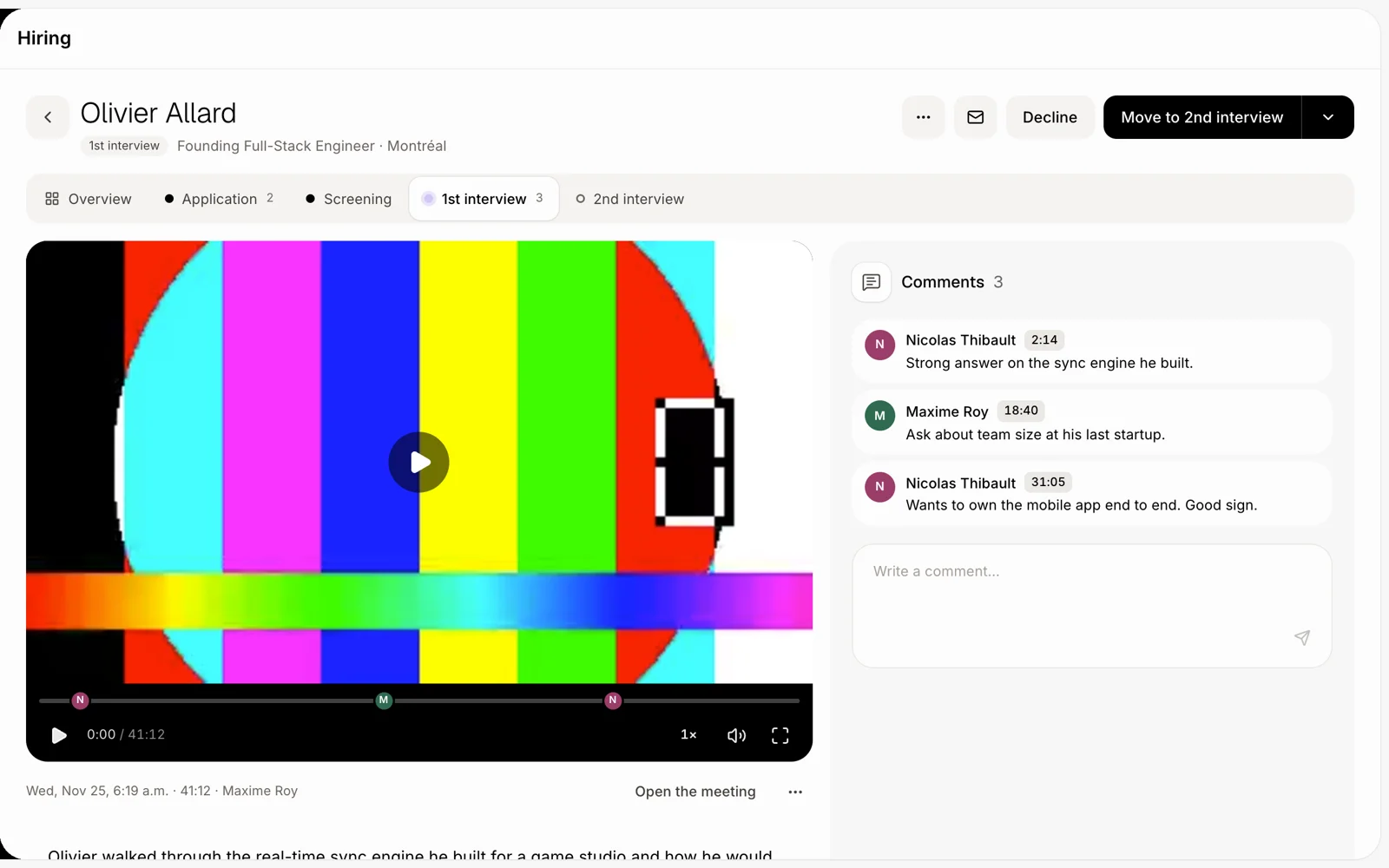
Play the recording and write in Comments. A comment written while it plays keeps that moment, like 2:14, and shows as a dot on the video's bar. Writing doesn't pause the video. Press Enter to send (Shift+Enter makes a new line).
Click a dot on the bar, or the time in a comment, to jump to that moment.
Want a comment about the whole interview? Untick the box that says at 2:14 before you send.
To get a teammate's attention, type @ and pick their name. They get it in their bell, then by email if they don't open it, and a click brings them to that step. A teammate who can't see Hiring is greyed out, with Can't see Hiring.
Open the meeting shows the whole transcript.
Click: Team › Hiring › an applicant › a step › Comments
Step 5: Move a video to the right step
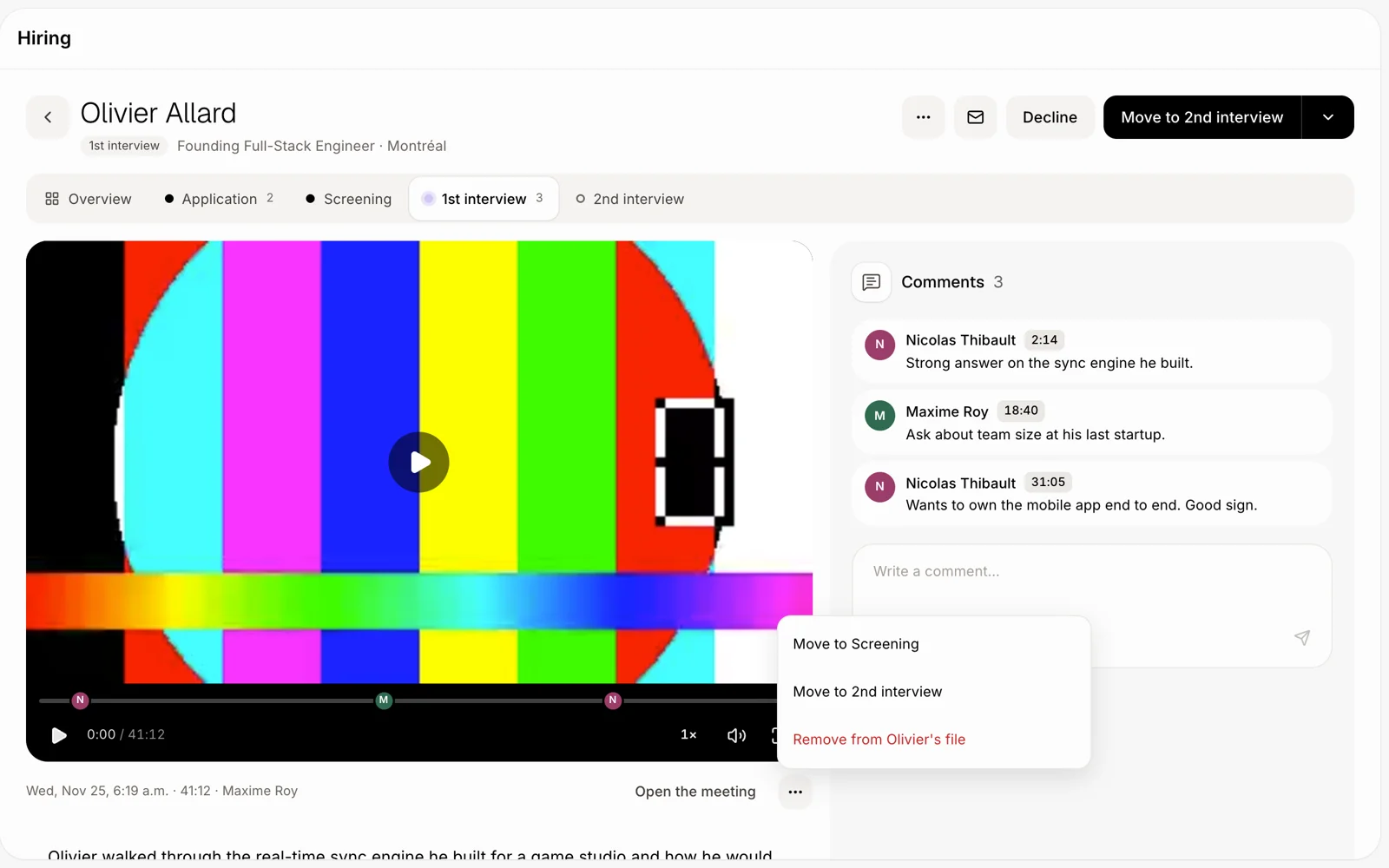
Put the video in the wrong step? Click ⋯ beside Open the meeting, then Move to 1st interview (or any other step). A right-click on the video opens the same menu. Its comments move with it, and Undo puts it back.
Not their video at all? Click ⋯, then Remove from Olivier's file (with their name). The recording stays in Meetings, and the team's comments on it are deleted, so Alori asks first when it has some.
Click: Team › Hiring › an applicant › a step › ⋯ › Move to…
Good to know
Moving, removing, planning and changing an interview need the right to edit Hiring.
You can ask Sam: "Plan an interview with Olivier tomorrow at 2" or "What did the team say about Olivier's interview?"
If it doesn't work
"That isn't a video. Use an .mp4 or .m4a file." Attach the recording itself, not a link to it.
"This step doesn't exist anymore." Someone removed that step under Edit steps. Its interviews and comments stay, under Other.
"This doesn't exist anymore." The interview was removed from their file, or the meeting was deleted.
"Out of credits." Alori can't write the evaluation until credits are added. Then click Try again.
Related
Did this answer your question?