How do I rename, add or reorder my hiring steps?
Change the steps your applicants move through, like Screening or To meet, so the board matches how you hire.
Written by Philippe Genois
Your applicants move through steps. Out of the box they are New, Screening, To meet, Hired and Declined. You can rename, add, remove and reorder the steps in between to match how you hire.
New is always first. Hired and Declined are always last. They show as plain words in the editor, and you can't rename, move or remove them.
You need the right to edit Hiring. If you can only view Hiring, you won't see the Edit steps button.
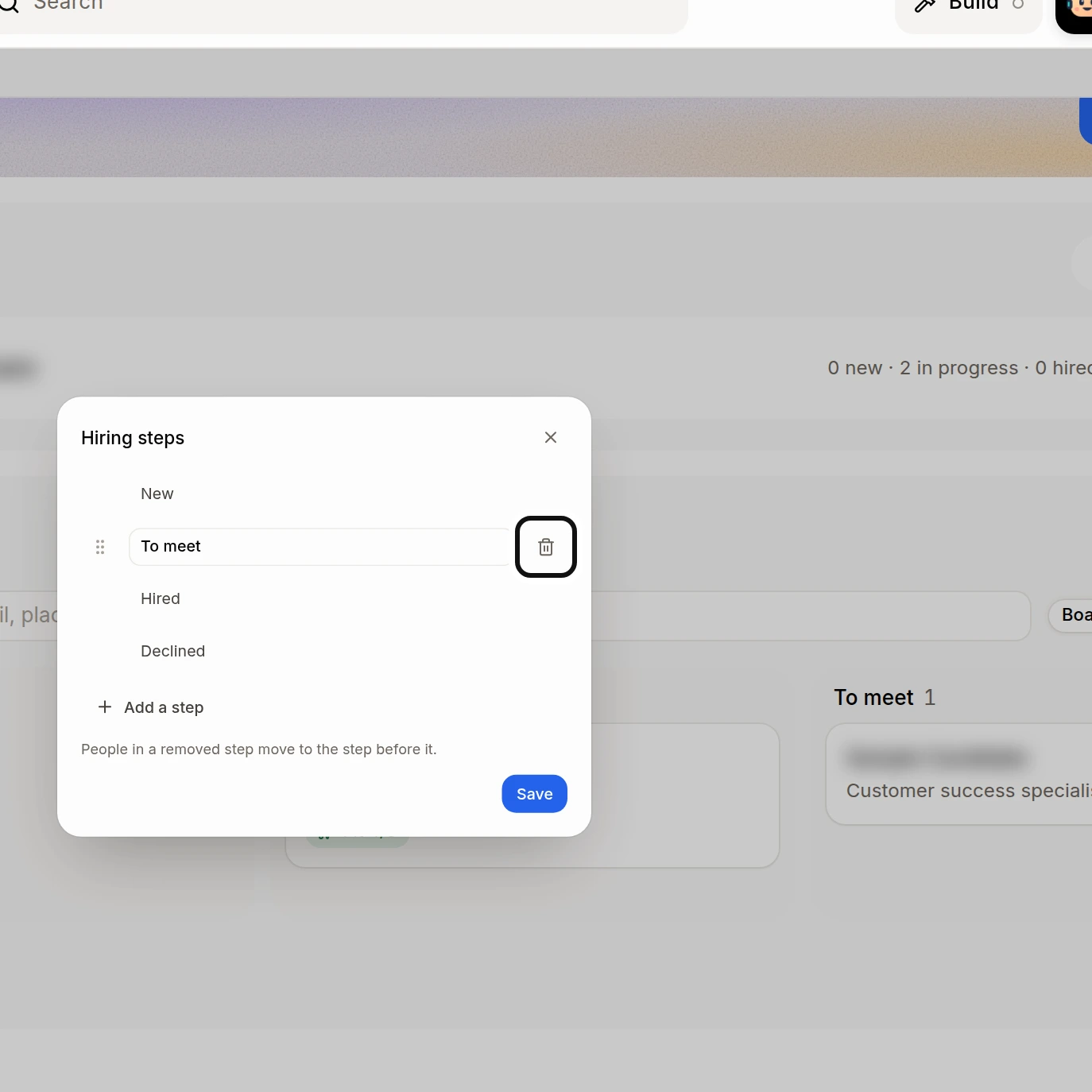
In the Applicants panel, click Edit steps. A window called Hiring steps opens with every step in order.
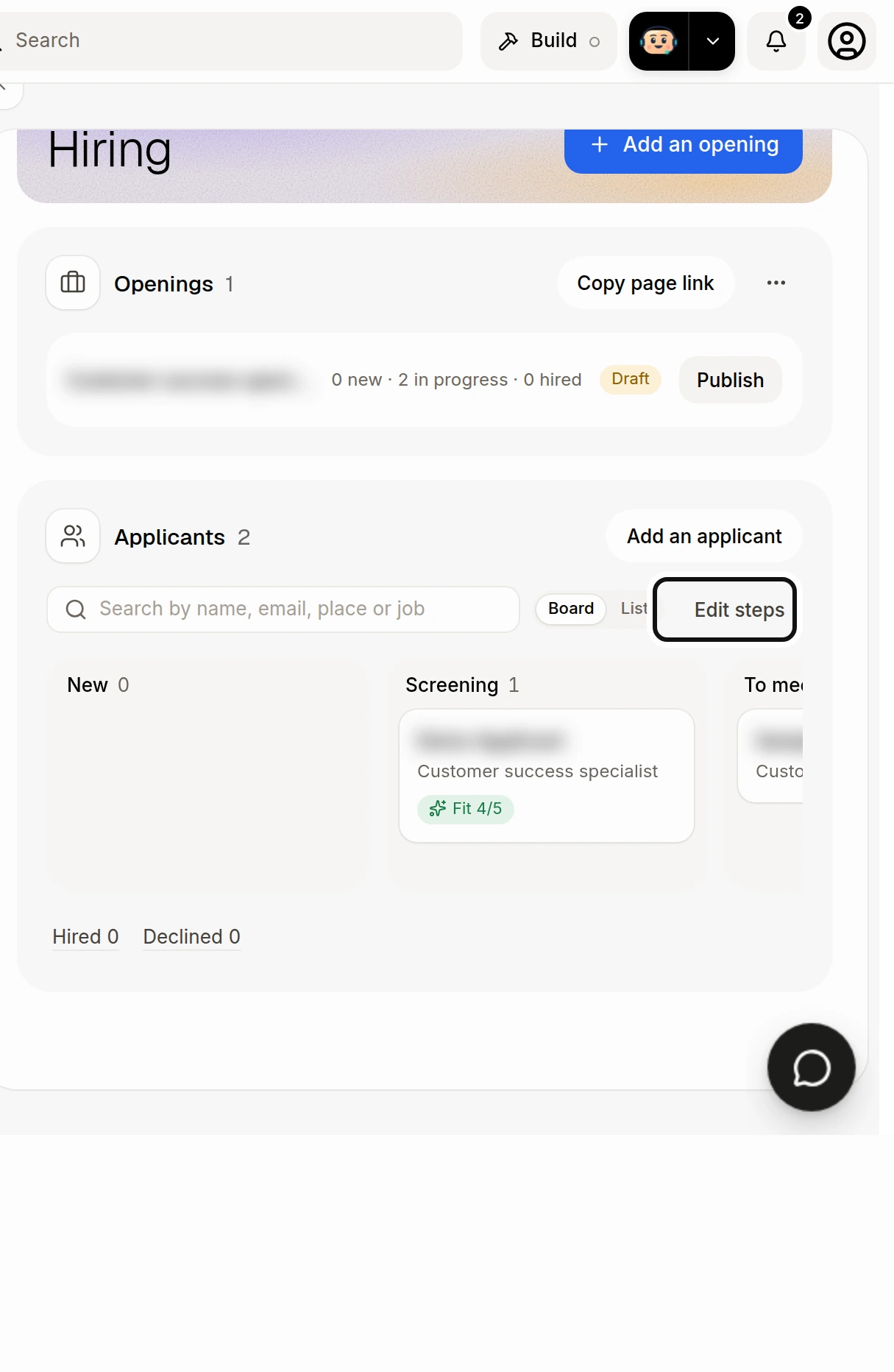
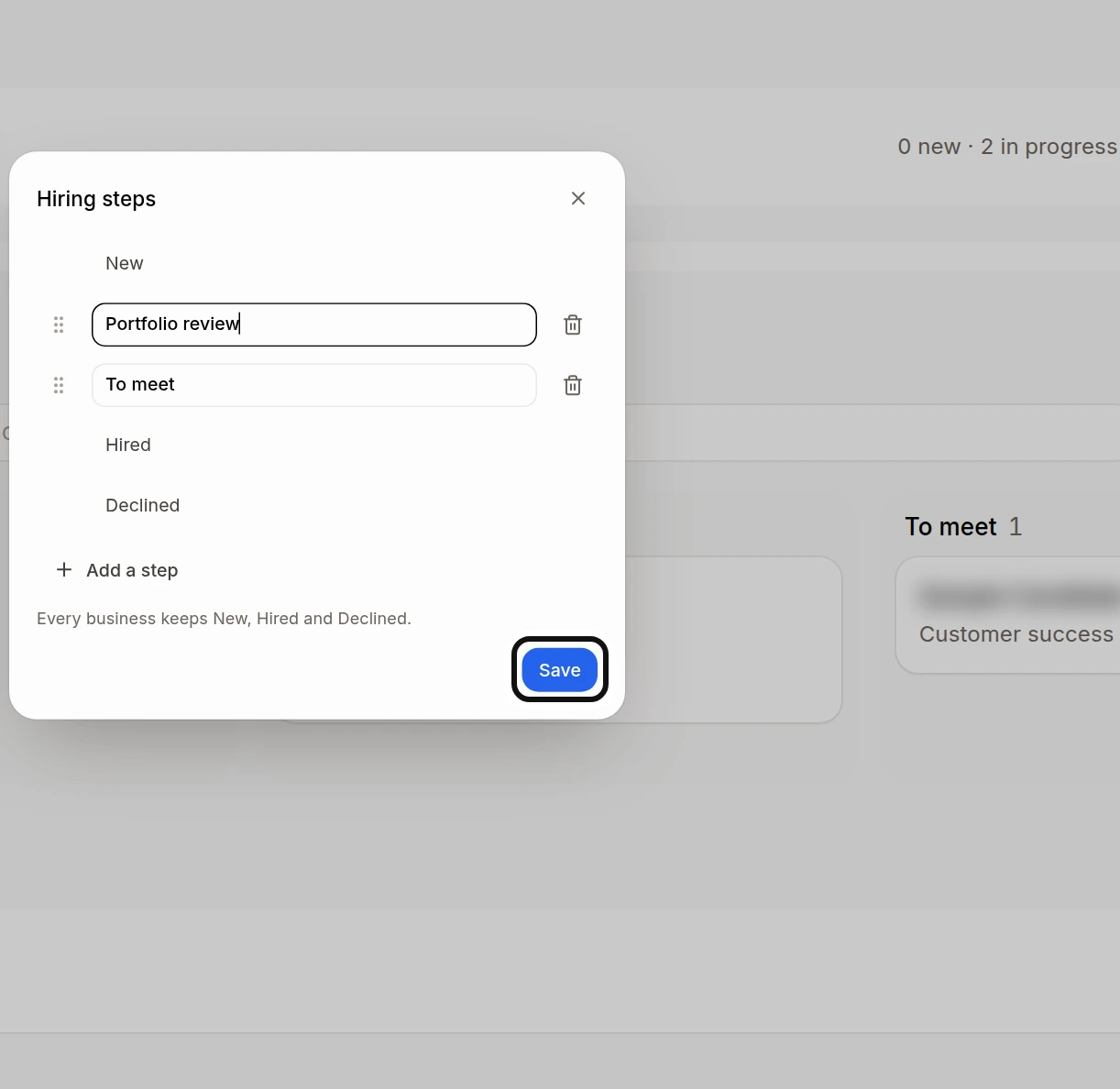
To rename a step, click in its Step name box and type the new name, for example "Portfolio review". A name can have up to 40 characters.
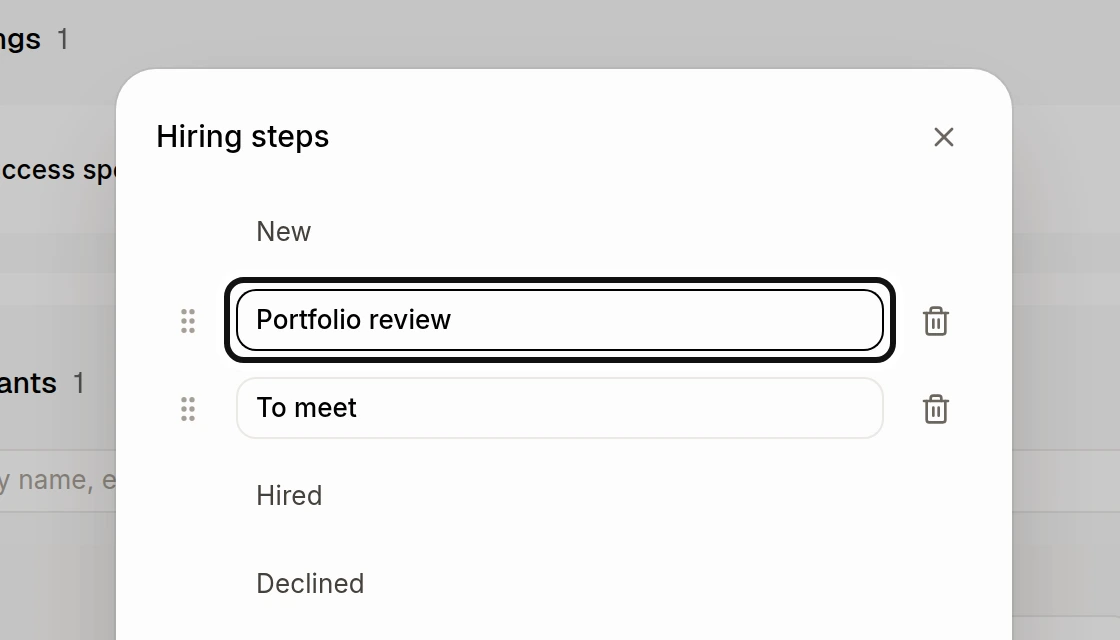
To reorder steps, drag a step by its handle on the left, and drop it where you want it. You can also use the arrow keys on the handle.
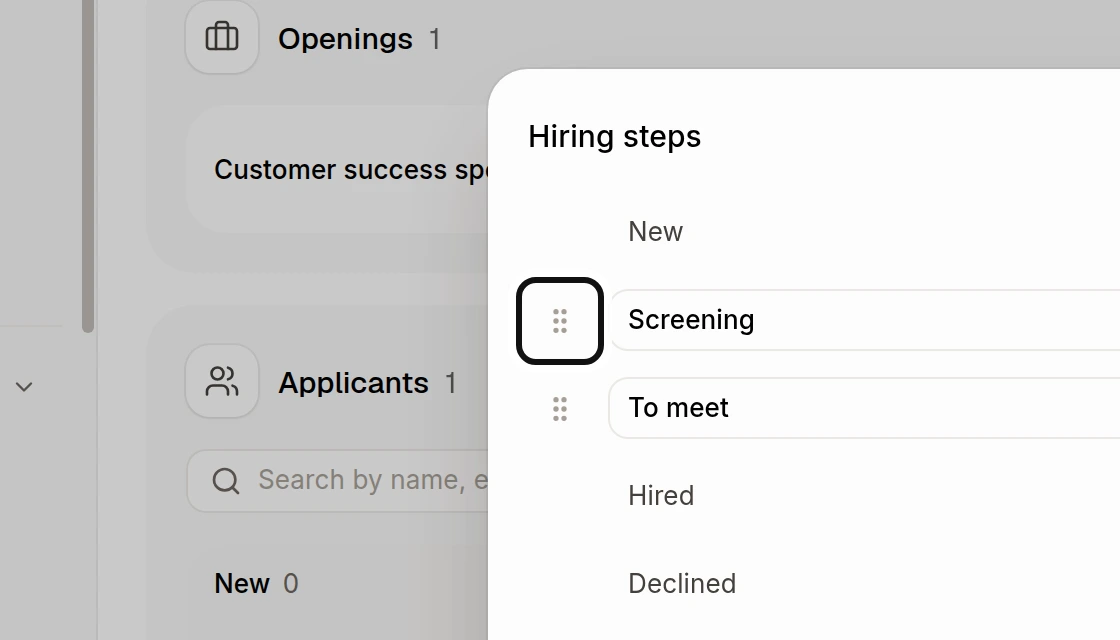
To add a step, click Add a step. A step called New step appears just above Hired. Rename it, then drag it into place. You can have up to 8 steps between New and Hired. Once you reach 8, the Add a step button disappears.
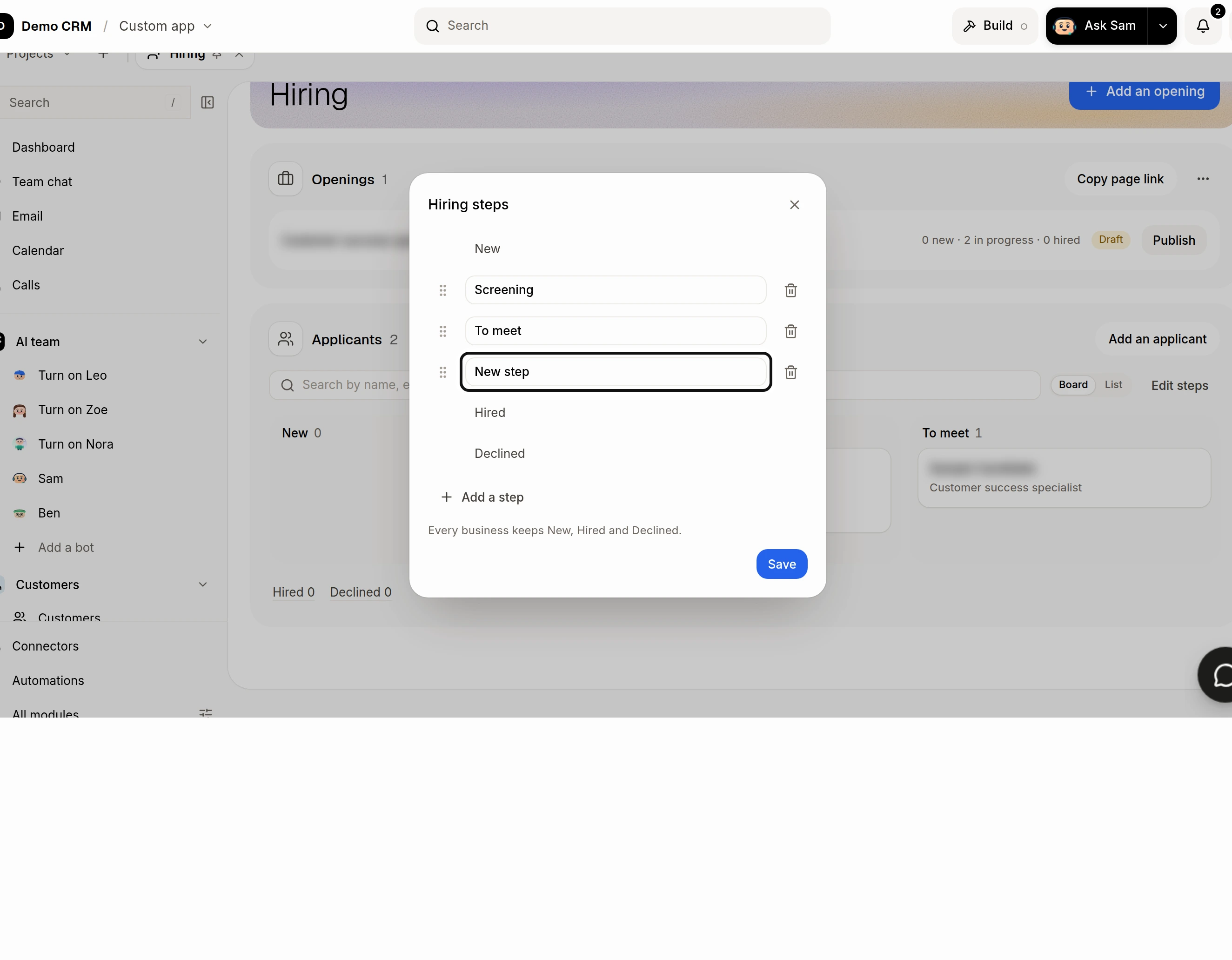
To remove a step, click the trash icon on its row. After you remove it, the note under the list tells you what happens to applicants in that step.
Click Save. You see "Steps saved." and the window closes. If a name is empty, Save stays off and the window says "Give every step a name."
What changes after you save
Your steps become the columns of the Applicants board and the steps in the List view.
They are also the choices on each applicant's page (the Move to button and its menu to choose another step) and in the Step field of Add an applicant.
Renaming a step changes only its name. Applicants, interviews and comments stay where they were.
Removing a step doesn't delete its interviews or comments. They stay on the applicant's page under Other.
If you leave a step with its original name, it keeps showing in each person's own language. A name you type yourself shows exactly as you typed it.
To add applicants and move them between steps, see How do I add an applicant and move them through hiring steps?
Did this answer your question?