How do I add an applicant and move them through hiring steps?
Add an applicant and follow their progress through your hiring steps.
Written by Philippe Genois
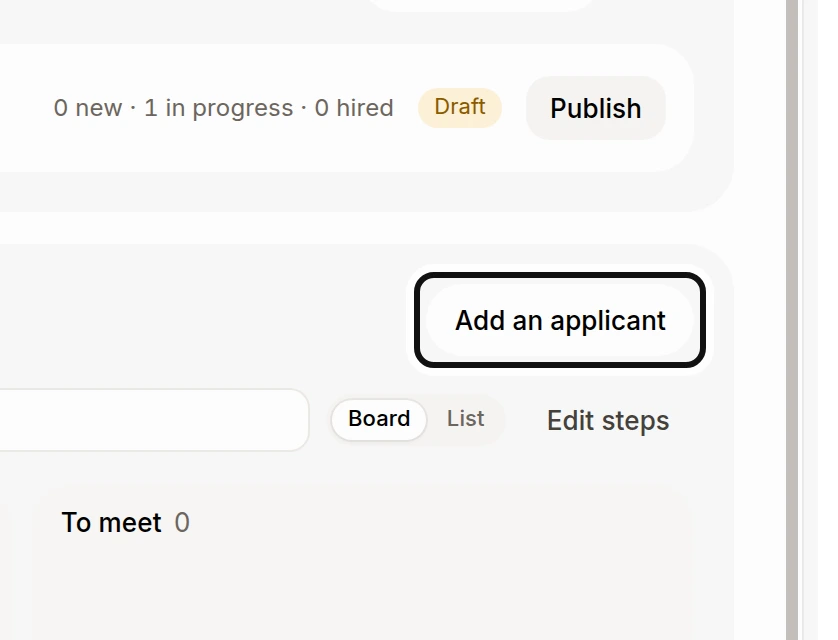
Under Applicants, click Add an applicant.
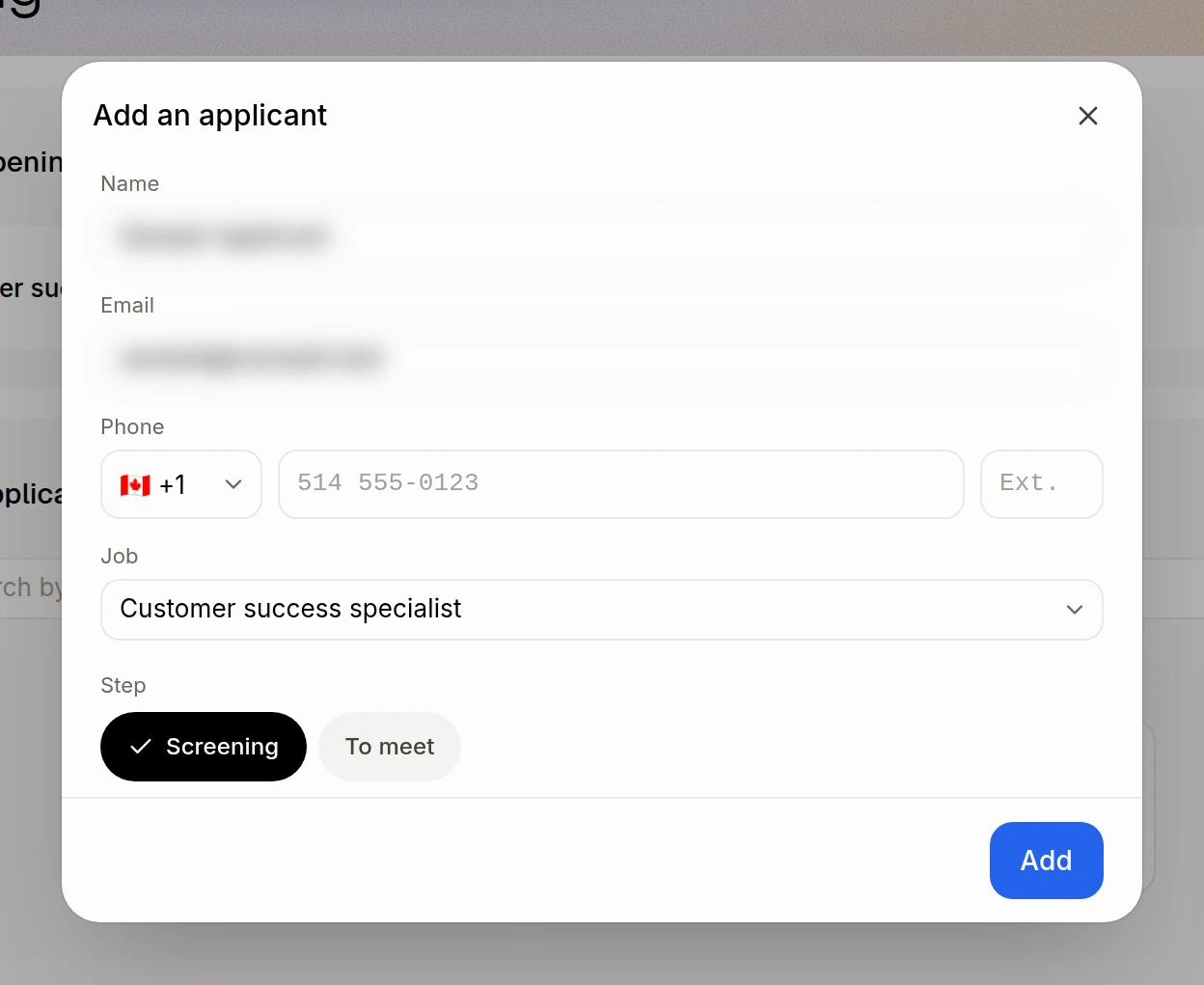
Enter the applicant's name and email or phone, pick or type the job, choose a Step, and click Add. Their page opens. Adding them by hand does not send a message.
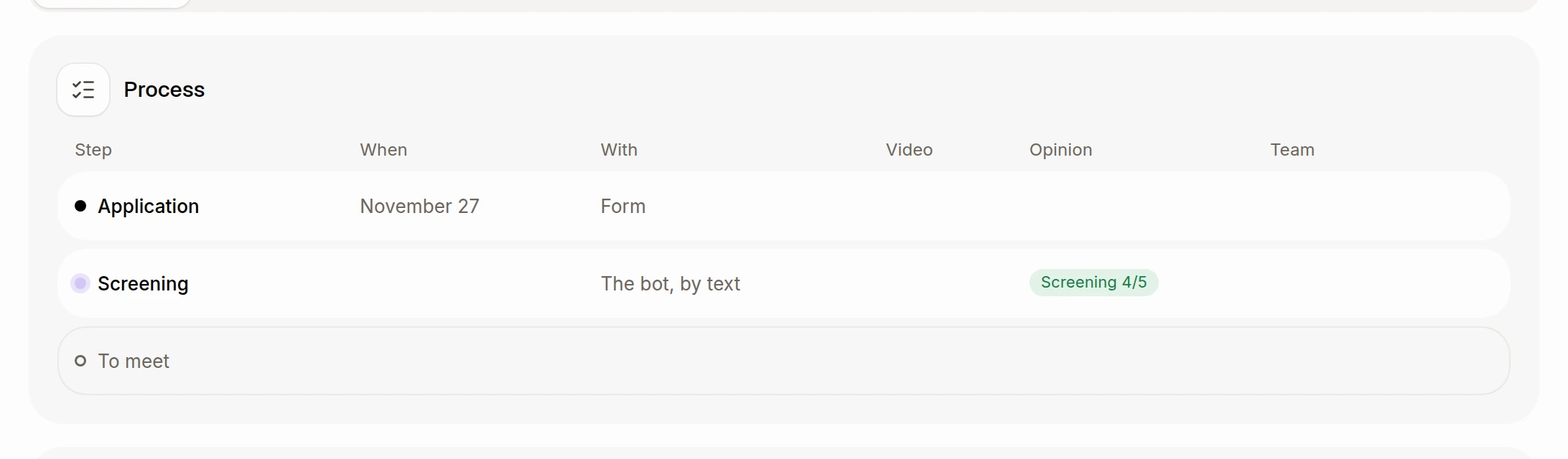
On Overview, see the Process. Select a process row or a tab to see that step. Opening a tab does not move the applicant.
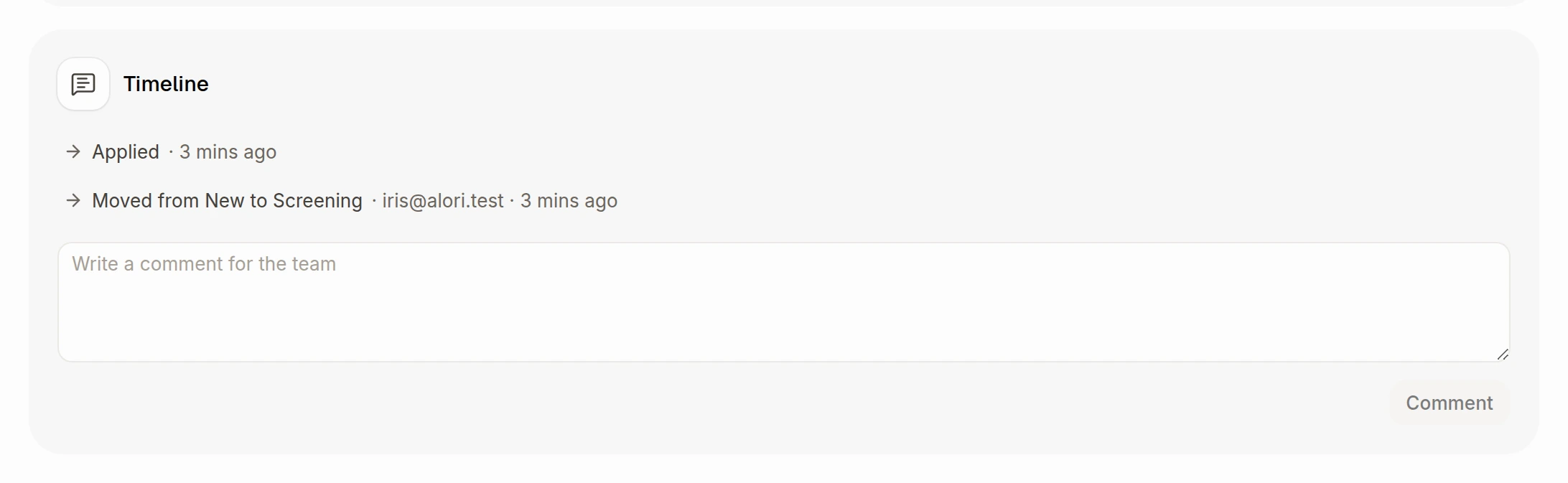
Timeline below the process shows the applicant's activity and moves.
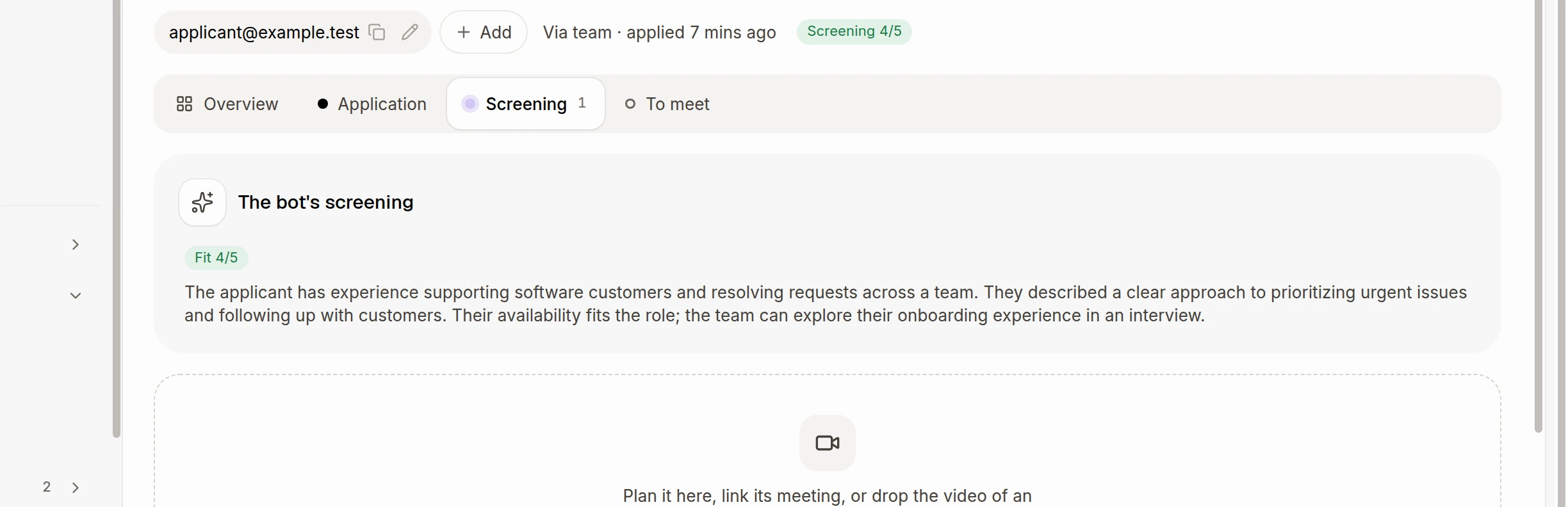
Open Screening to see the bot's screening. Learn how the bot screens applicants.
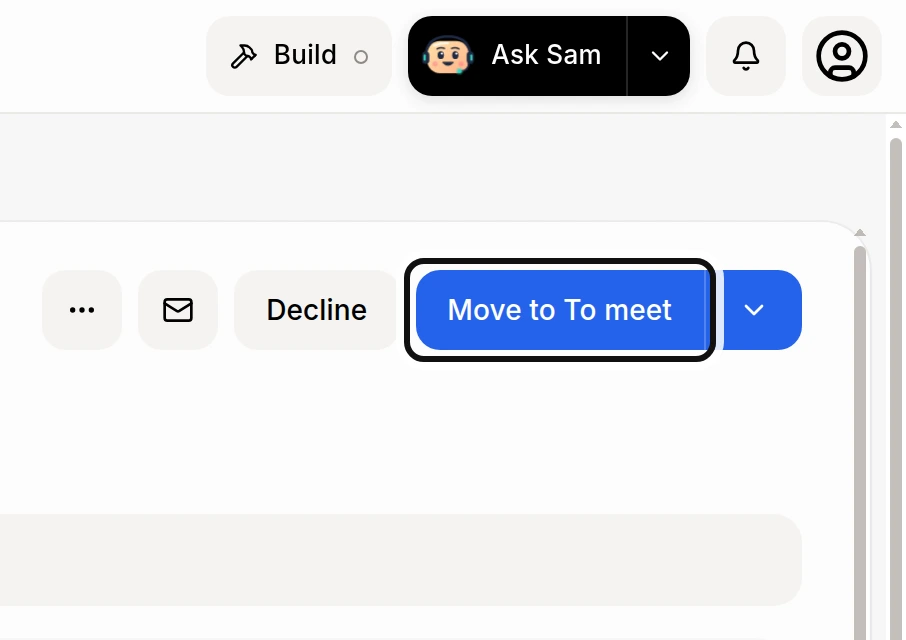
To move the applicant, click the Move to button for the next step, or use its arrow to choose another step. Timeline records the move.
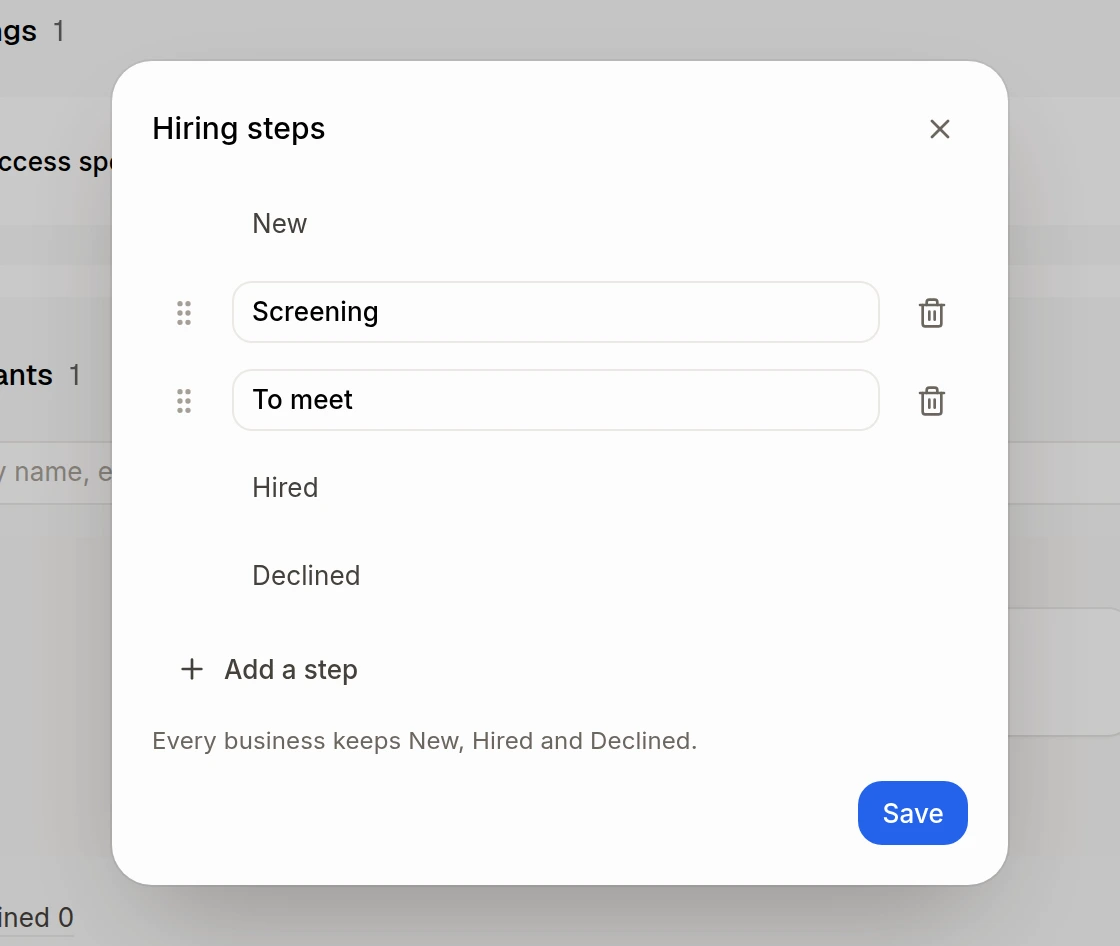
Back in Hiring, click Edit steps. Rename the middle steps, click Add a step, or drag their handles to reorder them, then click Save. New, Hired and Declined stay in place.
Did this answer your question?