How do I reply to a ticket and set its status?
Send a reply and choose what happens to the ticket next.
Written by Philippe Genois
In the Tickets view, select the ticket you want to answer.
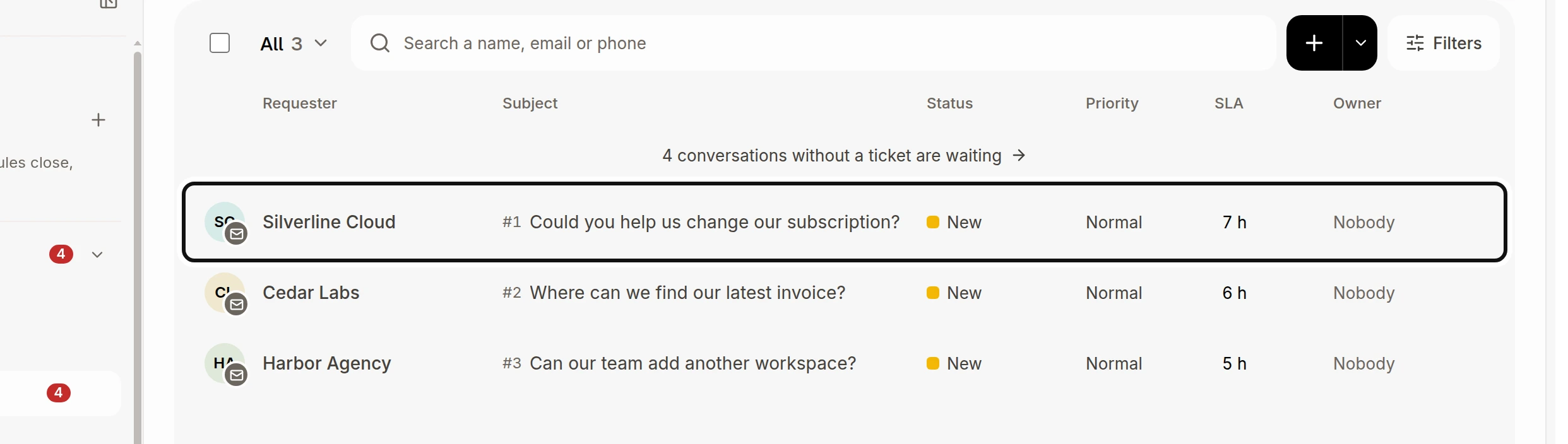
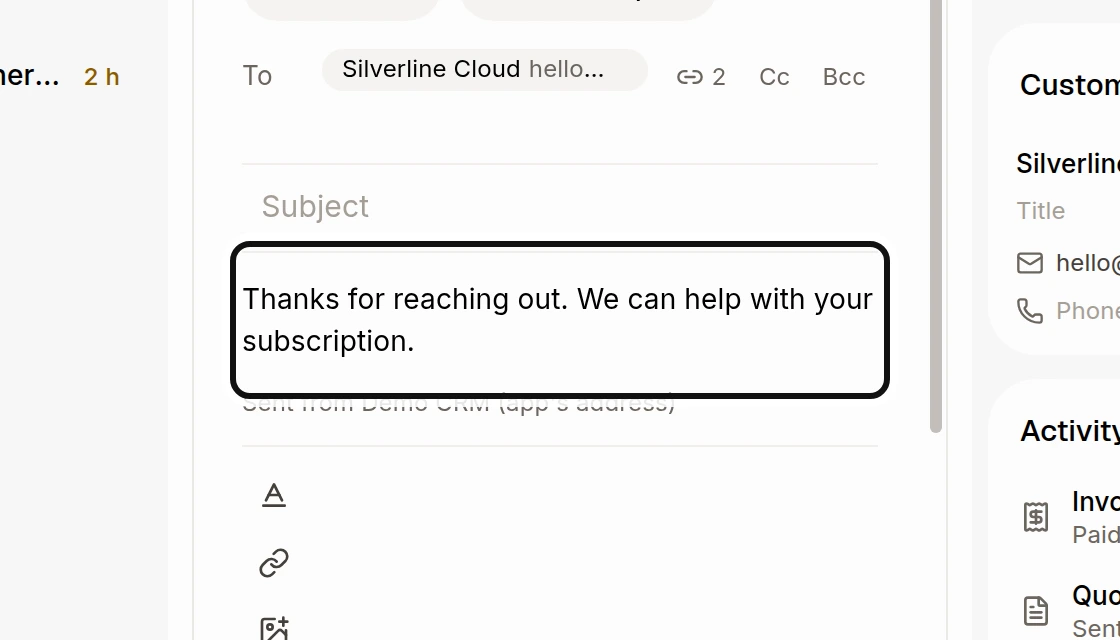
Write your reply in the message box.
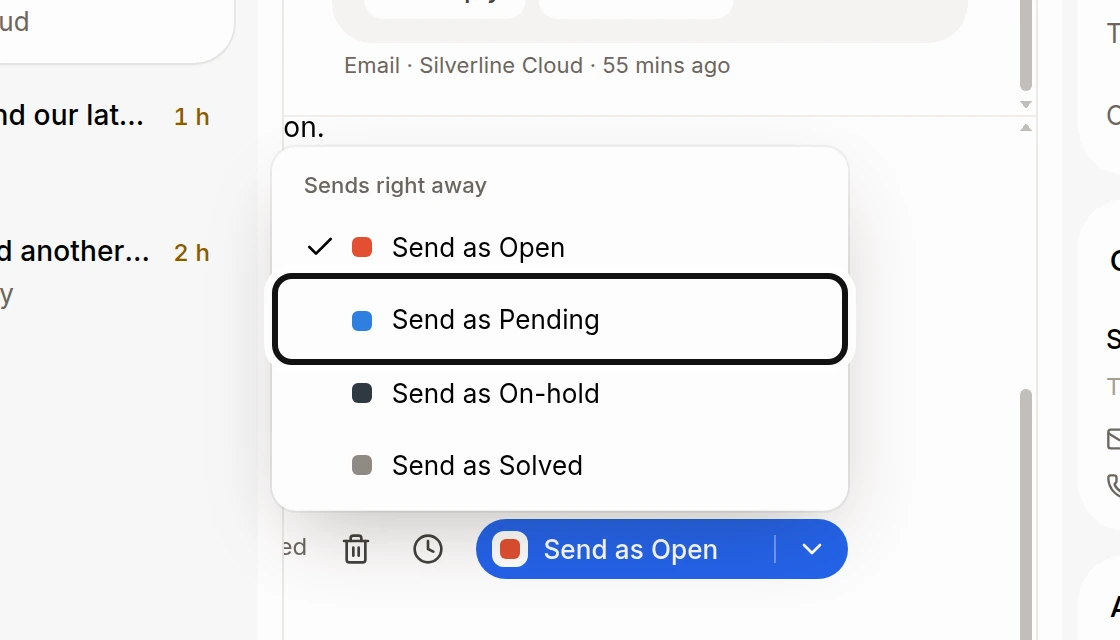
Select the arrow beside Send as Open, then choose a status such as Send as Pending. Choosing it sends the reply right away and sets the ticket's status.
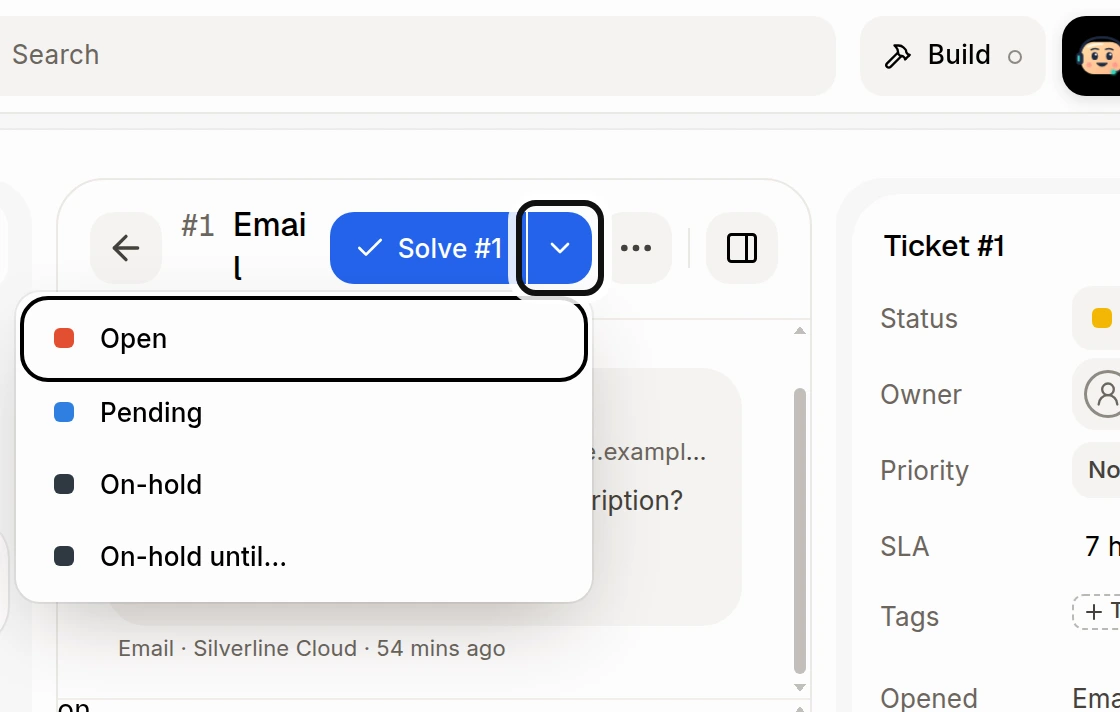
To change a status without sending a reply, select the arrow beside Solve and choose Open, Pending or On-hold. Select Solve itself when the request is finished.
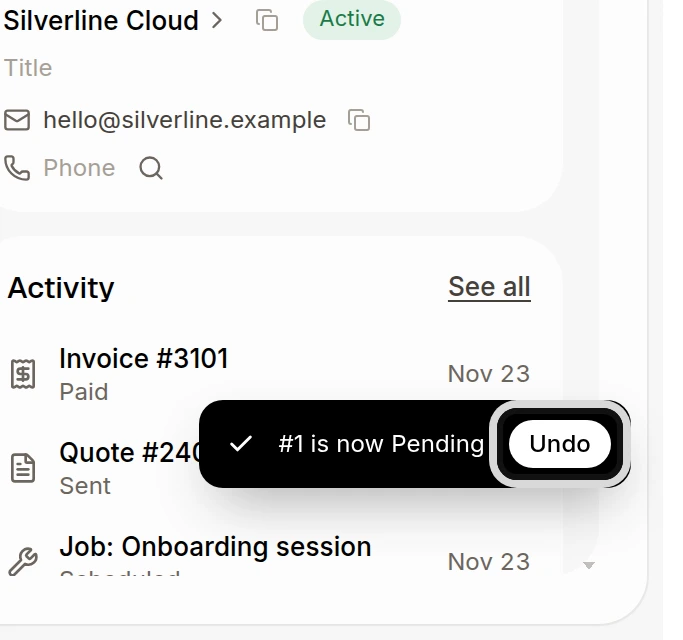
If Undo appears after a status change, select it to return to the previous available status. It does not take back a reply that was sent.
New means no one has answered or taken the waiting ticket yet. Open means the team is working on it. Pending means the team is waiting for the customer. On-hold pauses it until the customer replies or a chosen time. Solved means it is closed.
Did this answer your question?