How do I save a list of people for my campaigns?
Go to Marketing › Lists, click New list, pick tags or people. Or, in a campaign, click A list › New list by criteria. Lists by tags update themselves.
Make the list once in Lists, then pick it in any campaign. A list by tags, fields, kind or language Updates itself, so a new customer, someone you tag or a new deal that matches joins it for the next campaign.
Also called: mailing list, dynamic list, segment, audience, filter by custom field, saved list, contact list, liste d'envoi, liste dynamique, segment, auditoire
Step 1: Open Lists
Click Lists in the left menu, under Marketing. You see each list, whether it Updates itself or holds Chosen people, who is in it and how many people it reaches right now. Click New list. To delete a list, click the bin at the end of its row.
Click: Lists › New list
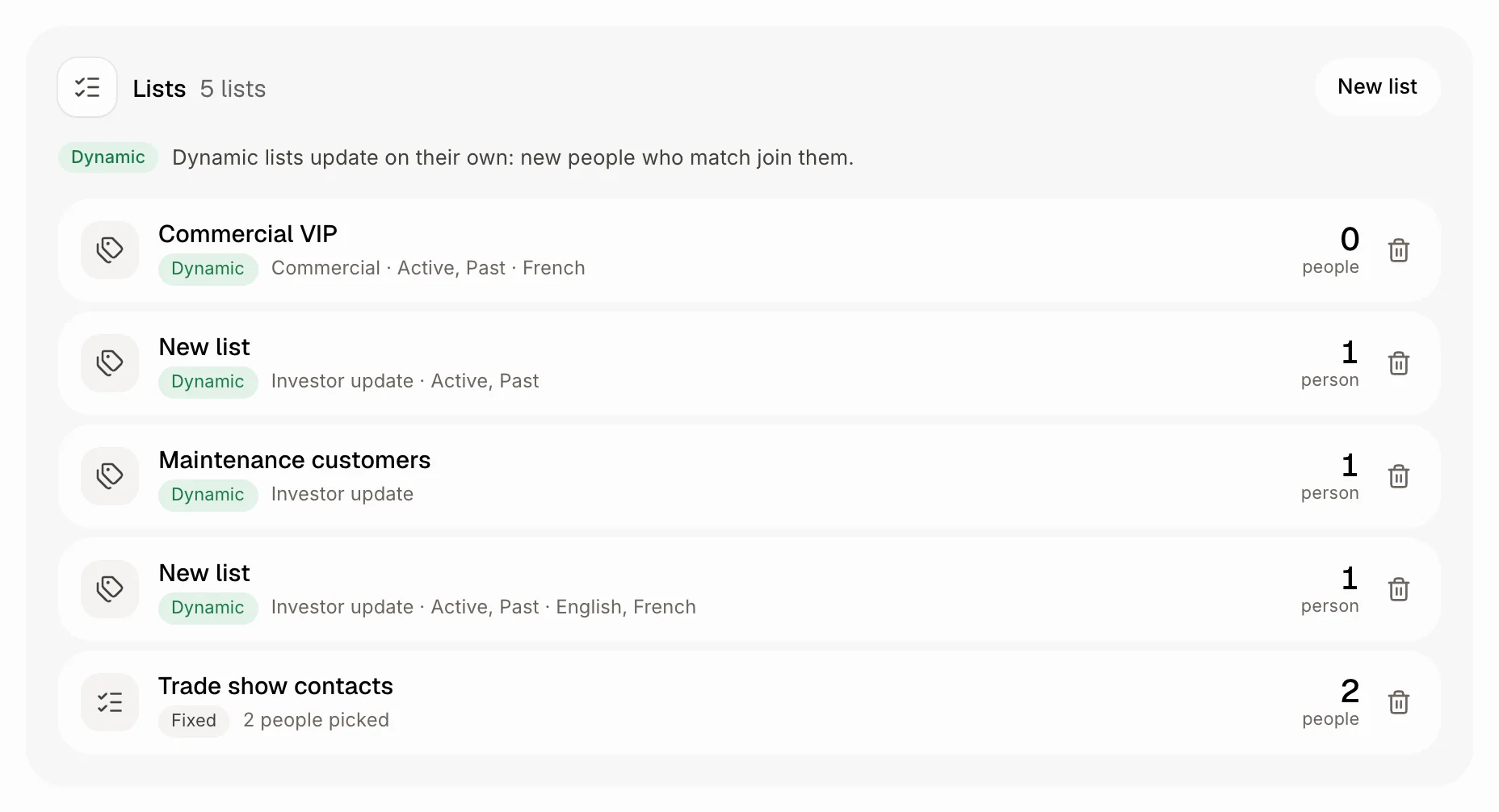
Step 2: Say who is in it
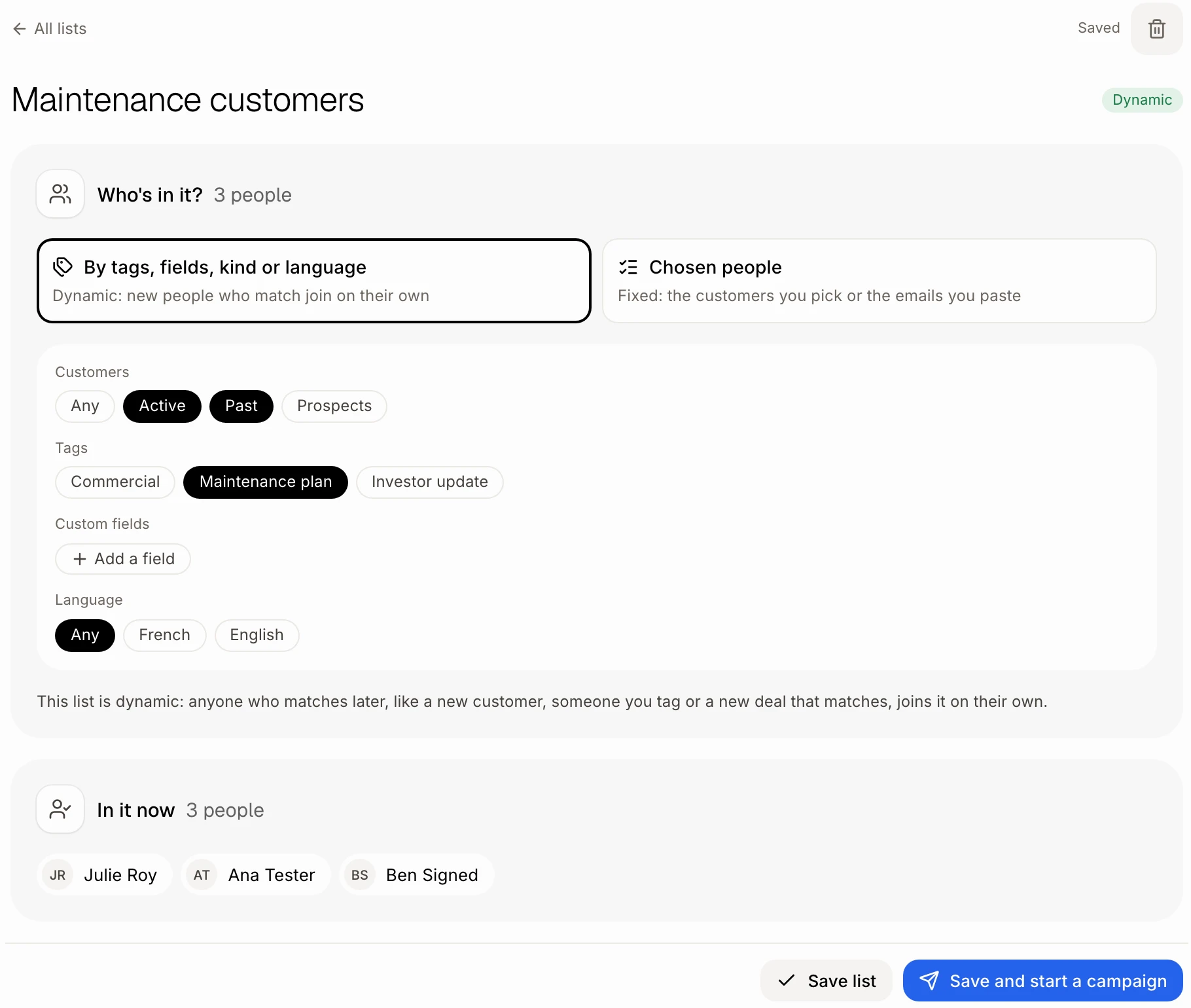
Type a name at the top. Then pick one:
By tags, fields, kind or language: pick Customers (Any, Active, Past, Prospects), Tags or a Language (Any, French, English). Your app has custom fields? Under Custom fields, click Add a field to keep only people whose field matches, like a customer's, their company's or their deal's field. People must match every field. In it now shows who matches today. This list updates itself as your customers change.
Chosen people: search your customers or paste a list of emails. This list of chosen people stays as you made it.
It saves as you go. Click Save list when you're done, or Save and start a campaign to send it something right away.
Click: a name › Tags › Save list
Step 3: Use it in a campaign
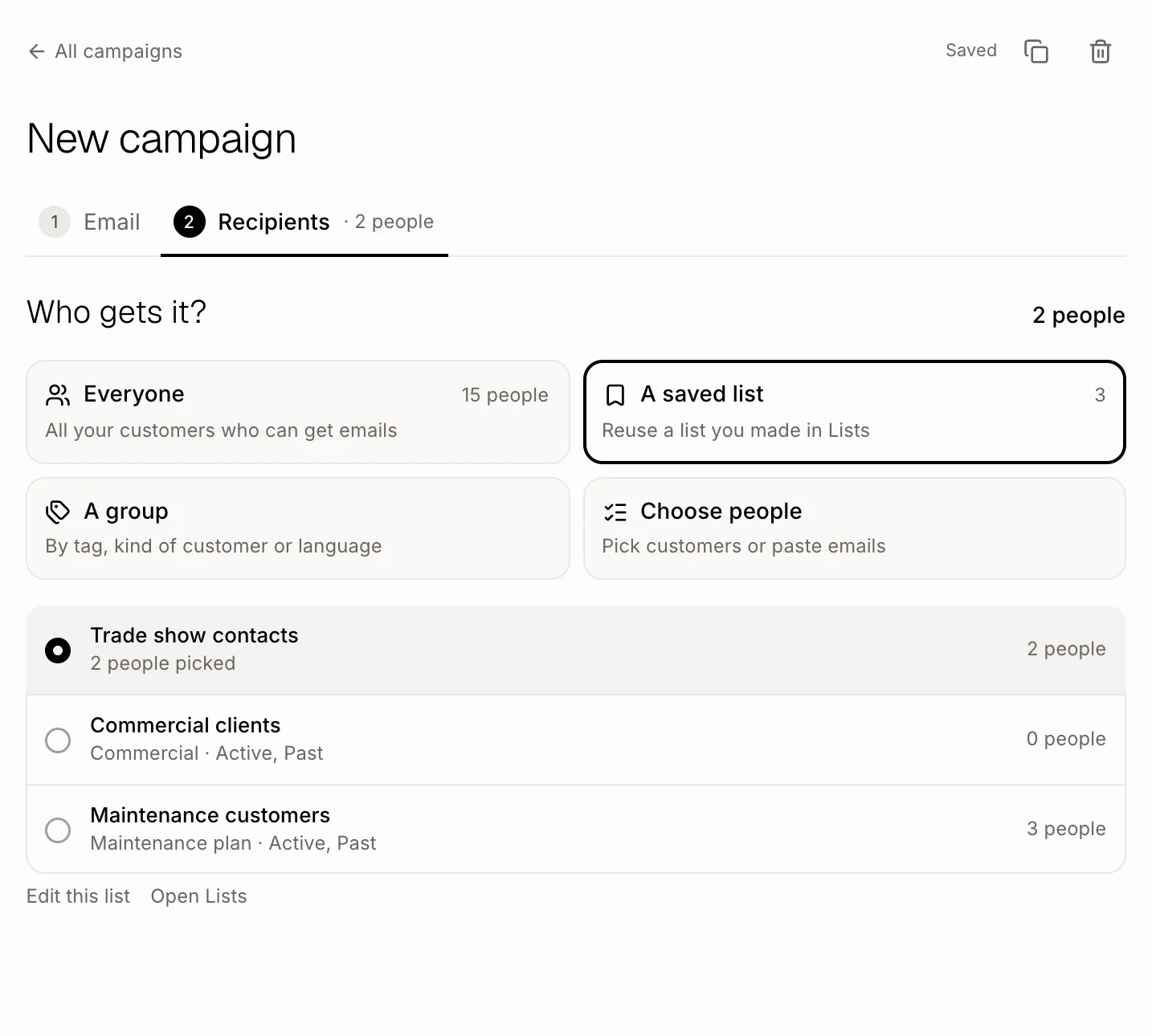
In a campaign, on step 2 Recipients, click A list and pick your list. Who gets it is read from the list when the campaign goes out. A list that updates itself shows its criteria right under it: change them there and the list changes too.
Click: Recipients › A list › your list
Step 4: Make a list from a campaign
You can also make a list without leaving a campaign:
New list by criteria: on step 2 Recipients, click A list › New list by criteria. Alori makes a list named after the campaign right away. Pick its Customers, Tags or Language just below. It updates itself and shows in Lists.
Save as a list: pick Chosen people, add people, click Save as a list, type a name and click Save. An older campaign that kept its own criteria shows them under A list, with Save as a list too.
Make a list of these people: in a sent campaign, under Recipients, pick Opened or Clicked and click it. You get a list of chosen people named like "Spring tune-up · opened", opened in Lists.
Or ask Alori: "make a list called VIP with everyone tagged VIP", or "make a list of who opened the spring tune-up campaign".
Click: Recipients › A list › New list by criteria
Good to know
People without an email, or who unsubscribed, are always left out, even when they are in a list.
Changing a list doesn't change campaigns already sent.
Deleting a list sends its drafts back to Everyone.
If it doesn't work
"No lists yet." Click New list in Lists, or New list by criteria under A list in a campaign.
"A scheduled campaign uses this list. Change it or unschedule it first." Open that campaign and pick other people, or unschedule it, then delete the list.
No Lists in the menu. Lists come with Campaigns, for people who can change settings. Ask the owner.