How do I save my app with an account?
On Home, under Keep your app, continue with Google or Microsoft, or enter an email and a password. Your app, credits and chats are kept.
Open Home and use Keep your app: continue with Google or Microsoft, or create an account with your email and a password. Your app, your credits and your chat history move into your account, so you can open them on any device.
Also called: create account, sign up, keep my app, save my project, créer un compte, s'inscrire, sauvegarder mon app
Step 1: Open Keep your app
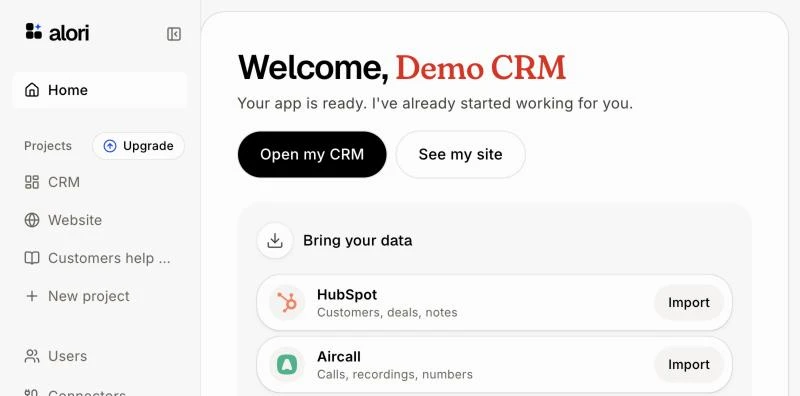
Your app opens on Home once it's built, with Keep your app right under the welcome. To come back to it, click Home at the top of the left menu, or the Alori logo. Save this project, in the bar at the top of your other pages and at the bottom of the side menu, opens the same form in a window.
Click: Home › Keep your app
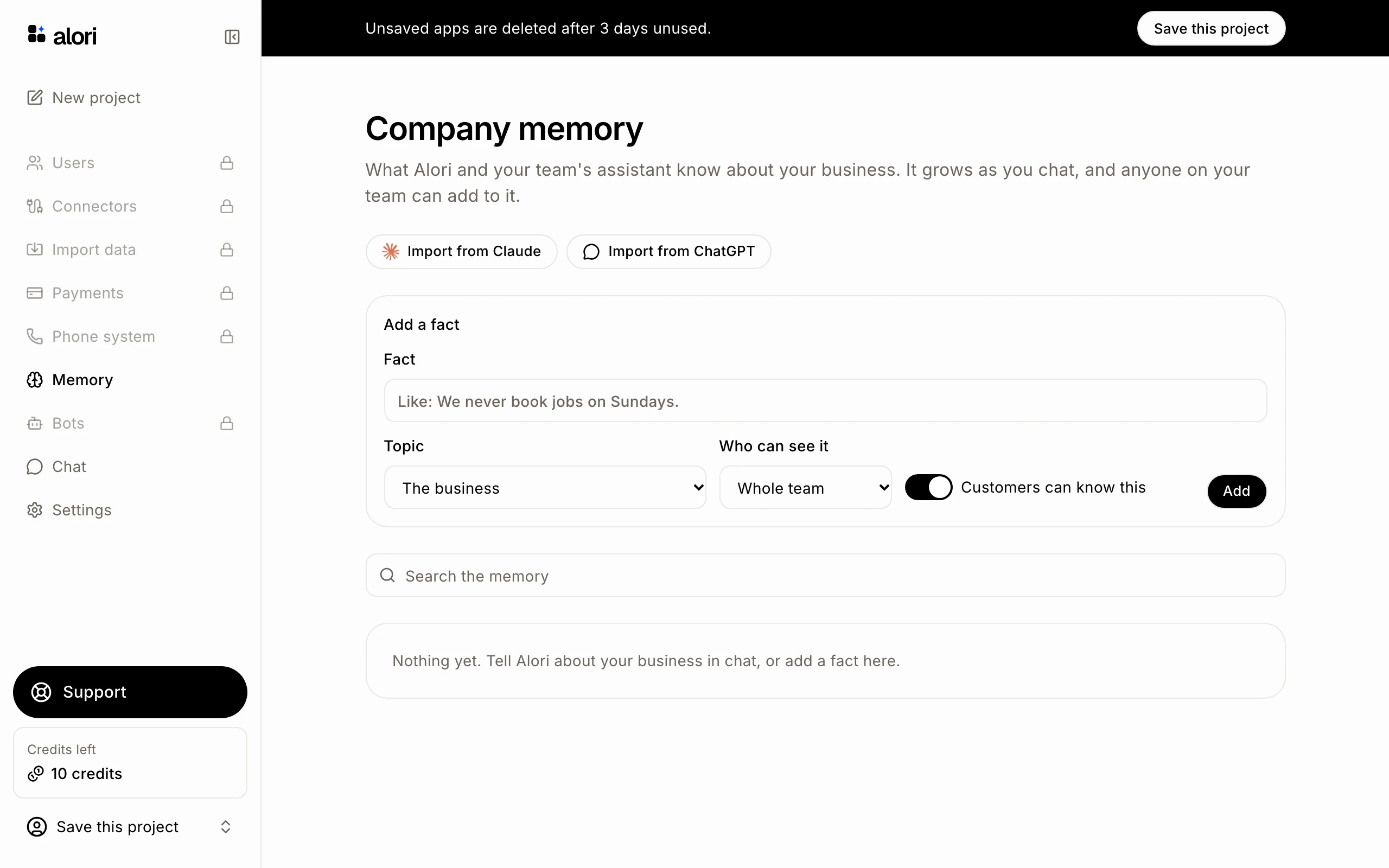
Step 2: Pick how to sign up
Click Google or Microsoft and choose your account. Or fill in Email and Password (at least 8 characters). The Save this project window shows the same short form.
Click: Google (or fill in your email and password)
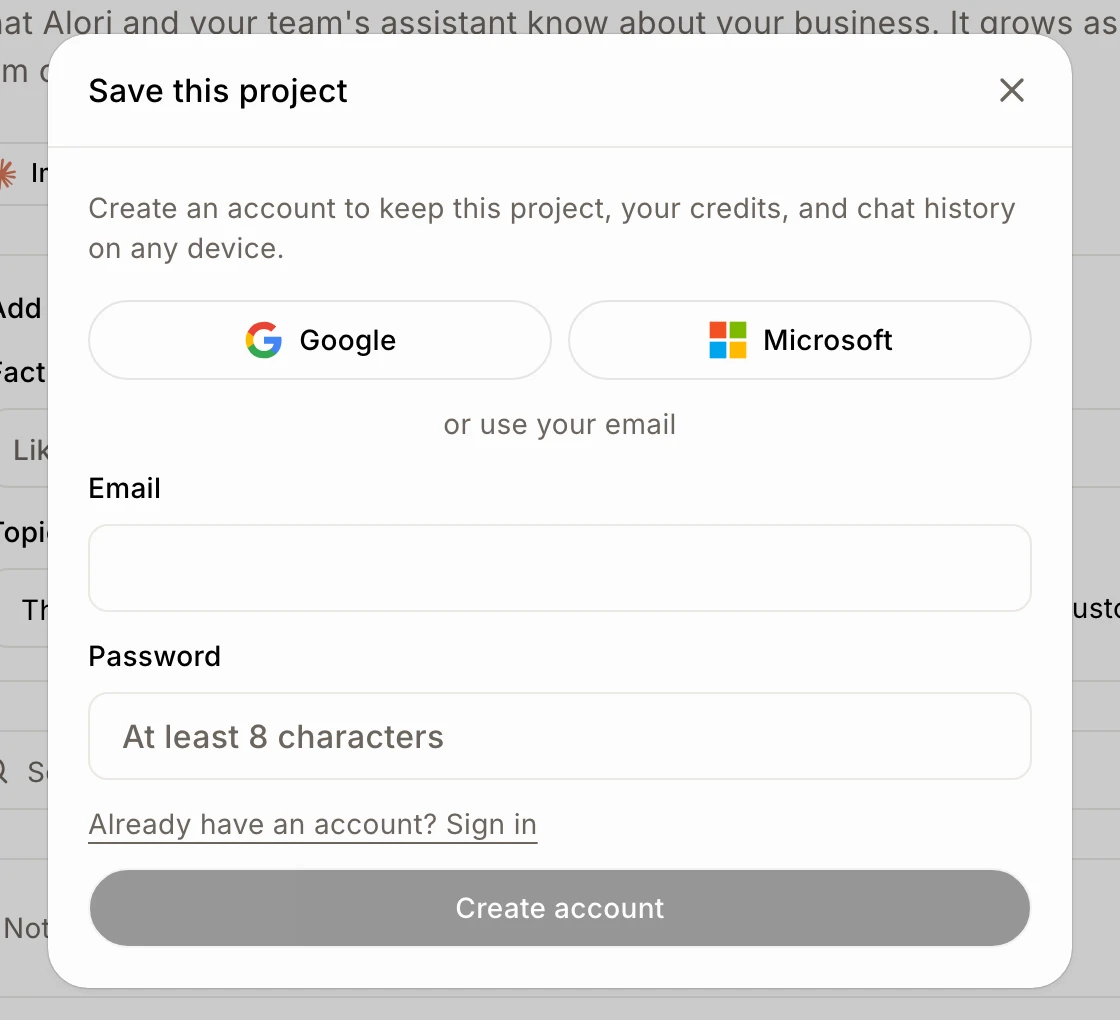
Step 3: Create the account
If you used your email, click Create account. Keep your app and the bar go away: your app is saved to your account.
Click: Create account
If it doesn't work
"We couldn't create that account. The email may already have one, or the password is too short." Use a password of at least 8 characters. If you already have an account, click Already have an account? Sign in.
"Lots of accounts are being created right now. Try again in a few minutes, or continue with Google." Wait a few minutes, or sign up with Google.
"We couldn't confirm you're not a robot. Reload the page and try again, or continue with Google." Reload the page and try again.
"Google sign-in didn't start. Try again, or use your email." Try again, or use your email and a password. The same goes for Microsoft.