How do I see my projects on a timeline?
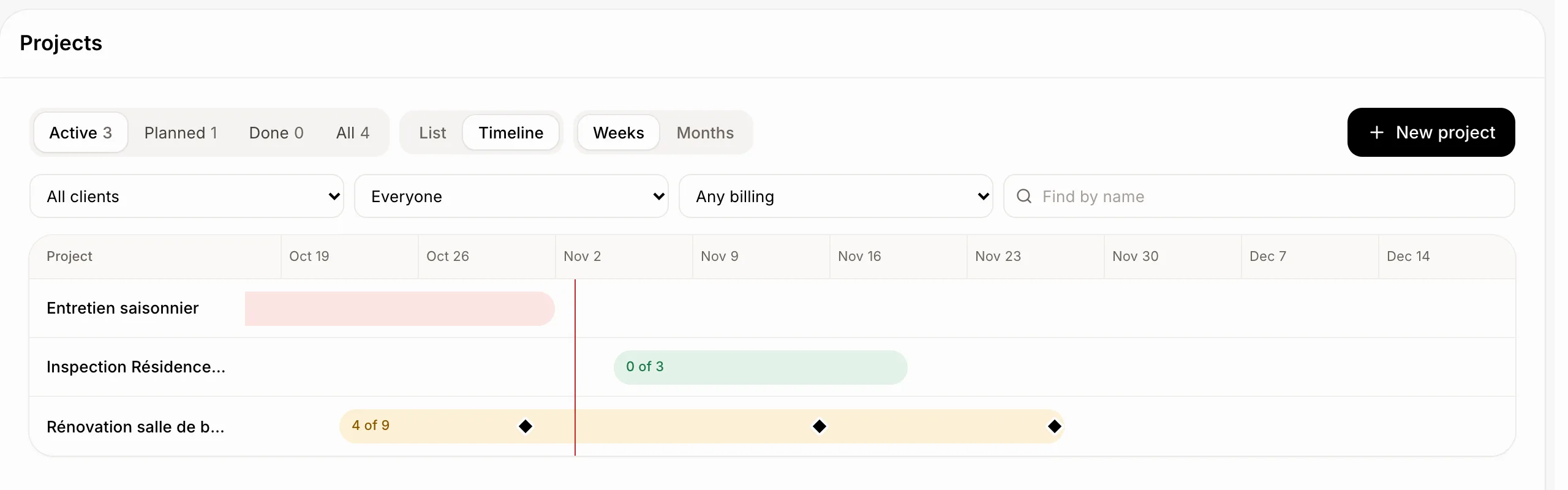
In Tasks › Projects, click Timeline. Each project is a bar from its start date to its target date, with its milestones as marks and today as a red line.
The timeline shows when each project runs, side by side, so you see what overlaps and what is late.
Also called: roadmap, Gantt, calendar of projects, project schedule, feuille de route, échéancier, calendrier des projets
Step 1: Open the timeline
Click Tasks in the left menu, then Projects, then Timeline. Pick Weeks or Months. Scroll sideways to go back or ahead; the names stay put.
Click: Tasks › Projects › Timeline
Step 2: Read a bar
Each bar runs from the project's Start date to its Target date and shows how much is done, tasks and tickets together. Its colour is the project's health: green on track, yellow at risk, red off track, grey with no update yet. The black marks are its milestones. Click a bar or a name to open the project.
Good to know
Set the Start date on the project's page. With none, the bar starts the day the project was made.
A project with no target date fades out at its end.
The tabs Active, Planned, Done and All, and the filters, work on the timeline too.
Alori remembers your choice of List or Timeline in the page's link, so you can share it.
You can ask Ask Sam: "the Benali renovation starts November 10".