How do I talk instead of typing in Team chat?
Click the mic under the message box and talk. Your words show in the box. Press Enter to stop the mic, then Enter again to send.
In Team chat, click the mic under the message box and say your message. Your words show in the box as you talk. Press Enter to stop the mic, read it over, then press Enter again to send.
Also called: voice typing, dictation, speech to text, talk to type, dicter, dictée, parler au lieu d'écrire, saisie vocale
Step 1: Click the mic
The mic is in the row under the message box, next to the @. It works in a channel, a direct message and a thread reply. If you already typed something, what you say goes after it.
Click: Team chat › your channel › Talk instead of typing
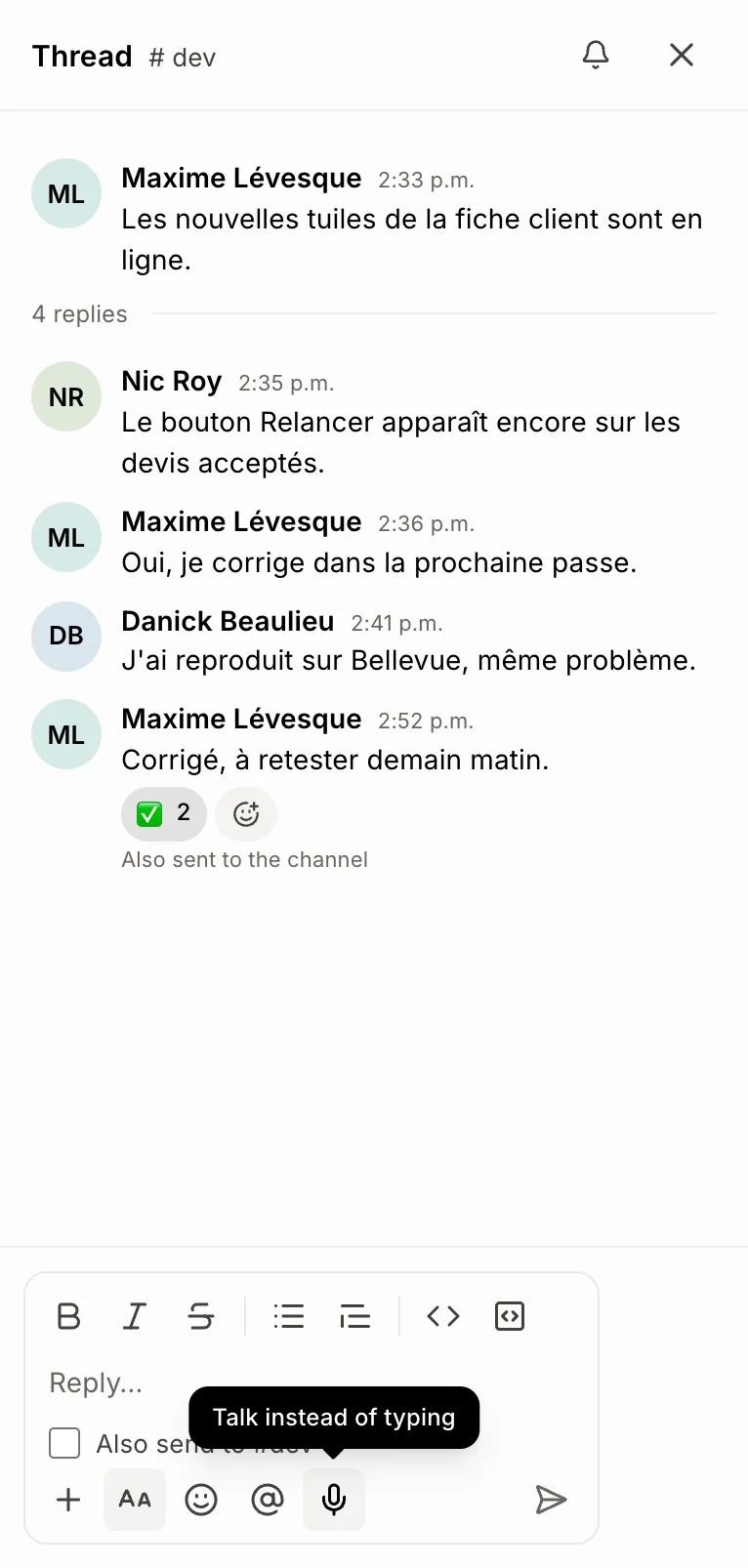
Step 2: Say your message
The mic turns red and the box says Listening… Enter stops. Your words show in the box as you talk. Pauses don't stop the mic, so take your time.
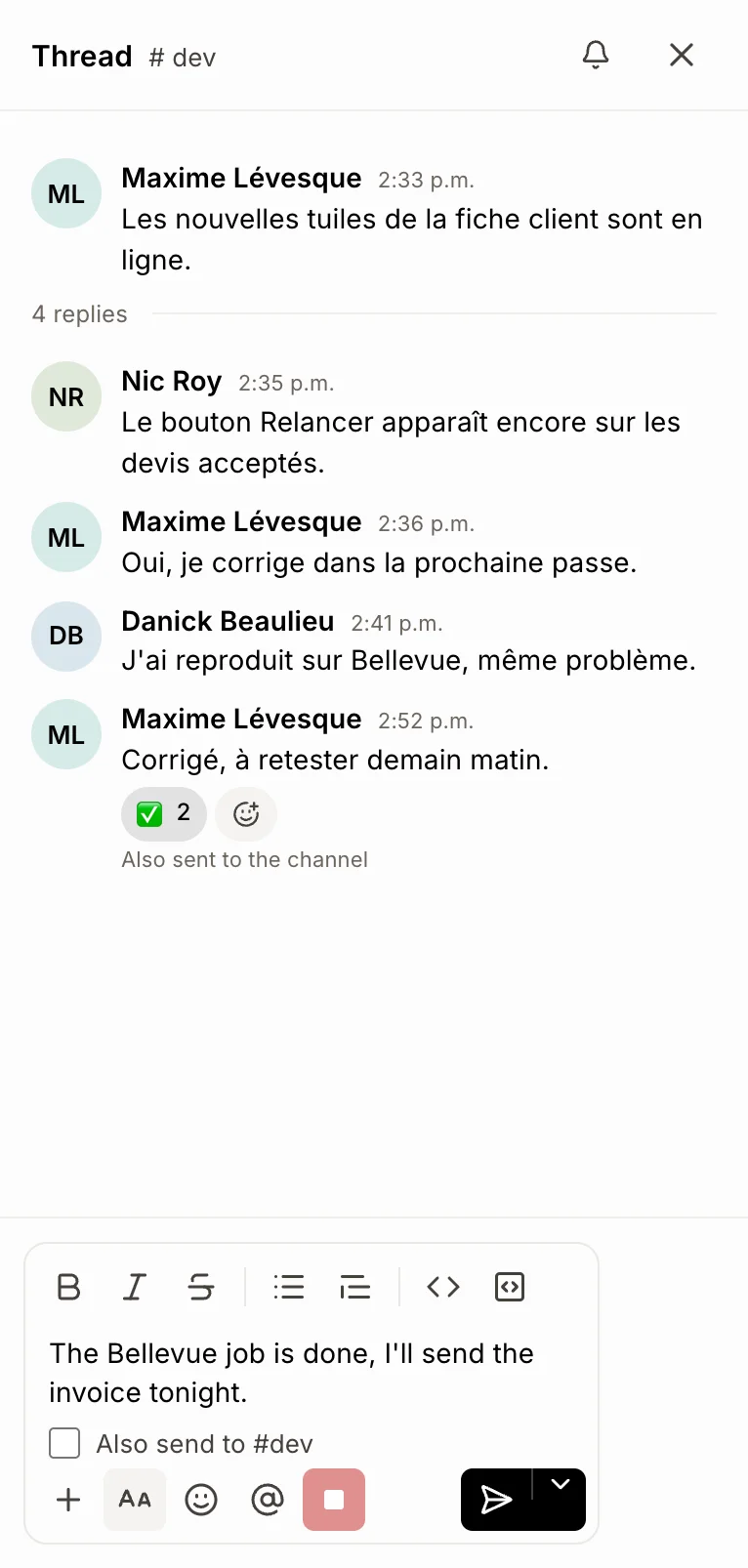
Step 3: Press Enter to stop, Enter again to send
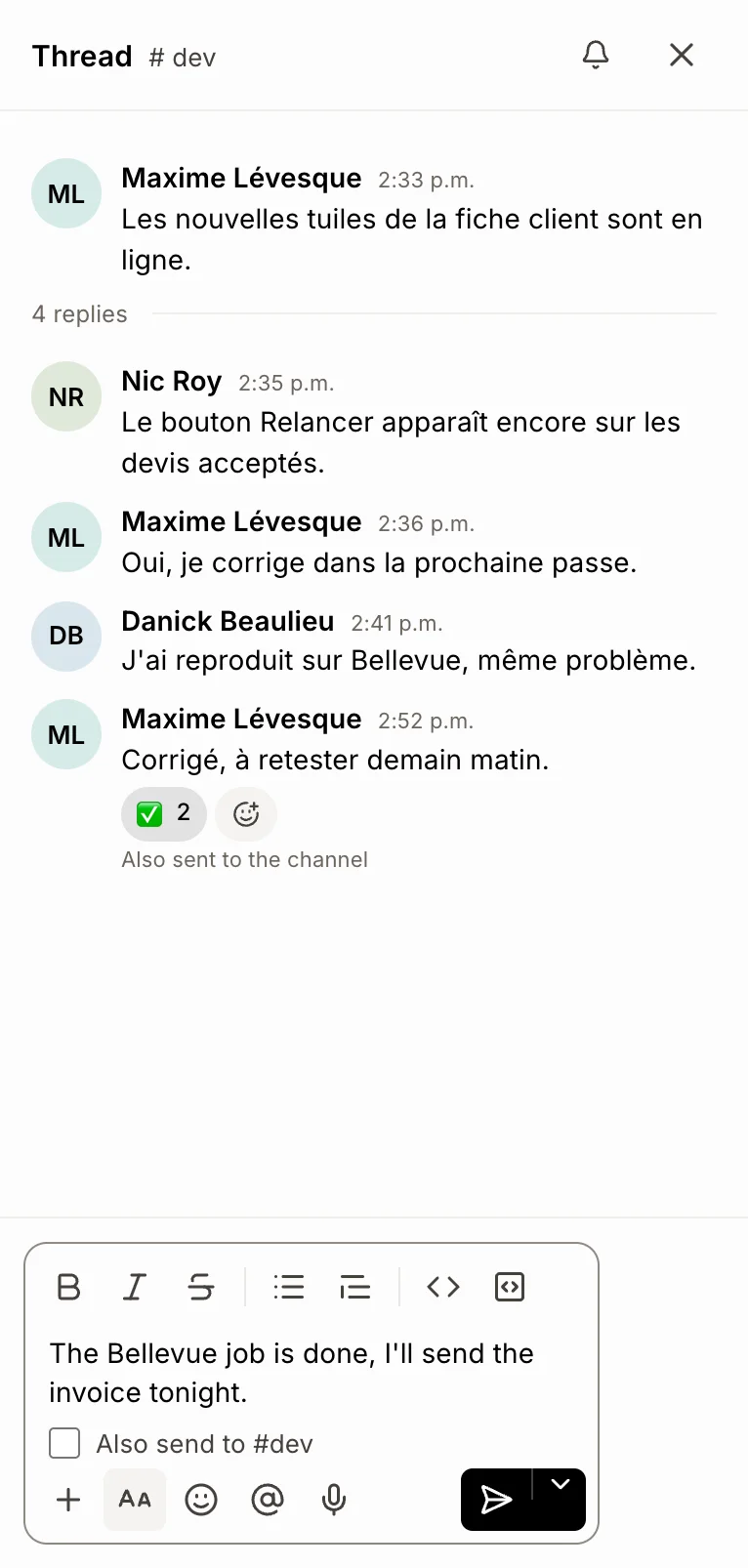
Press Enter (or click the red mic) to stop listening. Nothing is sent yet: your words stay in the box, so you can fix a word first. Press Enter again, or click the send button, to send. Clicking send while the mic is on stops it and sends.
If it doesn't work
No mic button: your browser can't turn speech into text (Firefox, for example). Use Chrome, Edge or Safari.
"Your browser is blocking the microphone.": click the icon at the left of the address bar, allow the microphone, then try again.
"No microphone found.": plug one in or check your computer's sound settings, then try again.
"Talking doesn't work in this browser.": type it instead, or use Chrome, Edge or Safari.