How do I use a Threads channel in Team chat?
Follow topics in a Threads channel, filter them by tag, close a thread when it's done and reopen it later.
Written by Philippe Genois
A Threads channel is a Team chat channel that works like a forum. Each topic is its own thread with a title, so people can follow separate discussions. You can tag threads, filter by tag, and close a thread when it's done.
Also called: forum channel, forum, Discord forum, close a thread, reopen a thread, thread tags, Closed tag
To make a Threads channel and start your first thread, see How do I use Team chat on my phone?. This article is about using one once it exists.
Read the list and reply
Click your Threads channel in the list on the left. You see its threads.
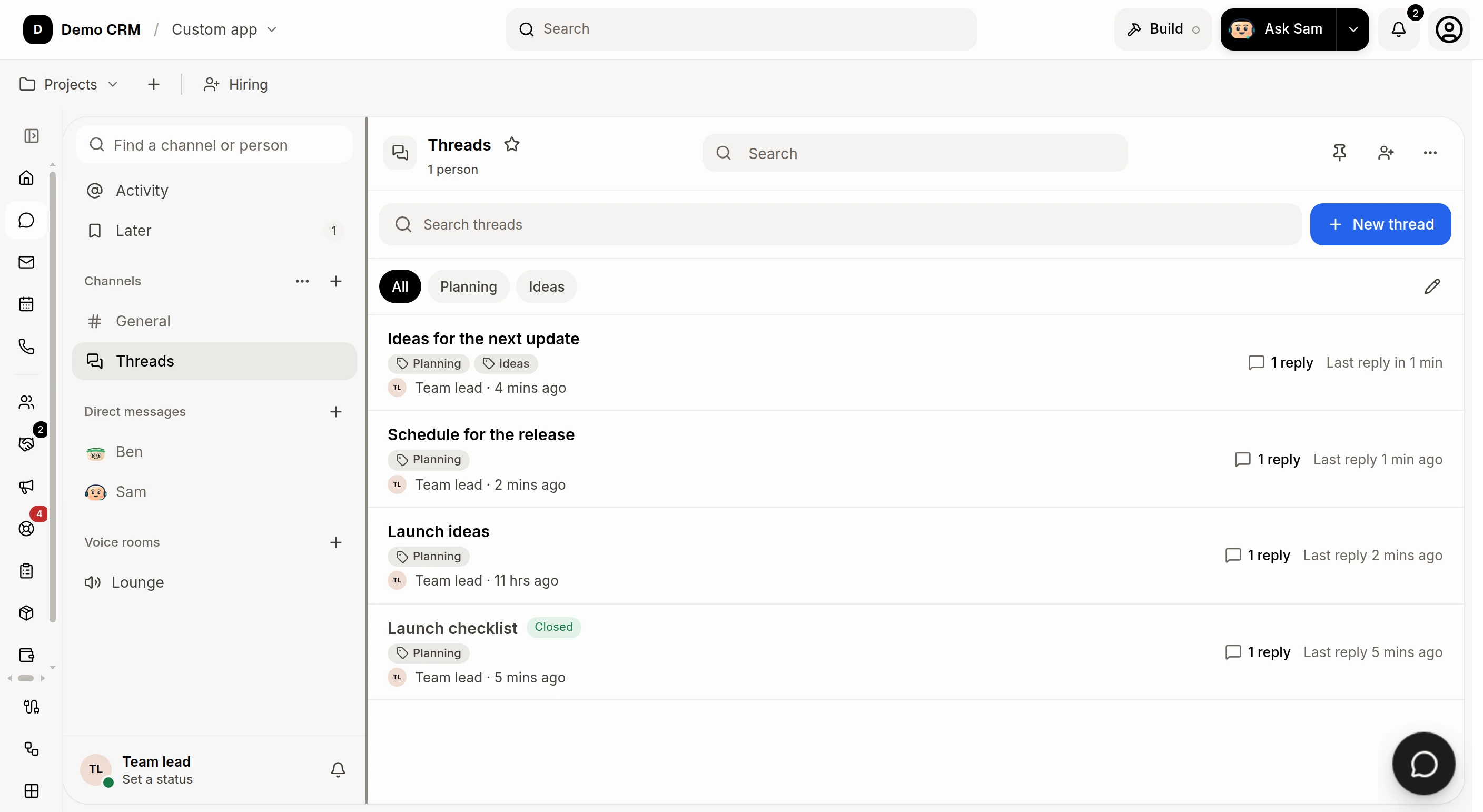
Each row shows the thread's title, its tags, who started it and when, how many replies it has, and when the last reply came. The thread with the latest reply is at the top. Open threads sit above closed ones.
Click a thread to open it.
It takes the place of the list, with its title at the top.
Type in the Reply… box and send your answer.
Click the arrow at the top left (Back to the threads) to return to the list.
To find a thread, type in Search threads. It looks in titles and in the first words of each thread.
Filter by tag
In your Threads channel, look at the row of tags above the list. It starts with All.
Click a tag to see only the threads that carry it.
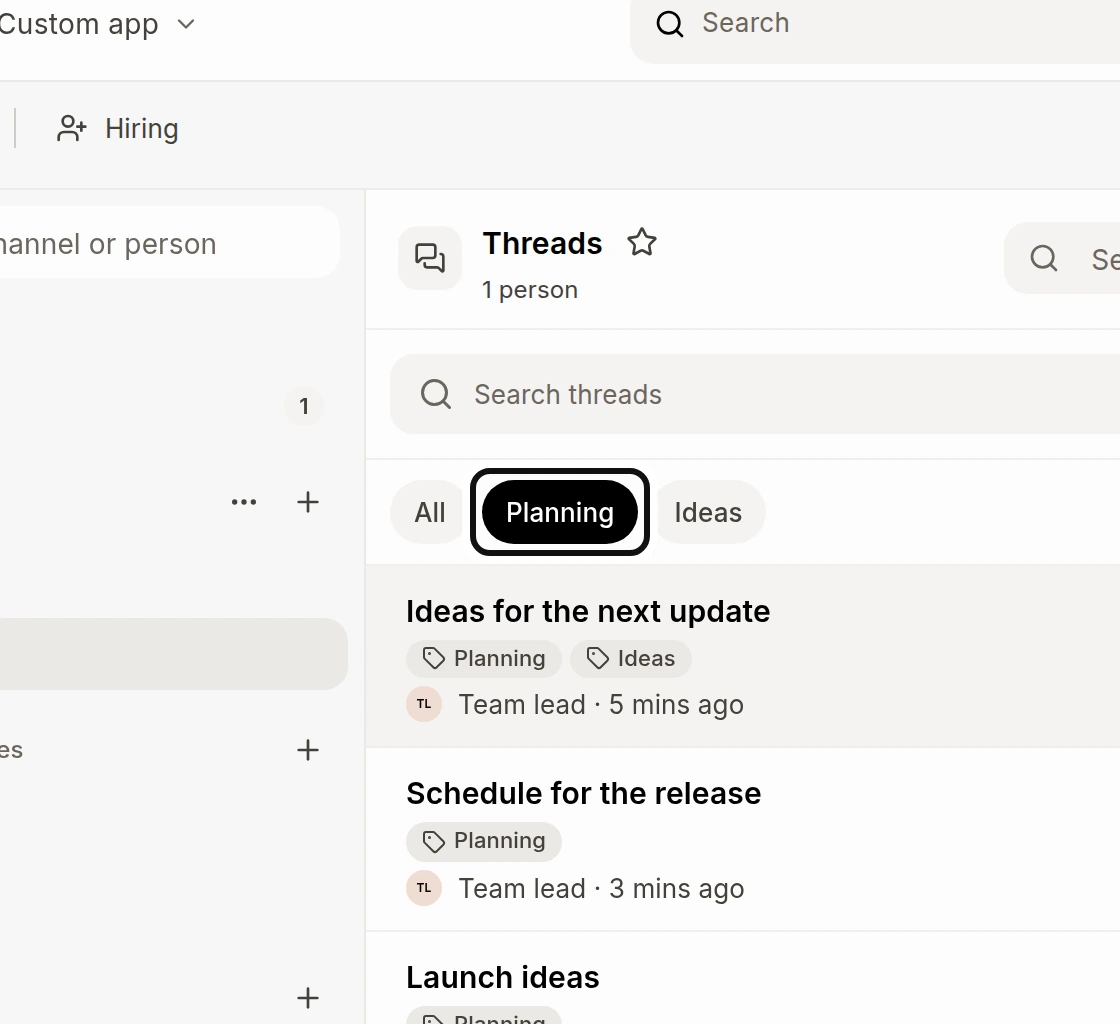
Click the same tag again, or click All, to see every thread.
If no thread has the tag, you see "No thread has this tag yet."
Change a thread's tags
Open the thread. Under its title, click Add tags. If it already has tags, click the pencil (Change this thread's tags) instead.
Click a tag to add it or take it off, or type a name in New tag and click Add.
Each change is saved at once. A thread keeps up to 5 tags.
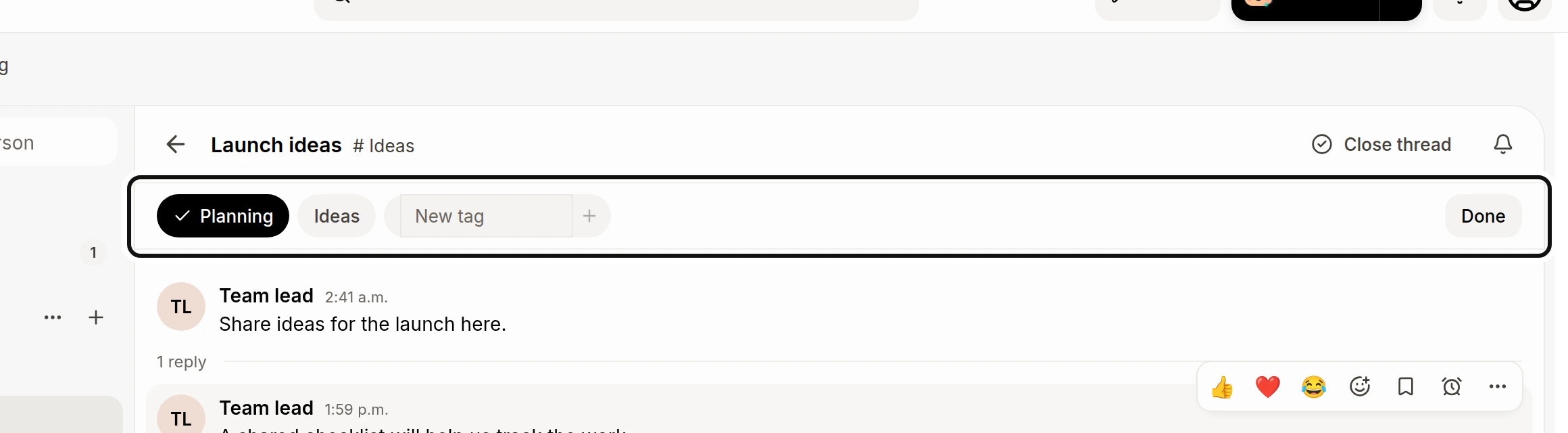
Click Done.
Rename or remove the channel's tags
Only people who manage the channel can do this.
Above the list, click the pencil (Edit tags).
Change a name, click the x beside a tag to remove it, or type a new tag and add it.
A new name changes it on every thread. A tag you remove comes off every thread.
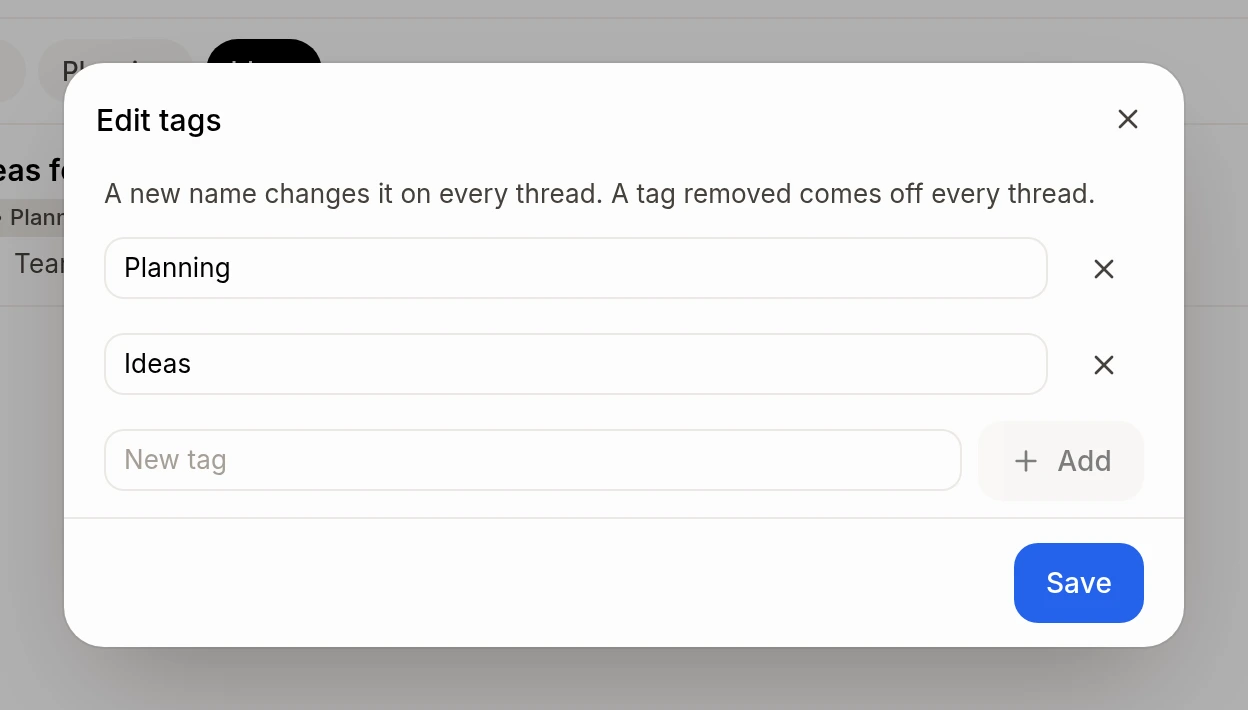
Click Save.
Close a thread when it's done
Open the thread.
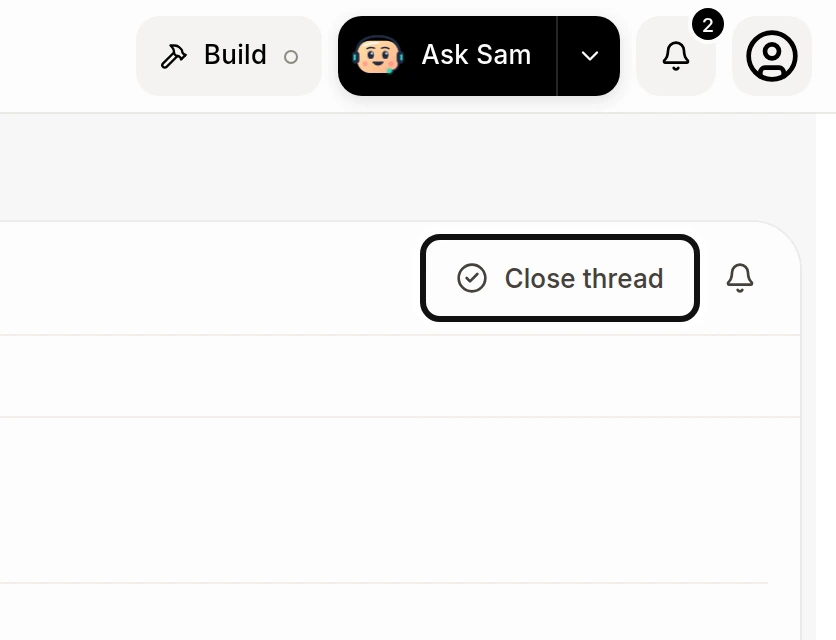
Click Close thread at the top. On a phone, the button says Close.
The thread now shows a Closed tag in the list and moves under the open threads. It is not deleted.
Reopen a thread
Open the closed thread and click Reopen.
It goes back among the open threads.
A new reply to a closed thread also reopens it by itself.
Good to know
Anyone who can write in the channel can tag, close and reopen threads.
The list shows up to 500 threads.
A channel can have up to 30 tags, and a tag name can be 40 characters long.
A guest from outside the team can only pick tags the channel already has. Only teammates make new ones.
In an archived channel you can read the threads, but no one can write.
The phone app does the same: filter by tag, then Close and Reopen from the thread.
A Discord forum you import comes in as a Threads channel, with its tags. A post that was archived or locked on Discord comes in closed. See How do I bring my Discord server into Team chat?.
If it doesn't work
You don't see New thread: you may not be able to write in this channel, you may not have joined it, or it is archived.
"A channel has 30 tags at most." Remove a tag you don't use.
"Another tag already has this name." Pick a different name.
"Only the team makes new tags. Pick one of the channel's." As a guest, choose one of the tags already there.
Related
Did this answer your question?