How do I use Team chat on my phone?
Find your conversations and use Team chat on your phone.
Written by Philippe Genois
Choose a channel or a conversation. On a phone, tap Back to return to the channel list.
Send a voice message
Tap the waveform button at the right of an empty message box to Record a voice message.
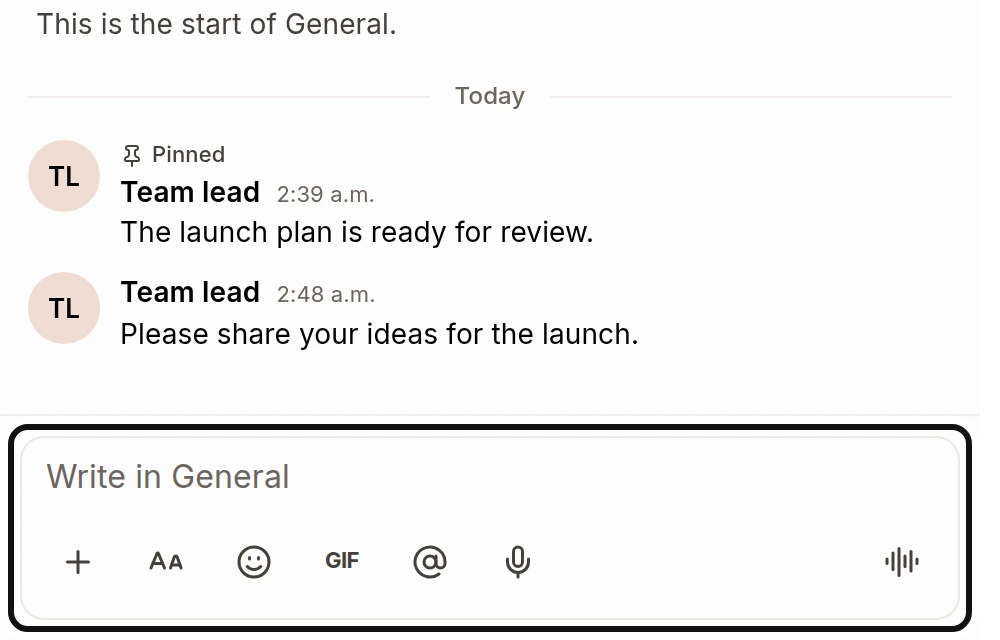
Allow microphone access if your browser asks, speak, then tap Done. Review the recording and send it, or record it again.
To turn your speech into text instead, see How do I talk instead of typing in Team chat?.
Search and see channel details
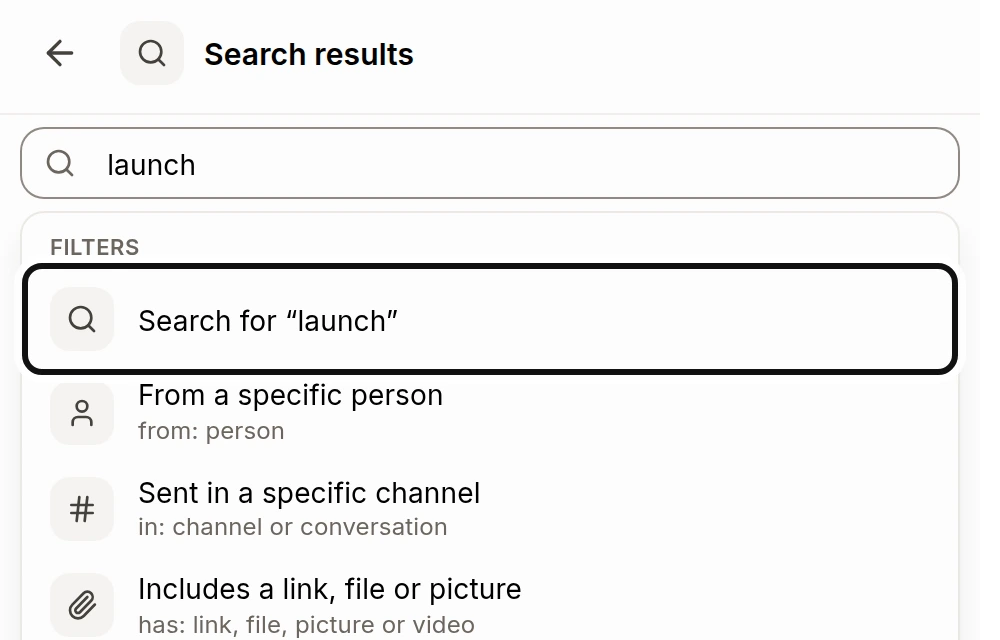
Tap Search at the top of a channel. Type what you are looking for or choose a filter.
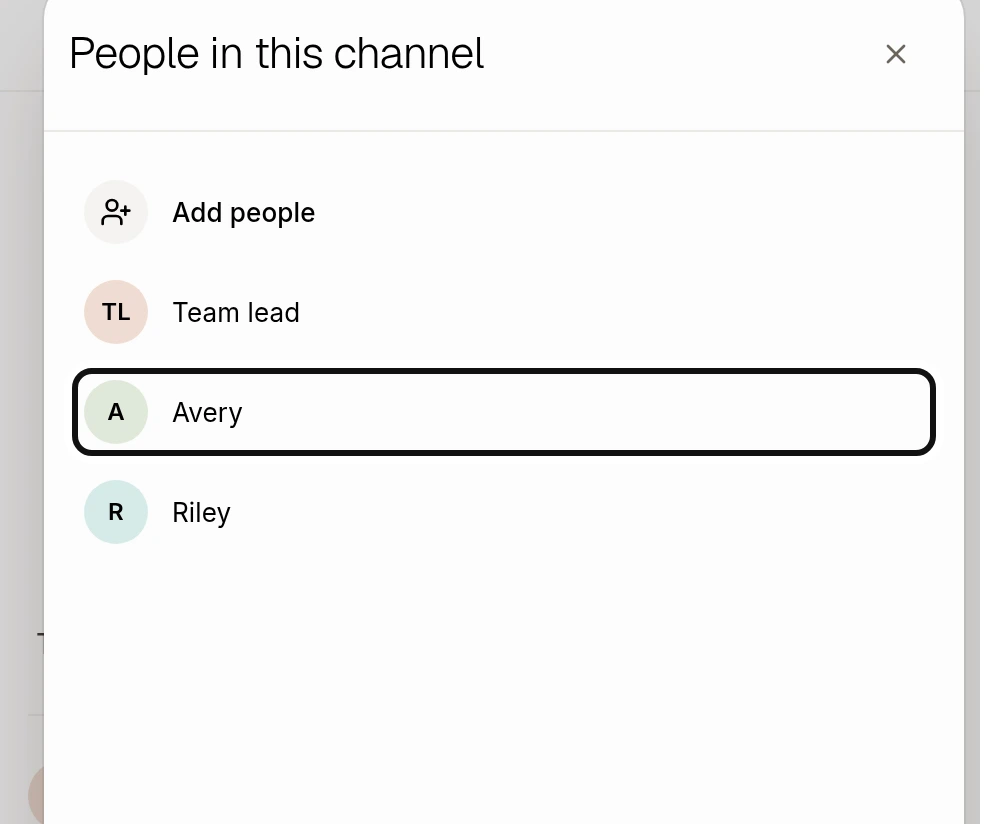
Tap the number of people at the top of a channel. In People in this channel, tap a teammate to open their card, where you can message or call them.
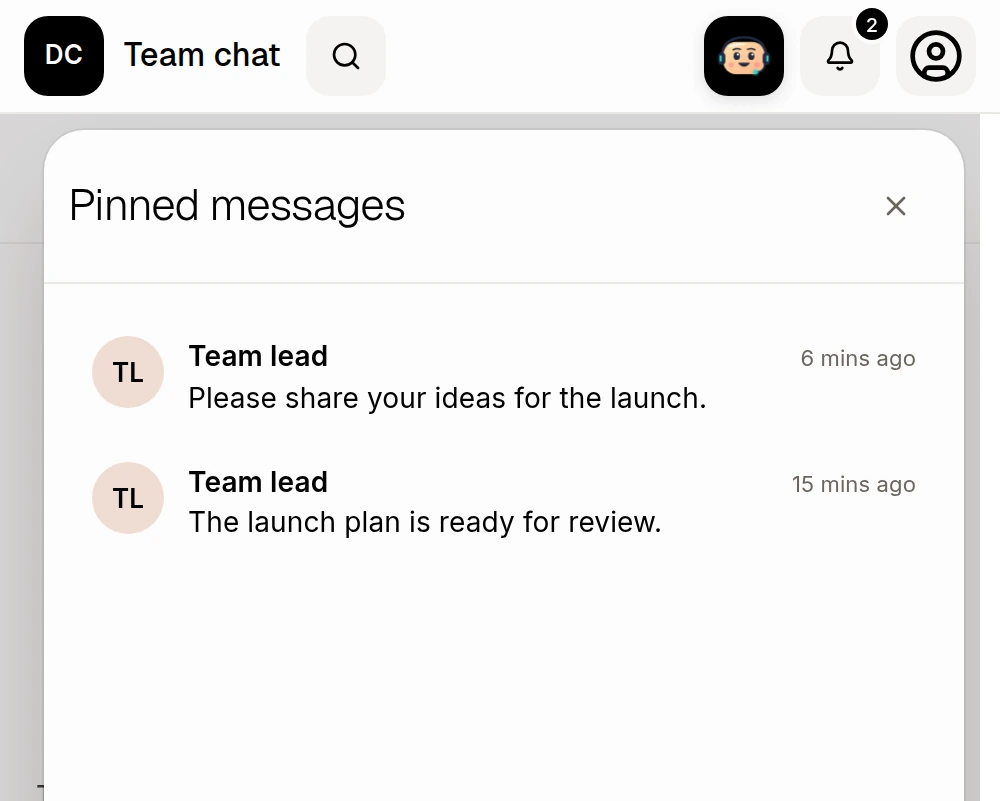
Tap Pinned messages at the top. The panel lists messages pinned for the channel.
Keep a message for later
Tap a message to open its actions. Choose Save for later, Remind me about this, or Pin to the channel. For a reminder, choose when Alori should remind you.
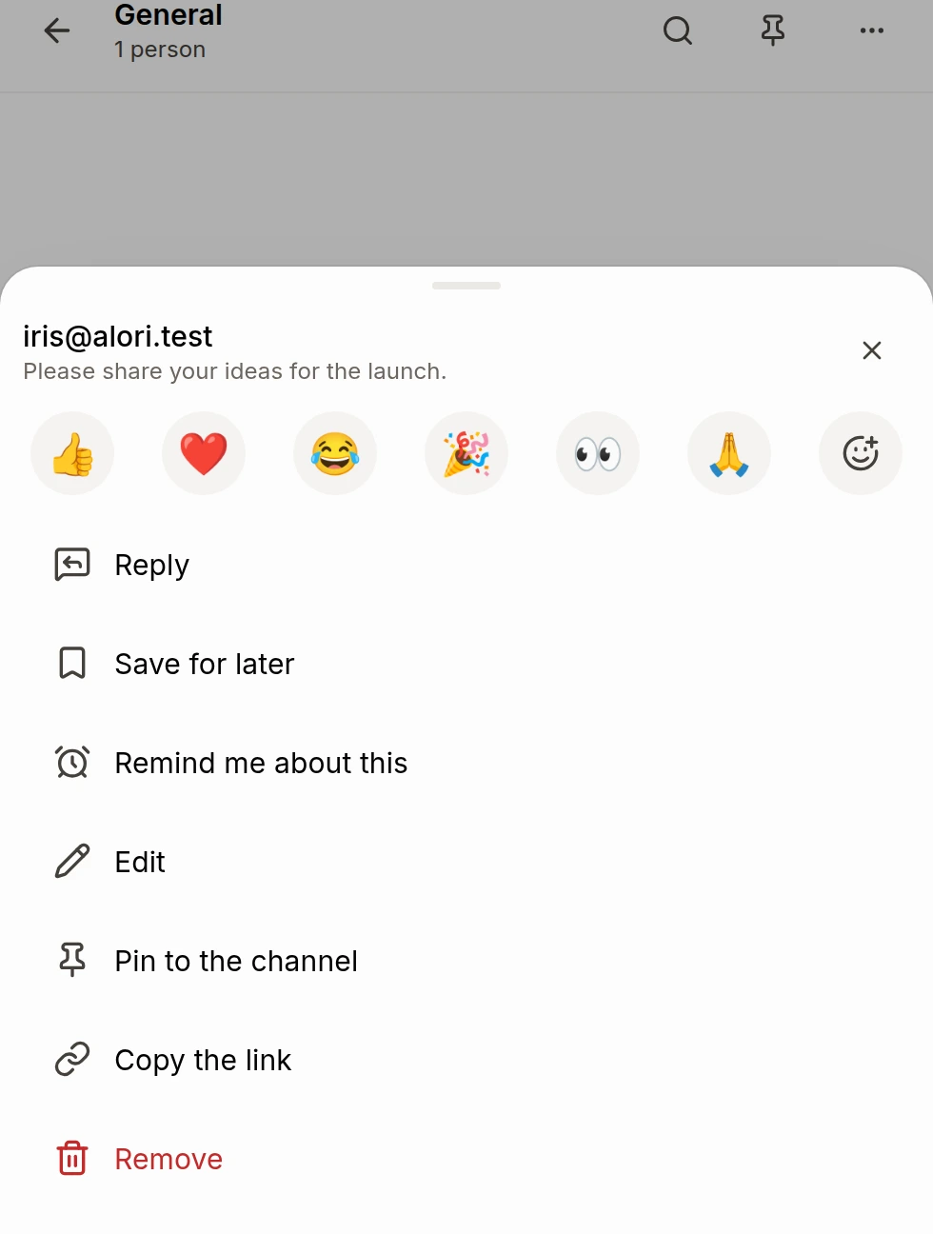
Tap Back, then Later to find saved messages and reminders.
Schedule a message
Type a message without an attachment, then tap the arrow beside the send button for Schedule for later.
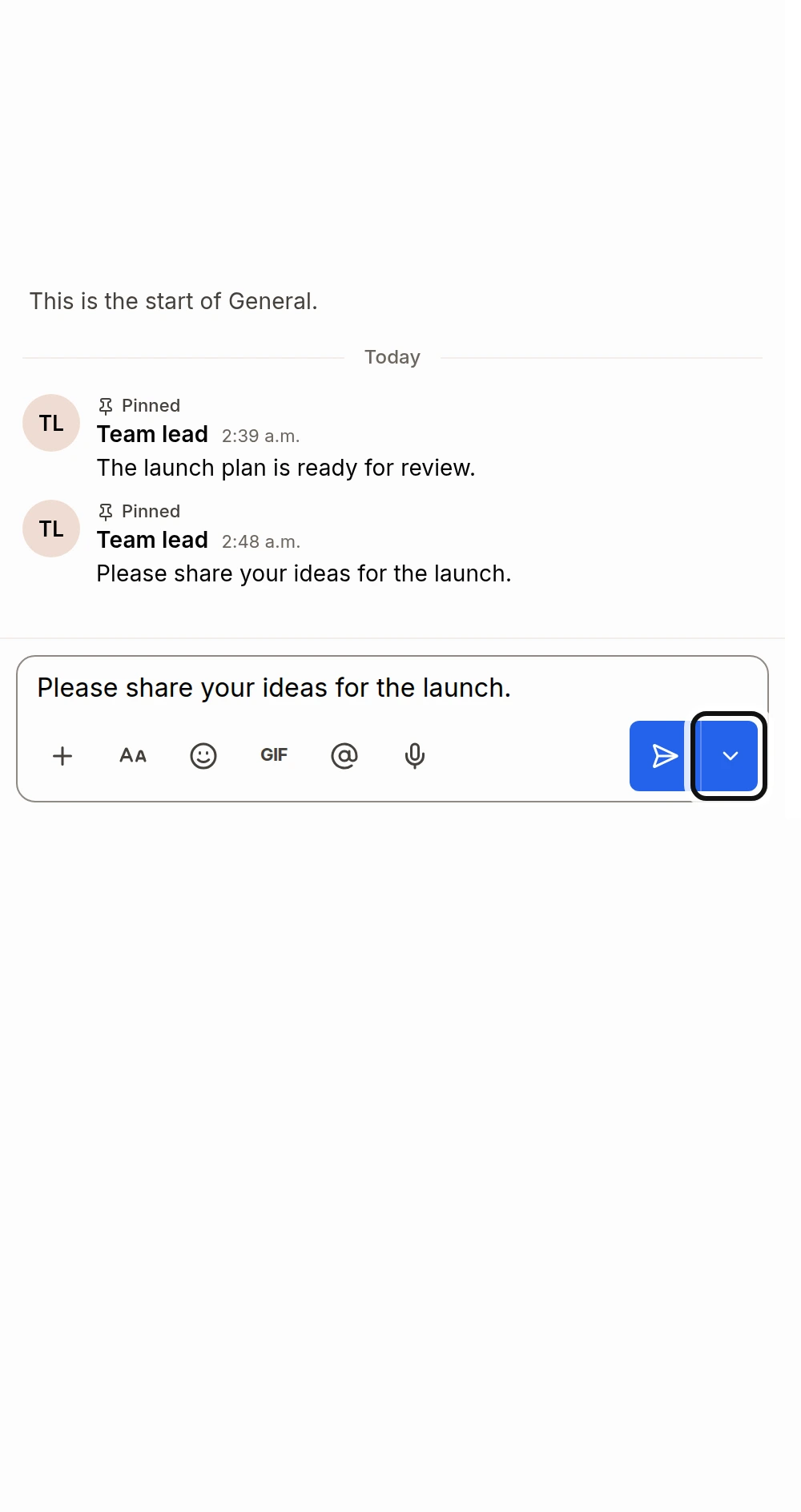
Choose when to send it. Find waiting messages under Scheduled in the chat list, where you can send one now or delete it.
Start a group message or find a channel
Tap Back to see the chat list. Tap New message, select the teammates you want, and tap Message the … of them to start a group conversation.
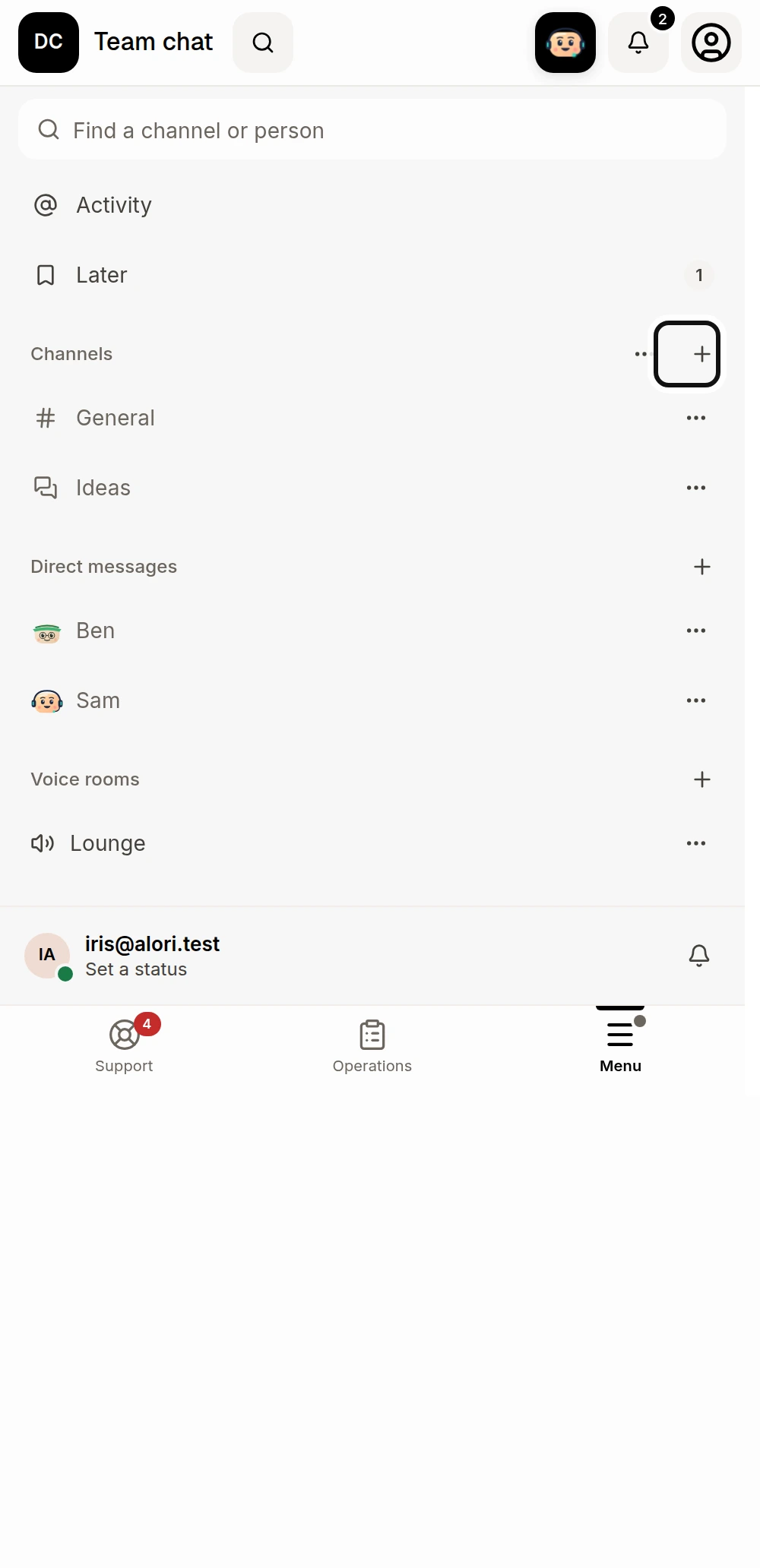
Tap the plus beside Channels to make a channel or browse available channels under Or join one.
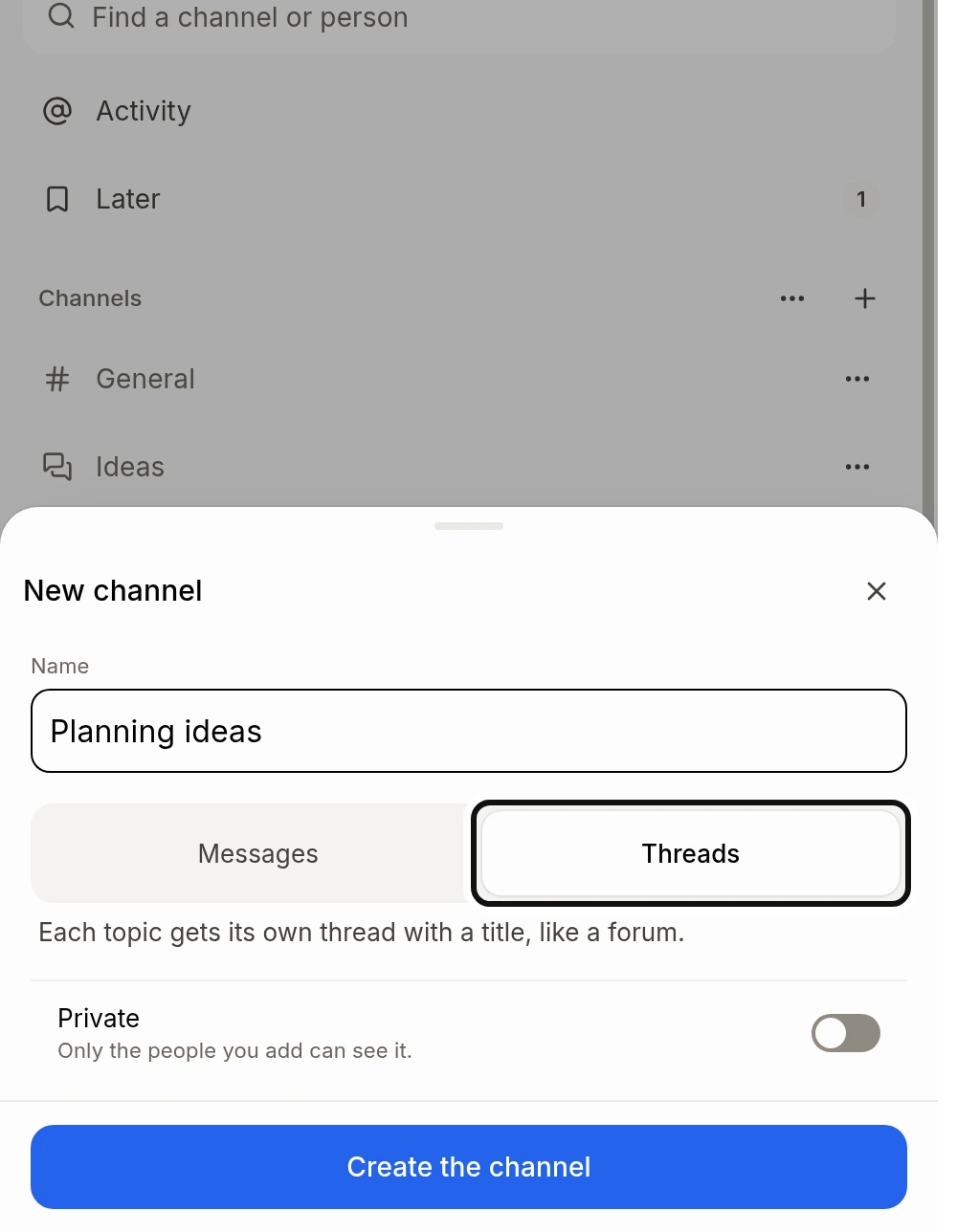
To make a forum, enter a name, choose Threads under Shows, and tap Create the channel.
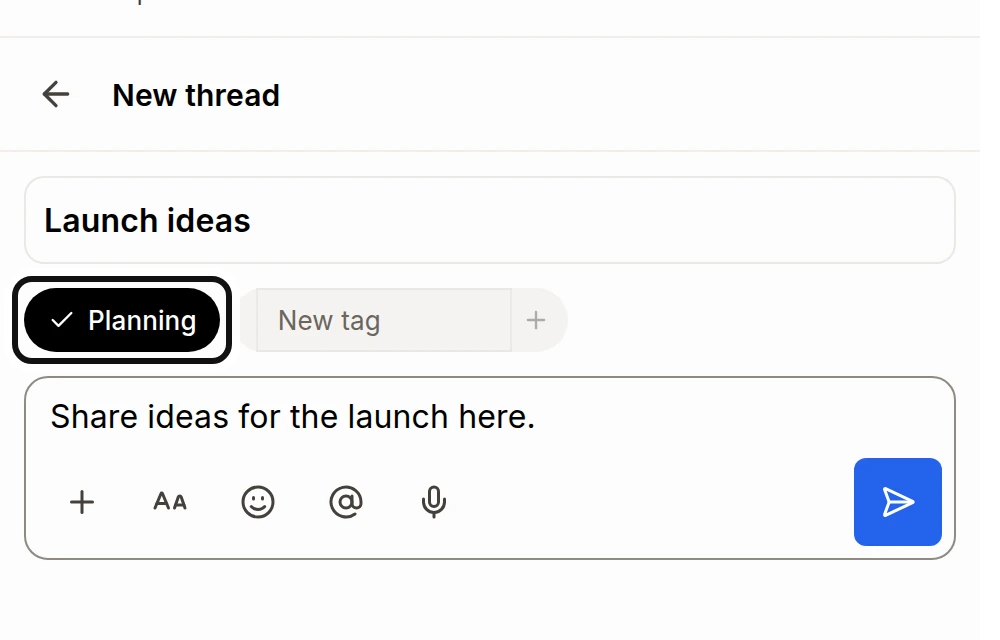
In the new channel, tap New thread, add a title and first message, and choose or add tags. Tags help people find related threads.
Did this answer your question?