How do I use Alori from Claude?
In Claude, add a custom connector with the address from Alori's Settings, then click Allow. Claude can then look up and change your CRM.
Copy your Alori address from Settings › Claude, add it in Claude as a custom connector, then click Allow. Claude can then ask about your customers, deals and jobs, and make changes, like Alori's own assistant.
Also called: Claude, MCP, AI assistant, Claude connector, Claude Desktop, connecteur Claude, utiliser Claude
Step 1: Copy the address
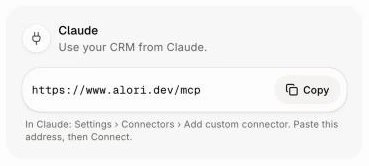
In Alori, click your name at the top right, then Settings. Under Claude, click Copy beside the address (https://www.alori.dev/mcp).
Click: your name › Settings › Claude › Copy
Step 2: Add it in Claude
In Claude, open Settings, then Connectors, and choose Add custom connector. Paste the address and add it.
Click: Settings › Connectors › Add custom connector
Step 3: Allow it in Alori
In Claude, tap Connect. An Alori page opens: "Connect Claude". It lists What it can do and What it can't do in your app. Click Allow. You see "Connected", then you're sent back to Claude, and you're done.
Click: Connect › Allow
Good to know
Claude can look up and change your app the way you can.
Emails and texts to customers still wait for your yes.
Your connected Claudes show in Settings › Claude, under the address, with when each was last used.
To stop it, click Disconnect beside it.
If it doesn't work
"Sign in to your Alori account to connect Claude." Sign in on that page, then click Allow.
"Make your app in Alori first, then connect Claude." Create your app, then connect again from Claude.
"This link isn't complete. Start again from the app that sent you here." Go back to Claude and tap Connect again.
"That didn't work. Try again." Click Allow again.