How do I add LinkedIn steps to a sequence?
Connect your LinkedIn with the Alori for LinkedIn extension, then add Visit profile, Invite, Message or InMail steps next to your cold emails.
Written by Maxime
Your cold email sequences can also visit, invite and message your leads on LinkedIn, from your own LinkedIn account. Connect your LinkedIn once with the Alori for LinkedIn Chrome extension, then add LinkedIn steps between your emails.
Also called: LinkedIn automation, LinkedIn outreach, connection request, LinkedIn message, InMail, multichannel sequence, like lemlist, prospection LinkedIn, invitation LinkedIn, séquence multicanal, LinkedIn daily limits, limites LinkedIn
Step 1: Connect your LinkedIn
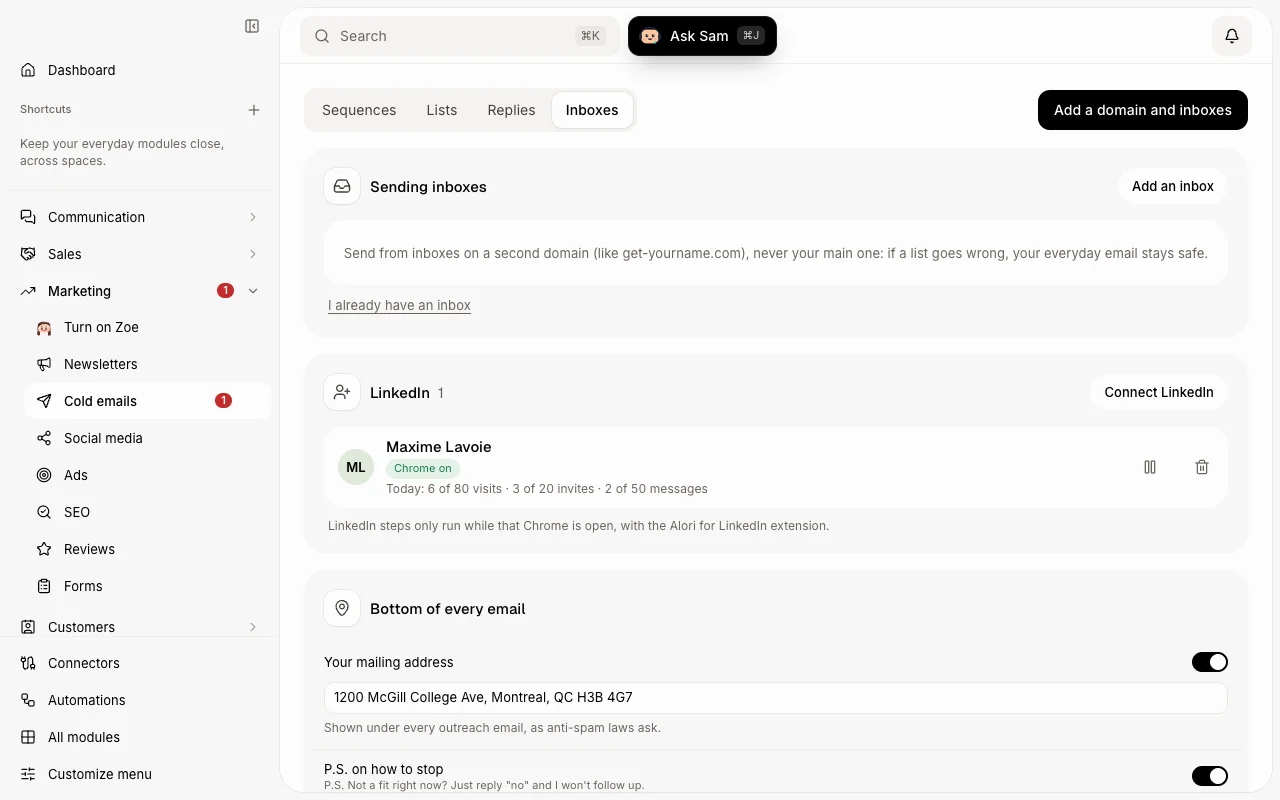
In Chrome, sign in to LinkedIn and add the Alori for LinkedIn extension. In your CRM, open Cold emails › Inboxes and click Connect LinkedIn. A page opens and asks to connect your LinkedIn to your business: click Connect. It says "Connected as" with your name, and your account shows in the LinkedIn block with Chrome on.
If Alori is open in another browser, click Copy link and open the link in the Chrome where you use LinkedIn. Each teammate connects their own LinkedIn the same way.
Click: Cold emails › Inboxes › Connect LinkedIn › Connect
Step 2: Add LinkedIn steps
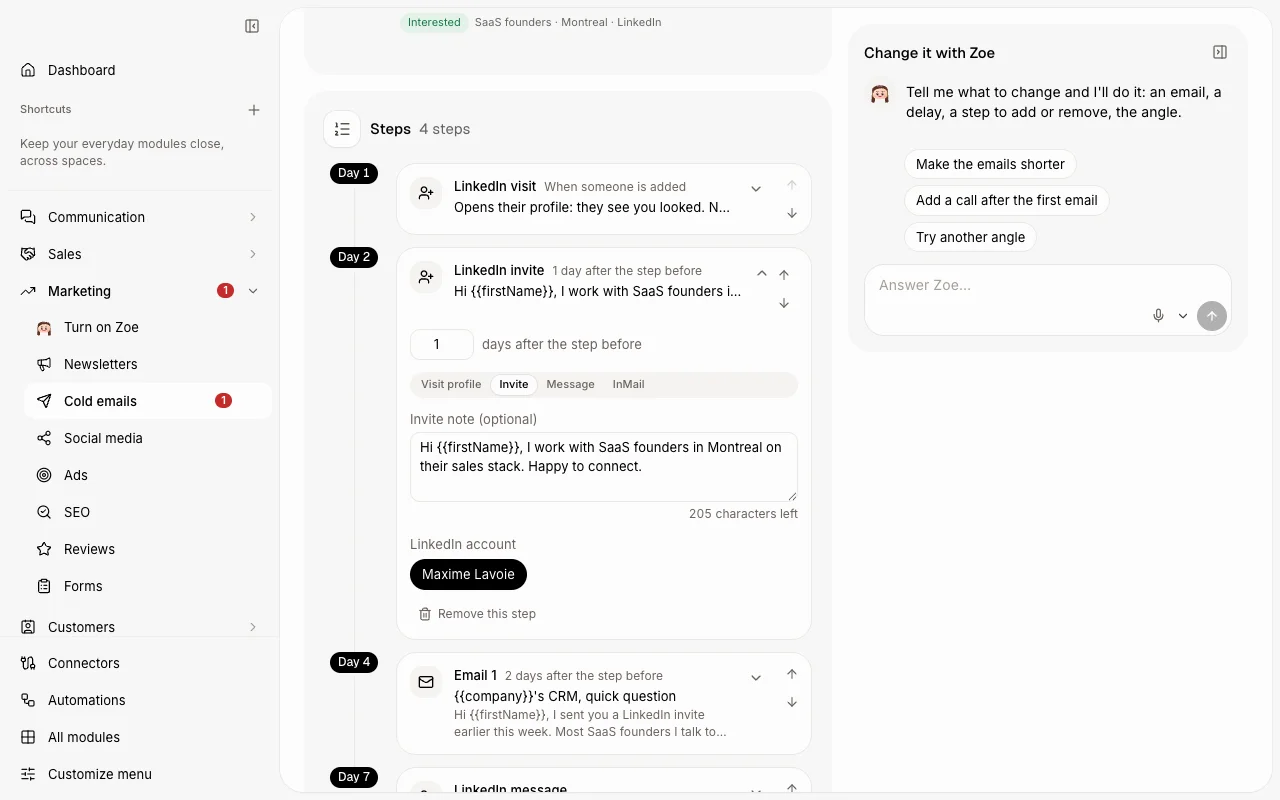
Open a sequence. Under Steps, click Add a LinkedIn step and pick what it does:
Visit profile: opens their profile, so they see you looked.
Invite: a connection request, with an optional note of 300 characters at most.
Message: sent once they accept your invite. Until then it waits, up to 14 days.
InMail: a subject and a message. It needs LinkedIn Premium or Sales Navigator, or this step is skipped.
The note and messages take the same variables as your emails, like {{firstName}}. Under LinkedIn account, pick whose LinkedIn sends them. Move a step with the up and down arrows beside its title.
Click: Steps › Add a LinkedIn step › Invite
Step 3: Start it and follow the results
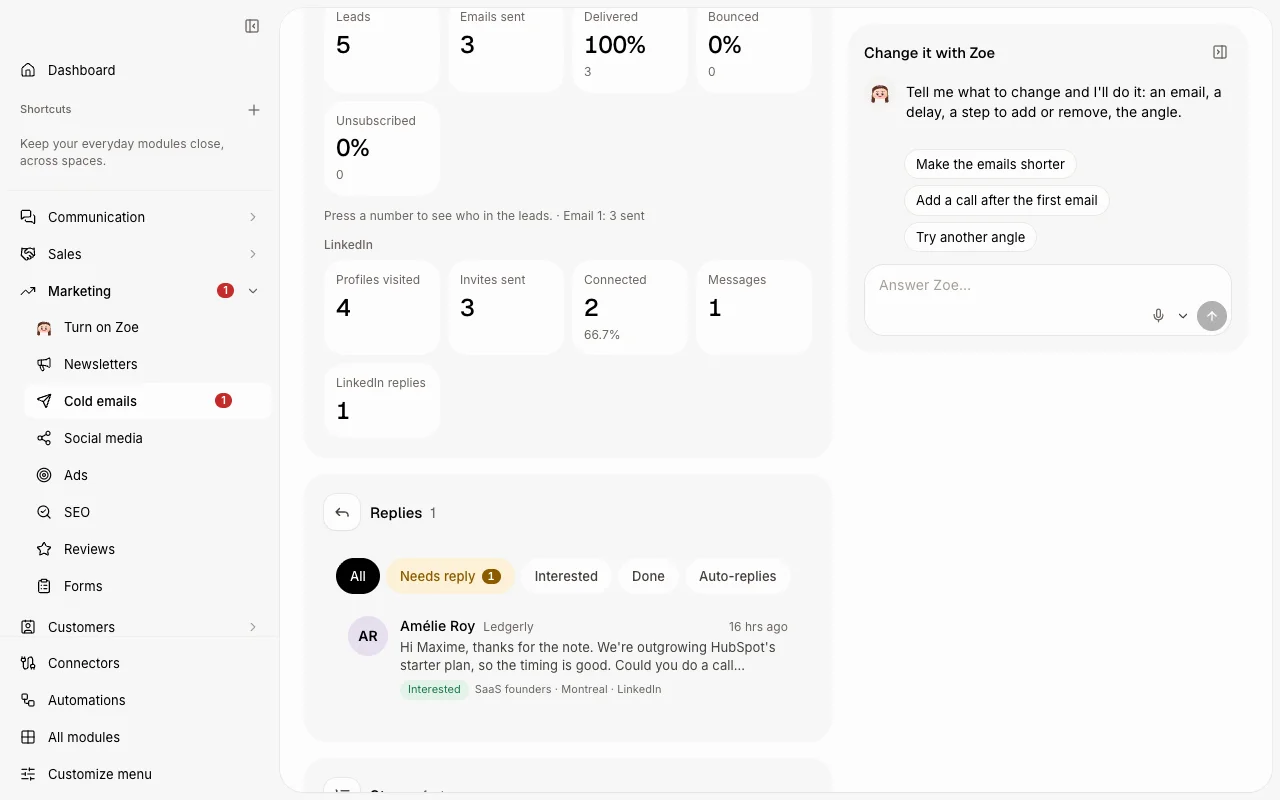
Click Start sending. Alori runs the LinkedIn steps from your Chrome, a few minutes apart, on weekdays from 8:00 to 18:00. Results shows a LinkedIn line: Profiles visited, Invites sent, Connected, Messages and LinkedIn replies.
Click: Start sending › Results
Good to know
LinkedIn steps only run while that Chrome is open and signed in to LinkedIn.
Each LinkedIn account does at most 60 profile visits, 20 invites, 50 messages and 20 InMails a day. To change that, click the gauge on its row in Inboxes (on a phone, tap its numbers) and set Daily limits: up to 150 visits, 50 invites, 150 messages and 50 InMails. Every action opens the profile first, so visits cap the day. Invites also stop at 100 a week, and the first 7 days run at half speed.
A lead needs a LinkedIn profile link to get LinkedIn steps. Without one, those steps are skipped. A lead with a LinkedIn link and no email gets only the LinkedIn steps.
When a lead answers you on LinkedIn, their sequence stops and the answer shows in Replies. Answer them on LinkedIn.
If it doesn't work
"Add the extension first": the extension isn't in this Chrome. Add it, then reload the page.
"Sign in to LinkedIn in this Chrome, then reload this page." Sign in to LinkedIn, then reload.
"This link has expired. Go back to Alori and press Connect LinkedIn again." Click Connect LinkedIn again.
"This LinkedIn is already connected for another teammate." That teammate removes it in Inboxes first.
"Pick the LinkedIn account its LinkedIn steps run from." Pick one under LinkedIn account before you click Start sending.
Sign in to LinkedIn in Chrome on your account: LinkedIn signed you out. Sign in again in that Chrome.
Chrome off since…: open that Chrome. The steps wait until it's back.
Related
Did this answer your question?