How do I add suppliers and their prices?
Add each supplier in Suppliers › New supplier. Then, on an item's page, click Add under Suppliers to give that supplier's code, price, currency and tax.
Go to Suppliers › New supplier to add who you buy from. Then open an item and click Add under Suppliers to give that supplier's code and price for it. An item can have several suppliers, each with its own price and currency.
Also called: vendors, distributors, purchase price, supplier price list, fournisseurs, prix d'achat, distributeur, liste de prix fournisseur
Step 1: Add a supplier
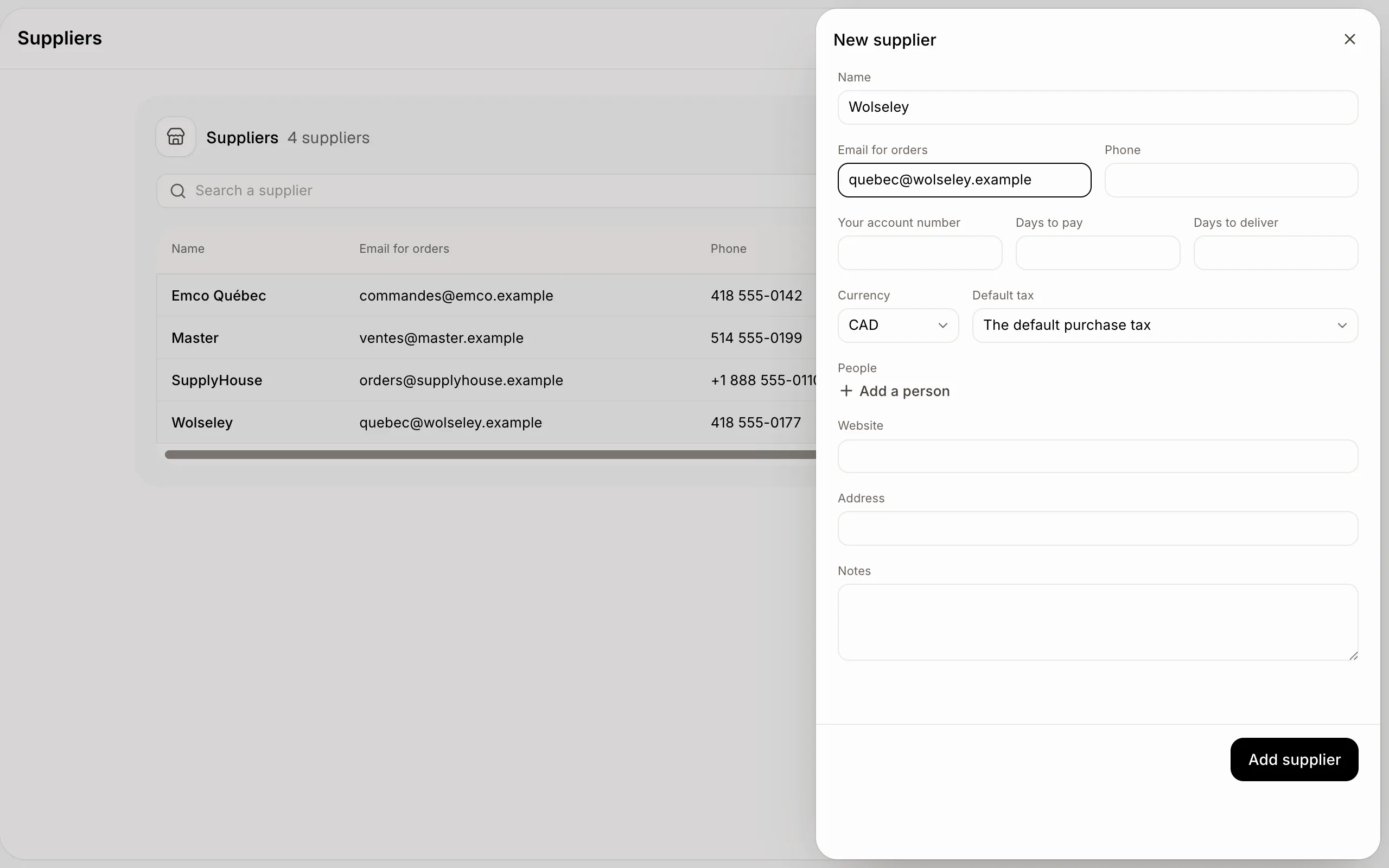
Click Suppliers in the menu, then New supplier. Type its Name and the Email for orders. You can also add its Phone, Your account number, Days to pay, Days to deliver, the Currency of its prices (like USD), its Default tax, the People you deal with, its Website, Address and Notes. Click Add supplier.
Click: Suppliers › New supplier › Add supplier
Step 2: See a supplier's page
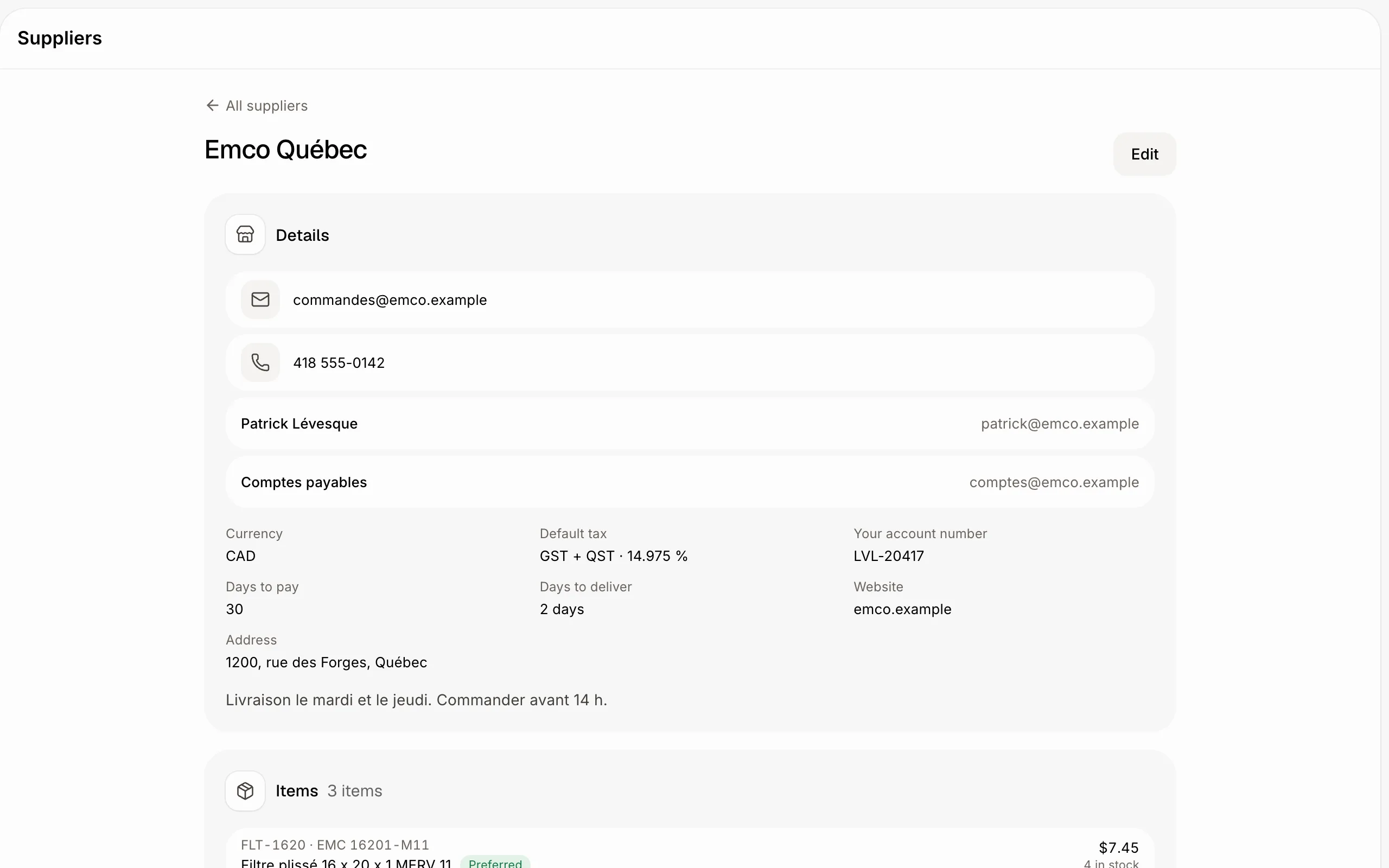
Click a supplier to see how to reach them, their terms, and every item you buy from them with its price. Click Edit to change them.
Click: Suppliers › the supplier
Step 3: Give a supplier's price for an item
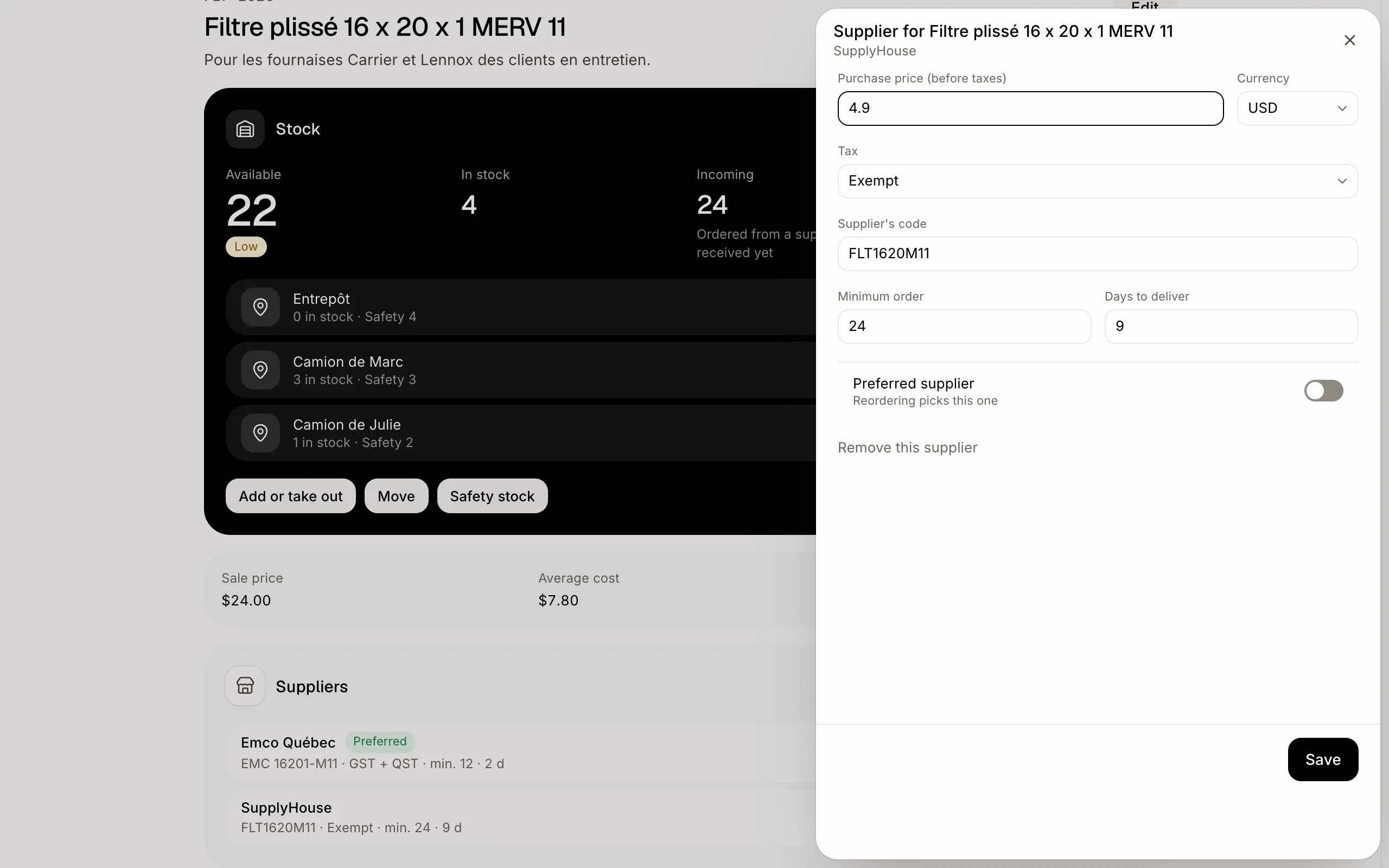
Open the item in Inventory. Under Suppliers, click Add and pick the Supplier. Type its Purchase price (before taxes), and change the Currency or Tax only if this price is different from the supplier's usual. Add the Supplier's code, the Minimum order and the Days to deliver if you know them. Turn on Preferred supplier for the one you usually buy from: reordering picks it. Click Save.
Click a supplier under Suppliers to change its price, or click Remove this supplier.
Click: Inventory › the item › Suppliers › Add › Save
If it doesn't work
"That email doesn't look right." Check the Email for orders.
"Add your suppliers first, in Suppliers." Every supplier already gives this item a price, or you have no supplier yet.
"That's the most suppliers for one item." An item can have up to 20 suppliers.