How do I set the inventory currency and purchase taxes?
In Settings › Inventory, pick the currency costs are kept in and edit the tax codes your suppliers charge. GST + QST is the default to start.
Go to Settings › Inventory. Pick the Inventory value currency, the currency your item costs and stock value are kept in. Under Tax codes, edit the taxes your suppliers charge and pick the one used by default.
Also called: purchase tax, GST, QST, HST, sales tax on purchases, input tax credit, currency, devise, taxes d'achat, TPS, TVQ, TVH, crédit de taxe
Step 1: Pick the inventory value currency
In Settings › Inventory, pick a currency under Inventory value currency. It starts as your business's main currency (Settings › General), and lists the currencies you added there. Changing it doesn't convert costs already saved.
Suppliers can still charge in their own currency: you set it on the supplier, and a purchase order in another currency asks for its exchange rate.
Click: Settings › Inventory
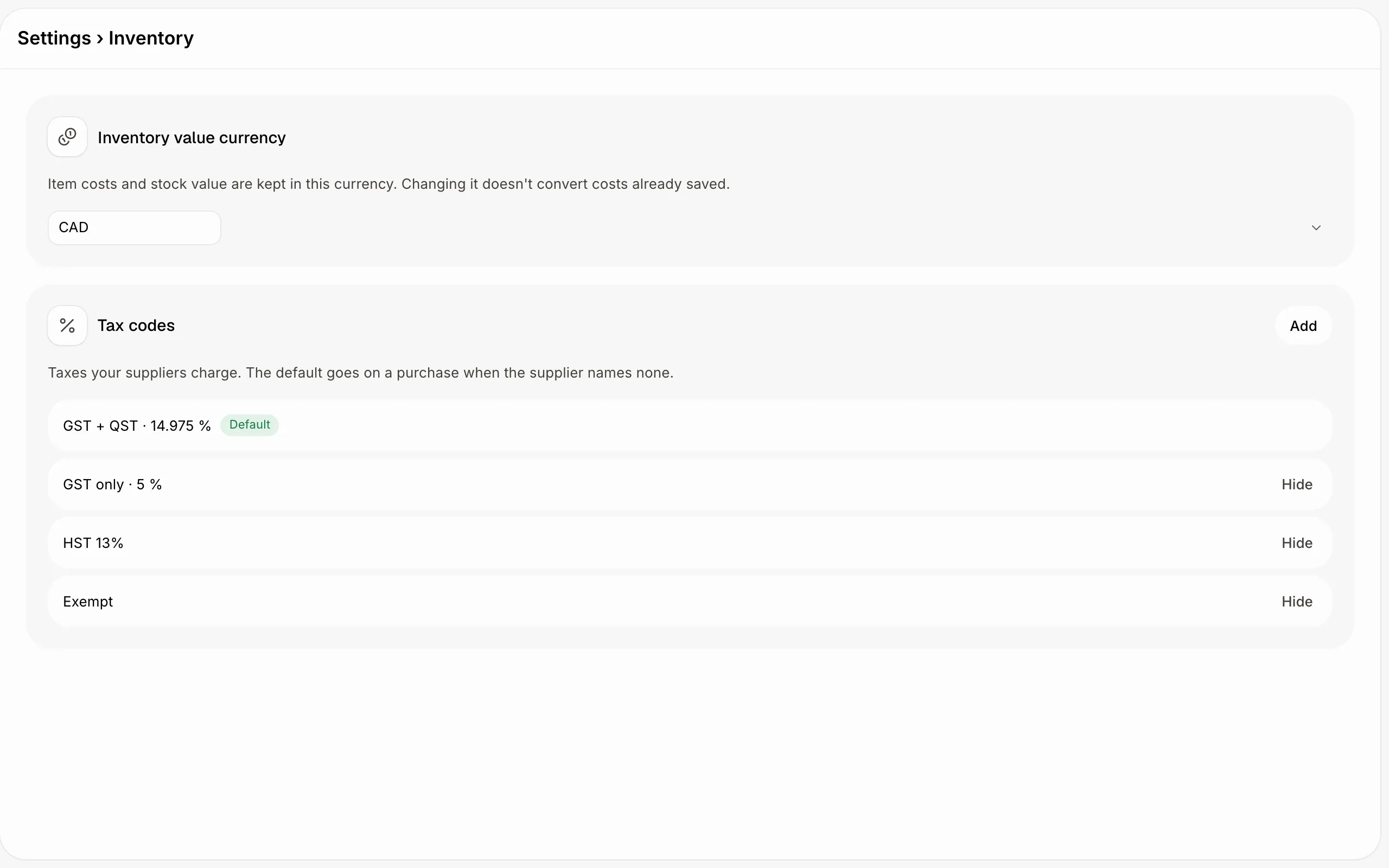
Step 2: Edit a tax code
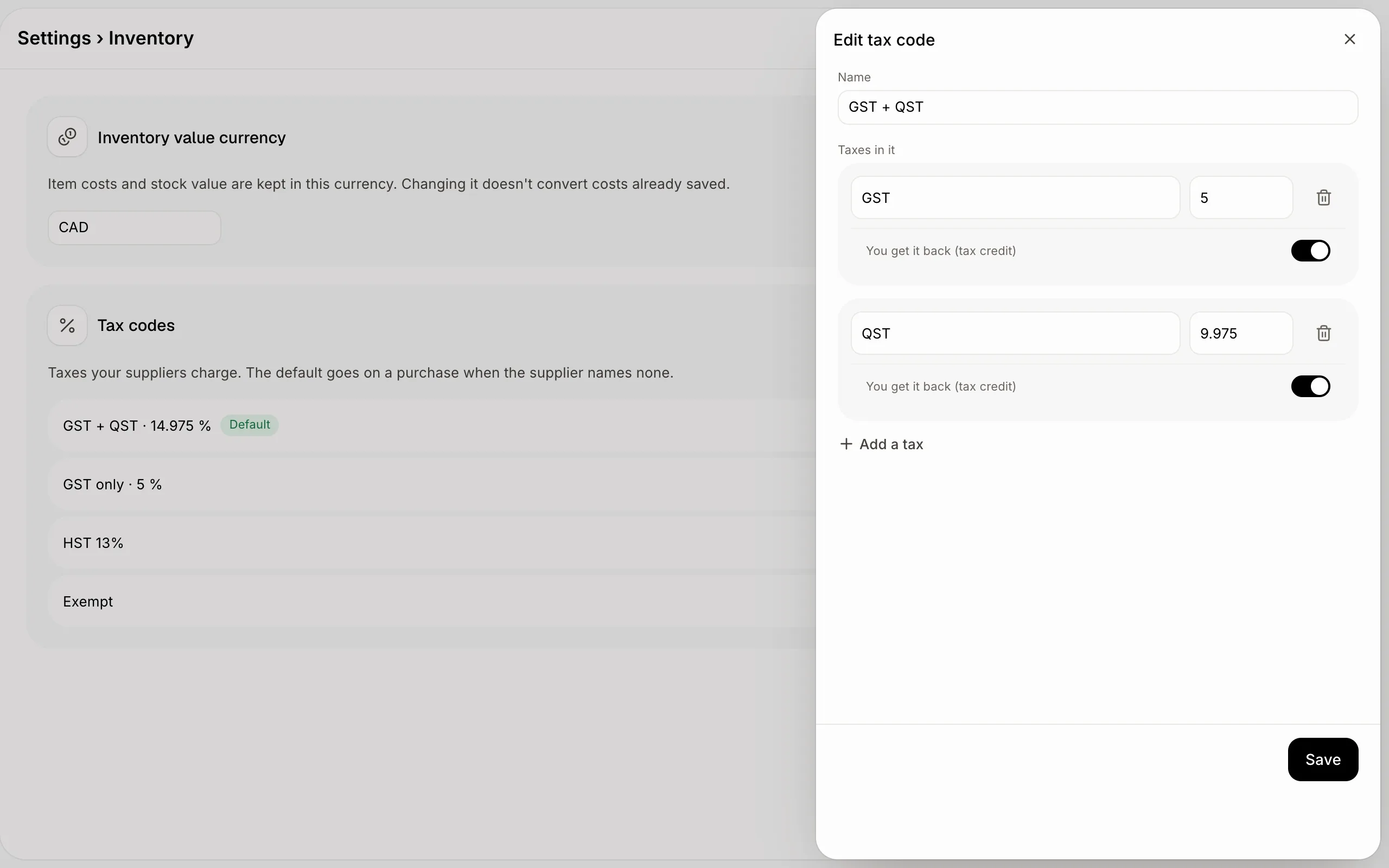
Click a tax code, or Add for a new one. Give it a Name and add each tax in it with a Label and a Rate (%). Turn on You get it back (tax credit) for a tax you recover, like GST and QST: it's not counted in the item's cost. Turn on Default for purchases to use it when a supplier names none. Click Save.
A Canadian app starts with GST + QST (the default), GST only, HST 13% and Exempt. Click Hide to take a code you don't use out of the lists; the default one stays.
Click: Settings › Inventory › a tax code › Save
Which tax a purchase gets
The tax you picked on the item's price at that supplier.
Otherwise, the supplier's Default tax.
Otherwise, the default tax code.
If it doesn't work
You don't see Settings › Inventory. It's for people whose role can change settings, in apps with Inventory turned on.
"Each tax needs a label and a rate from 0 to 100." Fill in both for every tax in the code.
"The default tax stays. Pick another default first." Make another code the default before hiding this one.