How do I order from a supplier and receive it?
In Purchase orders, click Make drafts for what's low (or New order), add lines, click Mark as ordered, then Receive when it arrives.
Go to Purchase orders. Click Make drafts to order everything that's low, or New order for one supplier. Add the lines, click Mark as ordered, then Receive when the goods arrive: they go into stock.
Also called: PO, purchase order, ordering, reorder, receiving, bon de commande, commande fournisseur, recommander, réception
Step 1: Start an order
Click Purchase orders in the menu. When items are below their safety stock, To reorder shows on top: click Make drafts for one draft per preferred supplier and place, each with enough to get back over the safety stock (at least the item's usual order and the supplier's minimum).
To start one yourself, click New order, pick the Supplier and where it's Delivered to, then Create.
Click: Purchase orders › Make drafts (or New order › Create)
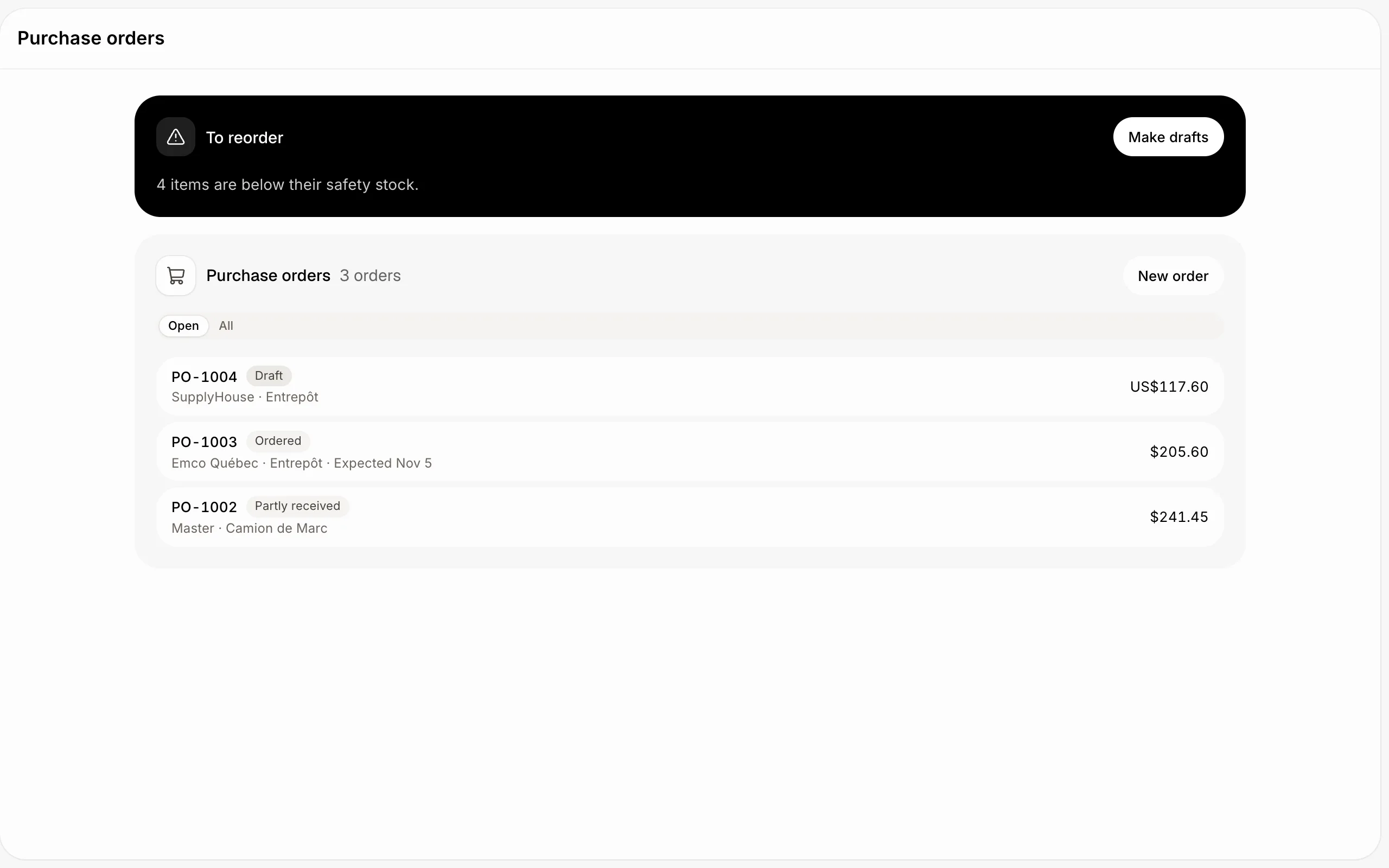
Step 2: Check the lines and mark it ordered
On a draft, click Add a line, pick the Item and type the Quantity. Its price and tax come from the item's price at this supplier; type a Price to change it. Click Edit for the Currency, the Expected day and a Note. An order in another currency than your inventory's needs its exchange rate (like 1 USD = 1.38 CAD). Check the currency and rate before you mark it ordered: they stay after that.
When it's right, click Mark as ordered. Its quantities now count as Incoming at that place.
Click: Purchase orders › the order › Mark as ordered
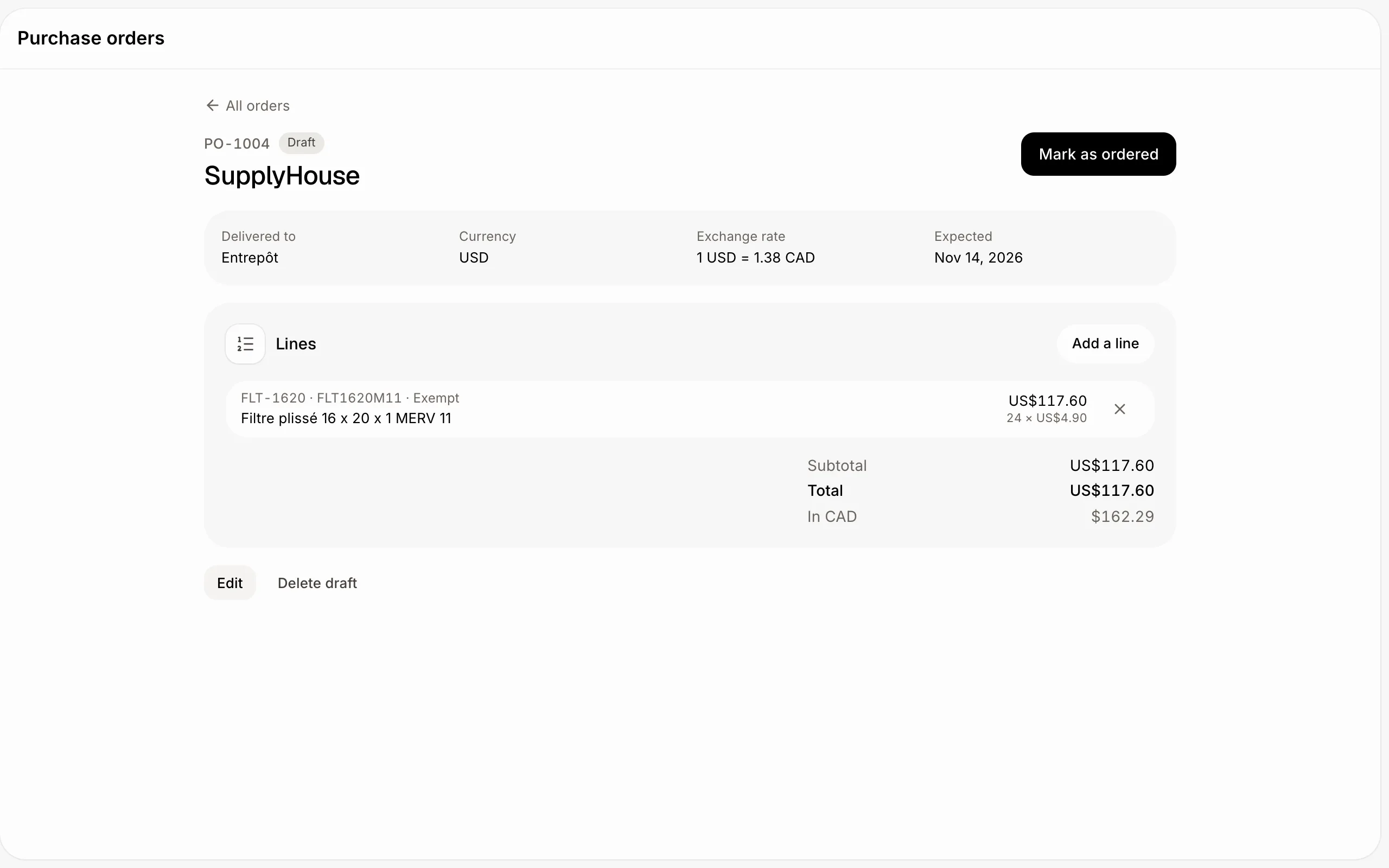
Step 3: Receive the goods
When it arrives, click Receive. Each line starts with what's still to come; change a number only if less came in. Click Receive. The goods move from Incoming to In stock, and the average cost follows: the price, converted to your currency, plus any tax you don't get back. An order that's partly in shows Partly received; receive the rest later.
Click: Purchase orders › the order › Receive
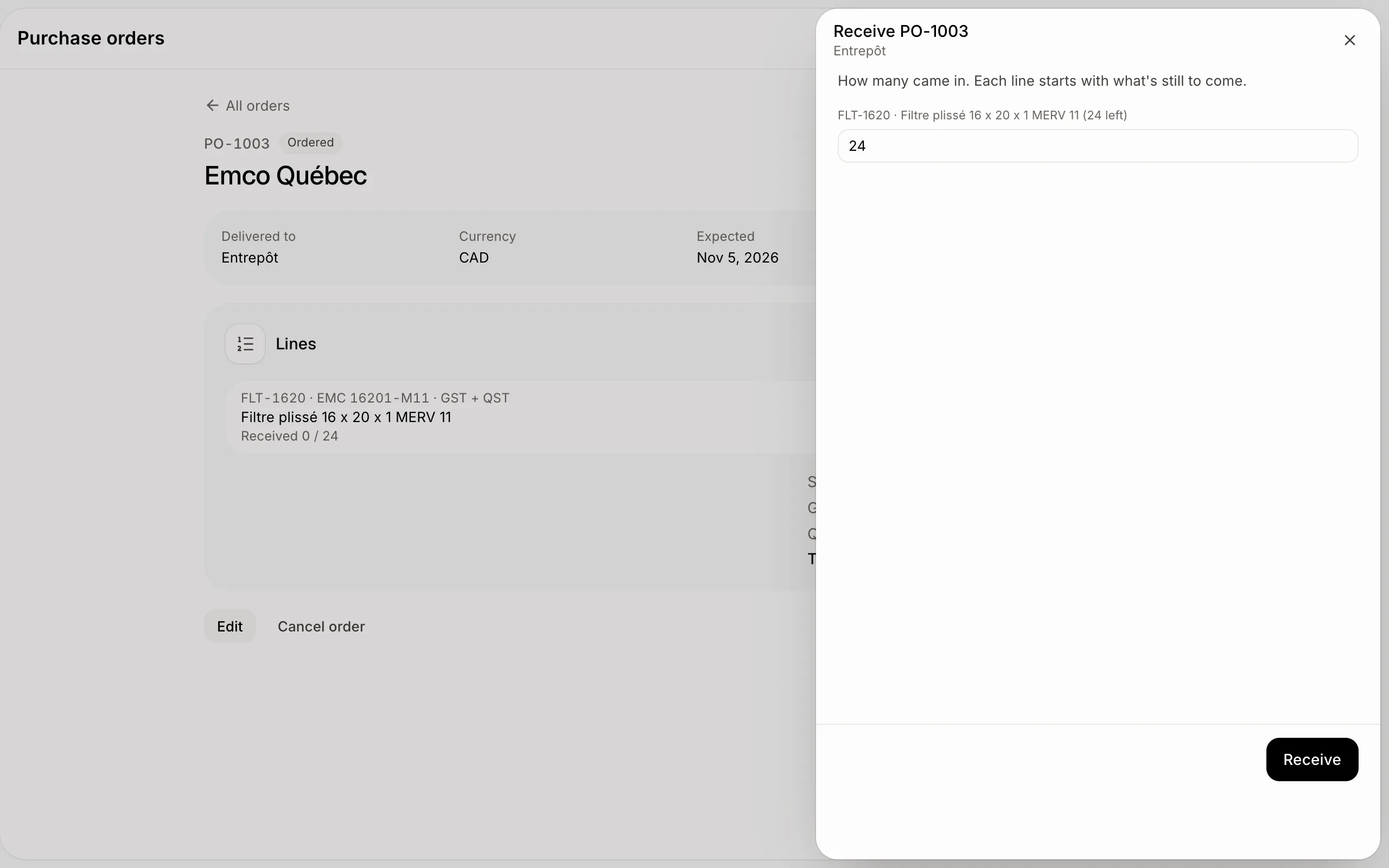
If it doesn't work
"Enter the exchange rate first." The order is in another currency: click Edit and type the rate.
"The currency can't change once it's ordered." Click Cancel order and start a new one in the right currency.
"Add a line first." An empty order can't be marked ordered.
"Only a draft can change its lines." Lines are fixed once it's ordered. Click Cancel order and start a new one if needed.
Make drafts skipped some items. They have no preferred supplier. Give them one on the item's page.