How do I set safety stock and see what's running low?
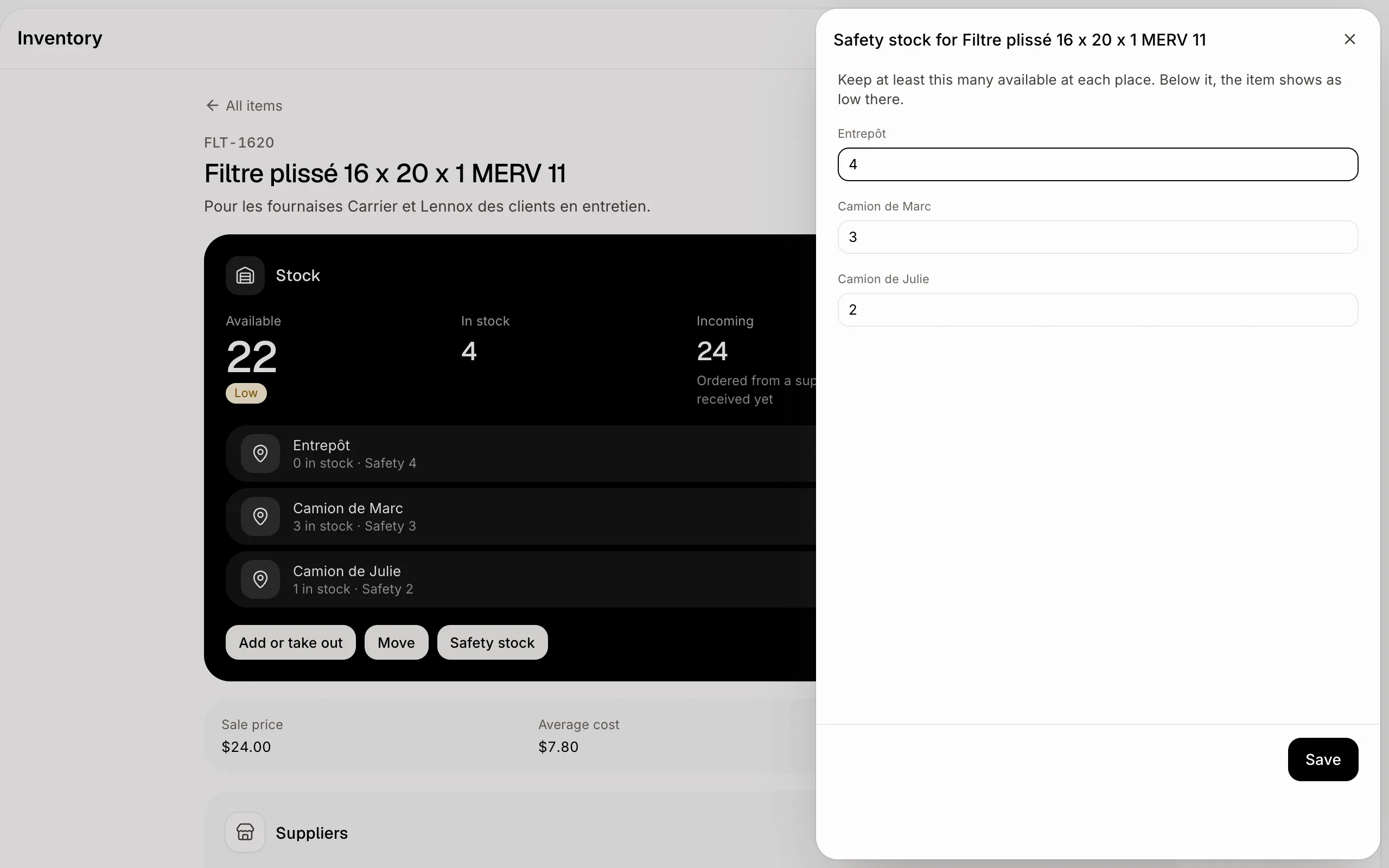
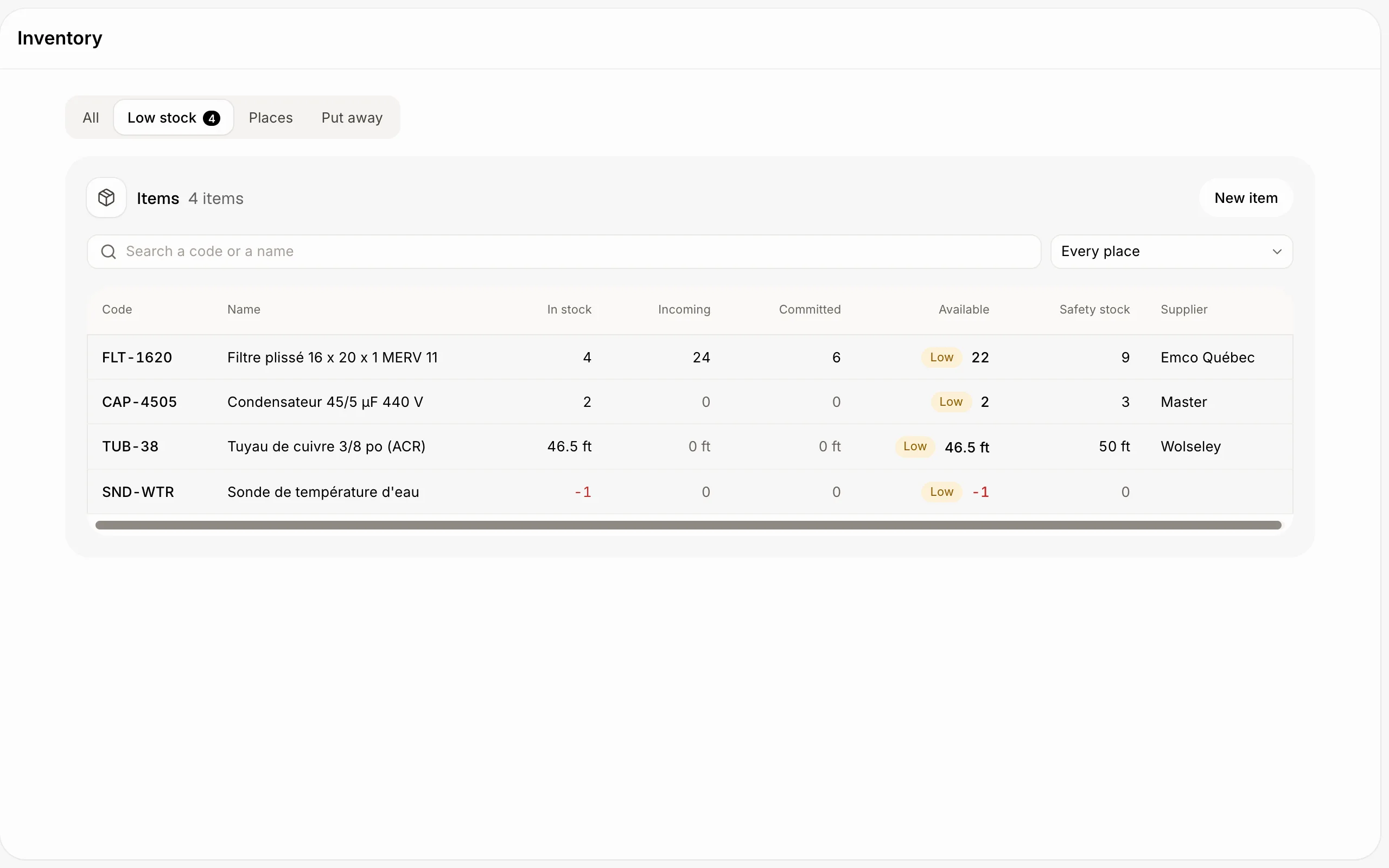
On an item's page, click Safety stock and type how many to keep at each place. Items below it show as Low and in Inventory › Low stock.
Open the item, click Safety stock and type how many you want to keep available at each place. When fewer are available there, the item shows Low and appears in Inventory › Low stock.
Also called: minimum stock, reorder point, low stock alert, stock de sécurité, stock minimum, point de commande, stock bas
What the numbers mean
In stock: what's on the shelf (or in the truck) now.
Incoming: ordered from a supplier on a purchase order, not received yet.
Committed: sold on a sales order, not shipped yet.
Available: in stock + incoming − committed. It's what you can still promise.
Each place has its own numbers. The item's page shows the total and each place under it.
Step 1: Set the safety stock
Click Safety stock. Type a number for each place (the warehouse, each truck). Leave a place empty for no safety stock there. Click Save.
An item is low at a place when what's Available there is below its safety stock. It's low overall when any place is low: a full warehouse doesn't fill an empty truck.
Click: Inventory › the item › Safety stock › Save
Step 2: See what's low
Click Low stock at the top of Inventory. The number beside it is how many items are low. Each one shows Low beside what's available. To order them, go to Purchase orders and click Make drafts in To reorder.
Click: Inventory › Low stock
If it doesn't work
"Enter a number." Safety stock is 0 or more, or empty for none.
An item never shows as low. It has no safety stock, or Count its stock is off for it.