How do I add items to my inventory?
Turn on Inventory by asking Alori, then go to Inventory › New item, type the code, name and how many you have now, and click Add item.
Go to Inventory, click New item, type its Code, Name and How many you have now, then click Add item. The item shows in the list with how many are in stock.
Also called: products, parts, stock items, SKU, articles, pièces, produits, inventaire, ajouter un article
Before you start: turn on Inventory
Inventory is off until you turn it on. Ask Alori in your Chat: "add inventory". It shows in your app's menu under Purchasing & inventory at once. If Alori says your app needs an update first, click Upgrade, then ask again.
Step 1: Open Inventory
Click Inventory in the menu. You see every item with its code, name, and how many are In stock, Incoming, Committed and Available. Type in Search a code or a name to find one.
Click: Inventory
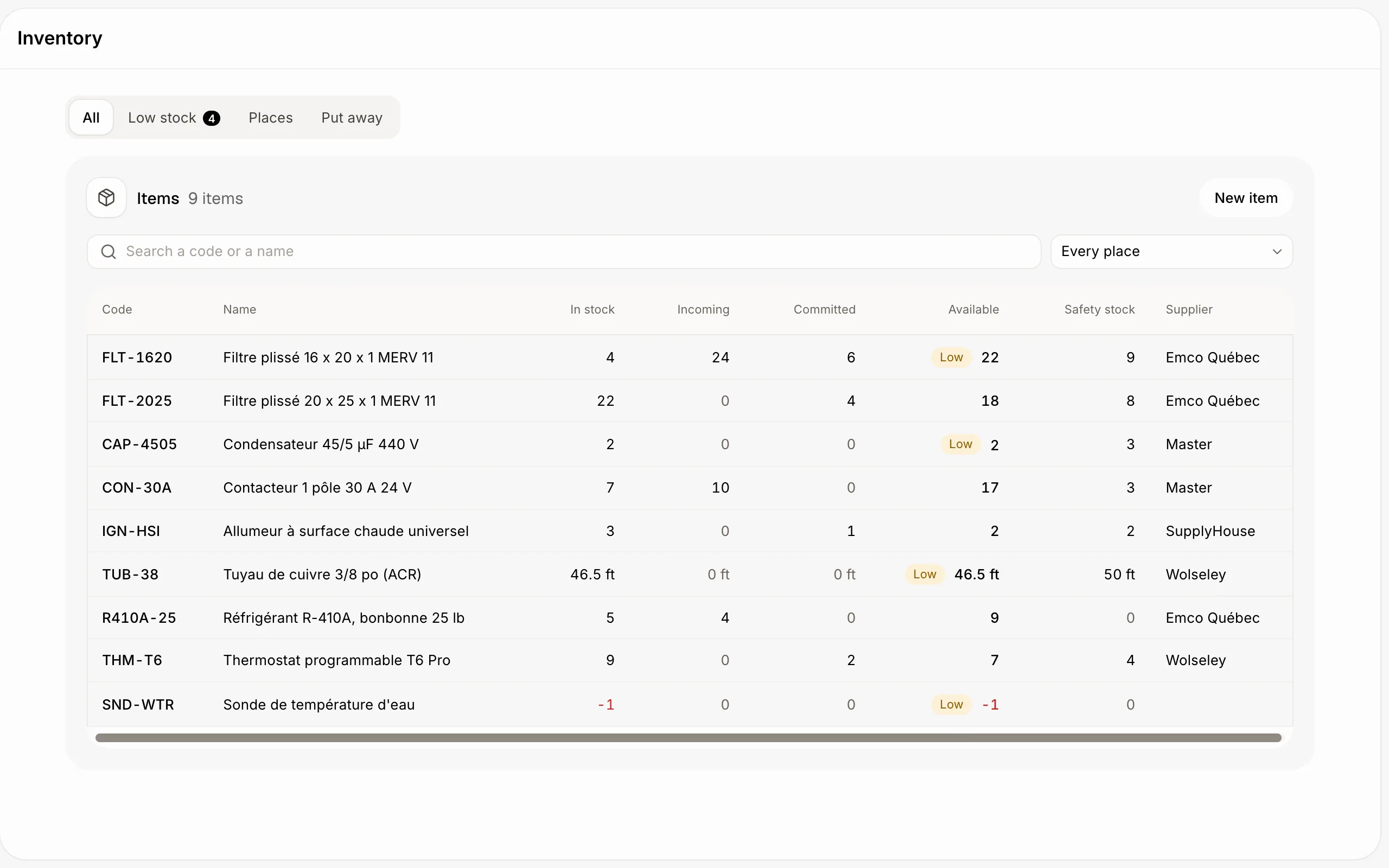
Step 2: Add the item
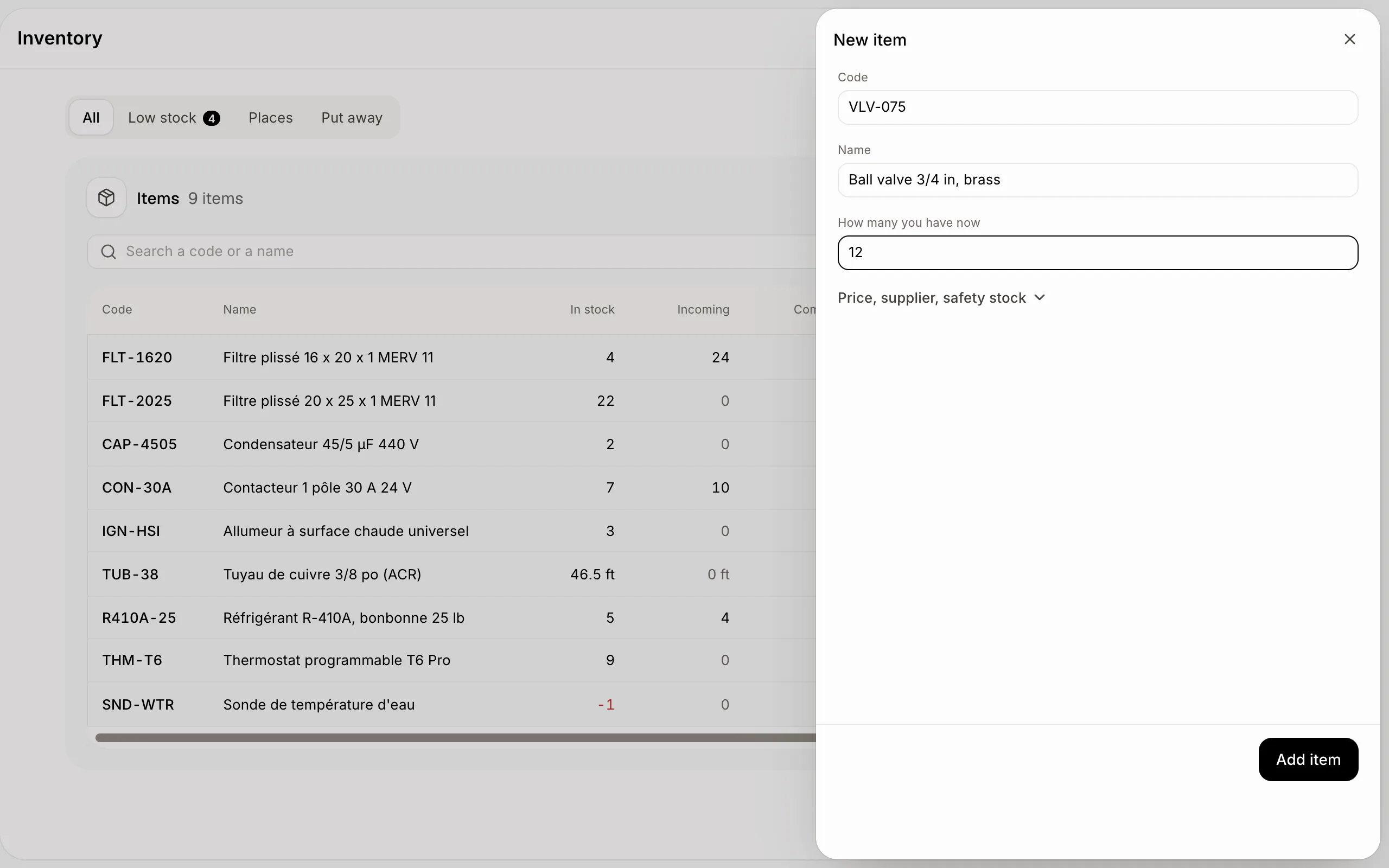
Click New item. Fill in:
Code: your own part number, like FLT-1620. Two items can't have the same code, however it's typed (FLT-1620 and flt 1620 are the same).
Name: what you call it.
How many you have now: it's counted in your main place (the warehouse) to start.
Click Price, supplier, safety stock for the rest: the Unit (each, m, ft, kg, lb, L, box), Sale price, Average cost, Safety stock, a Supplier with its code and Purchase price, and a Description. Turn off Count its stock for something you buy for one job and never keep.
Click Add item.
Click: Inventory › New item › Add item
Step 3: See the item's page
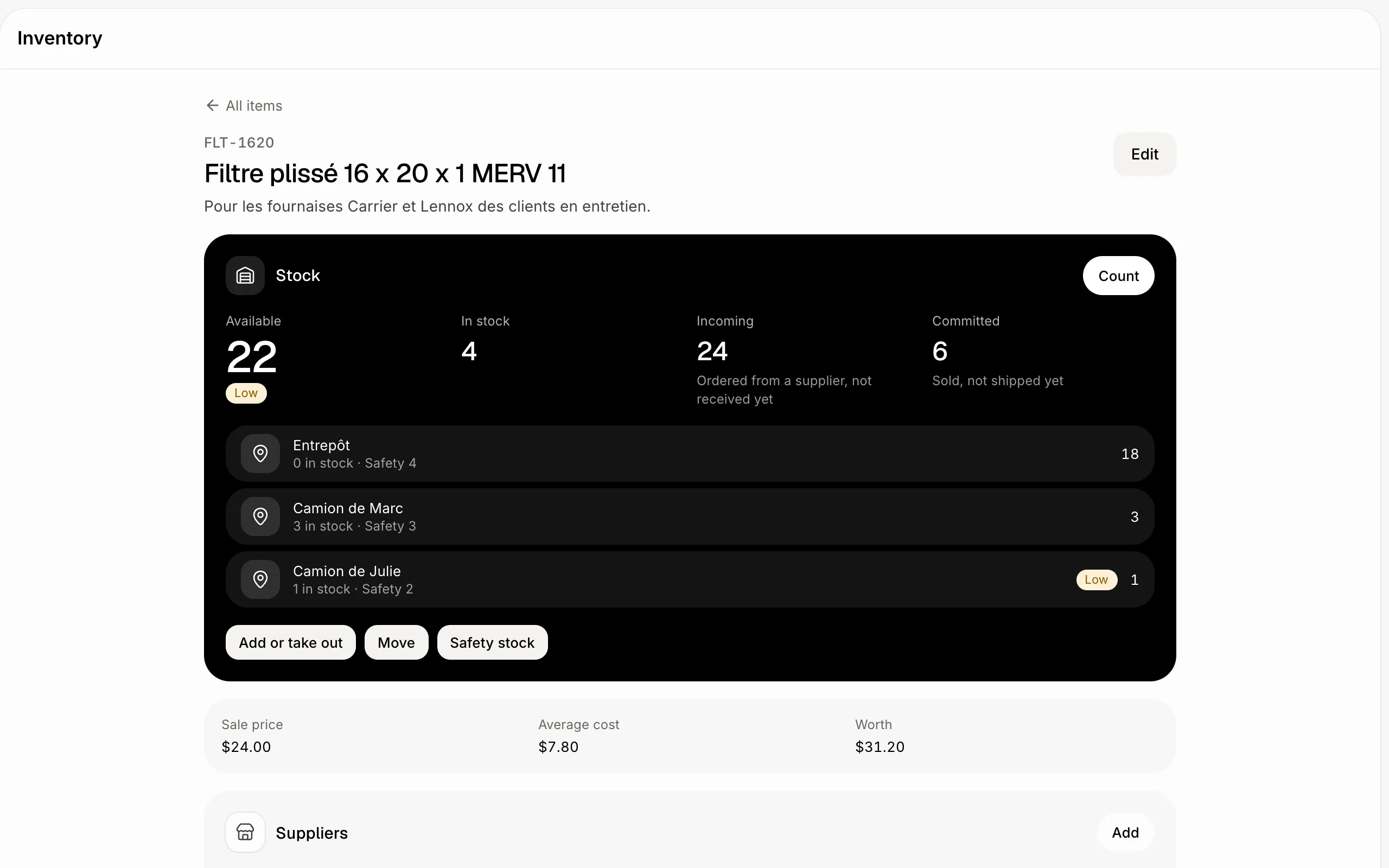
Click an item to open its page. You see how many are available, in stock, incoming and committed, how many each place holds, its sale price, average cost and value, its suppliers, and every change to its stock. Click Edit to change its name, unit or prices.
Click: Inventory › the item
If it doesn't work
"Another item already has that code." Pick another code, or open the item that has it.
"Give it a code." or "Give it a name." Both are needed to add an item.
You don't see Inventory in the menu. Ask Alori in your Chat to add inventory. Your role also needs the Inventory switch on, in Users › the role.