How do I add users and teams to my phone system and choose who gets the calls?
Set up your phone team and choose who answers each number.
Set up your phone team and choose who answers each number.
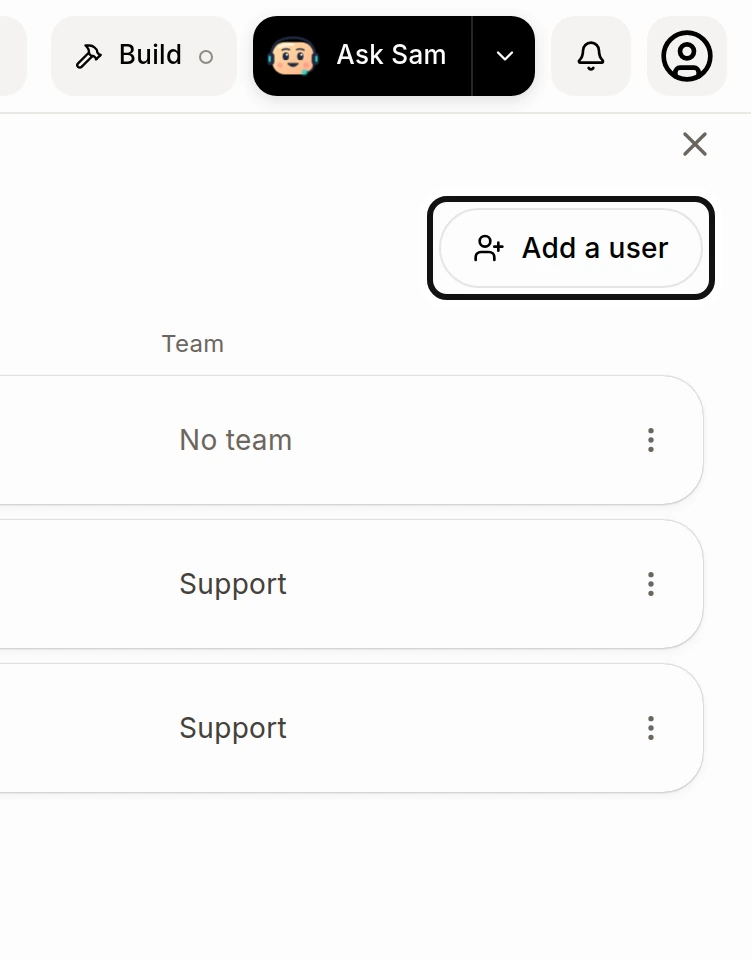
In Phone system › Users, click Add a user to open your team's user page. Add the person there before choosing them for calls.
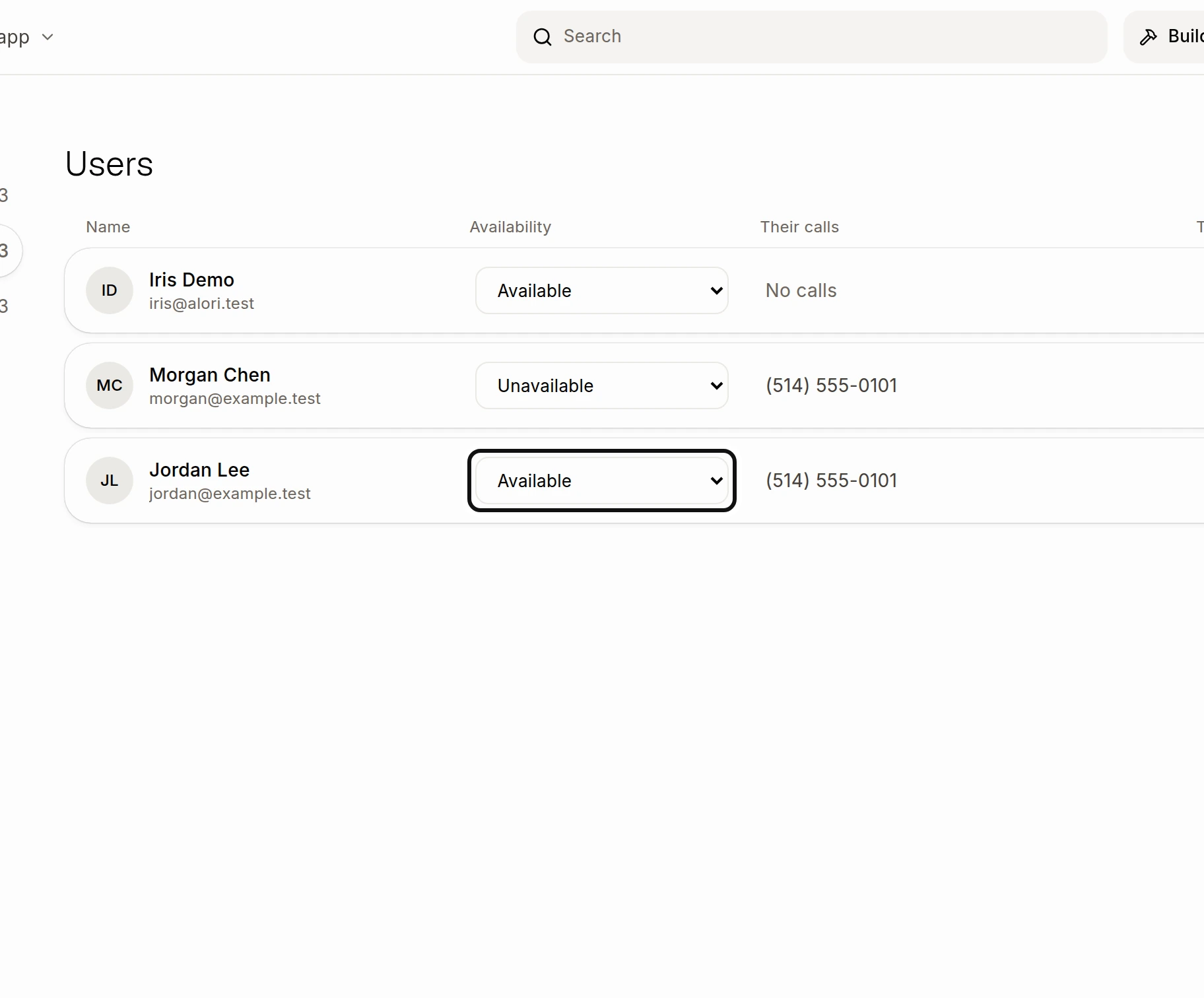
On Users, choose a teammate's availability: Available, Unavailable or Available in work hours.
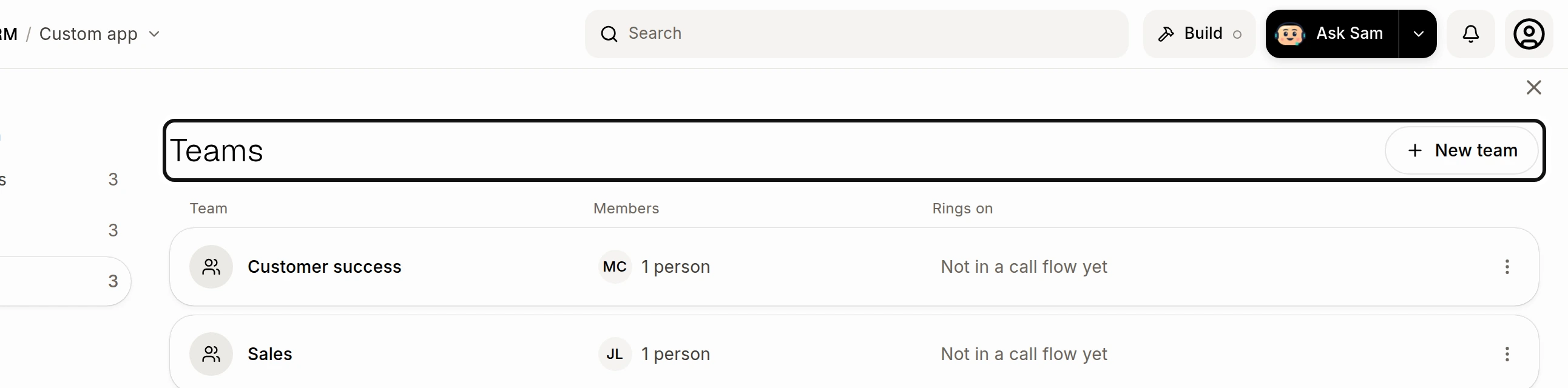
Open Teams and click New team.
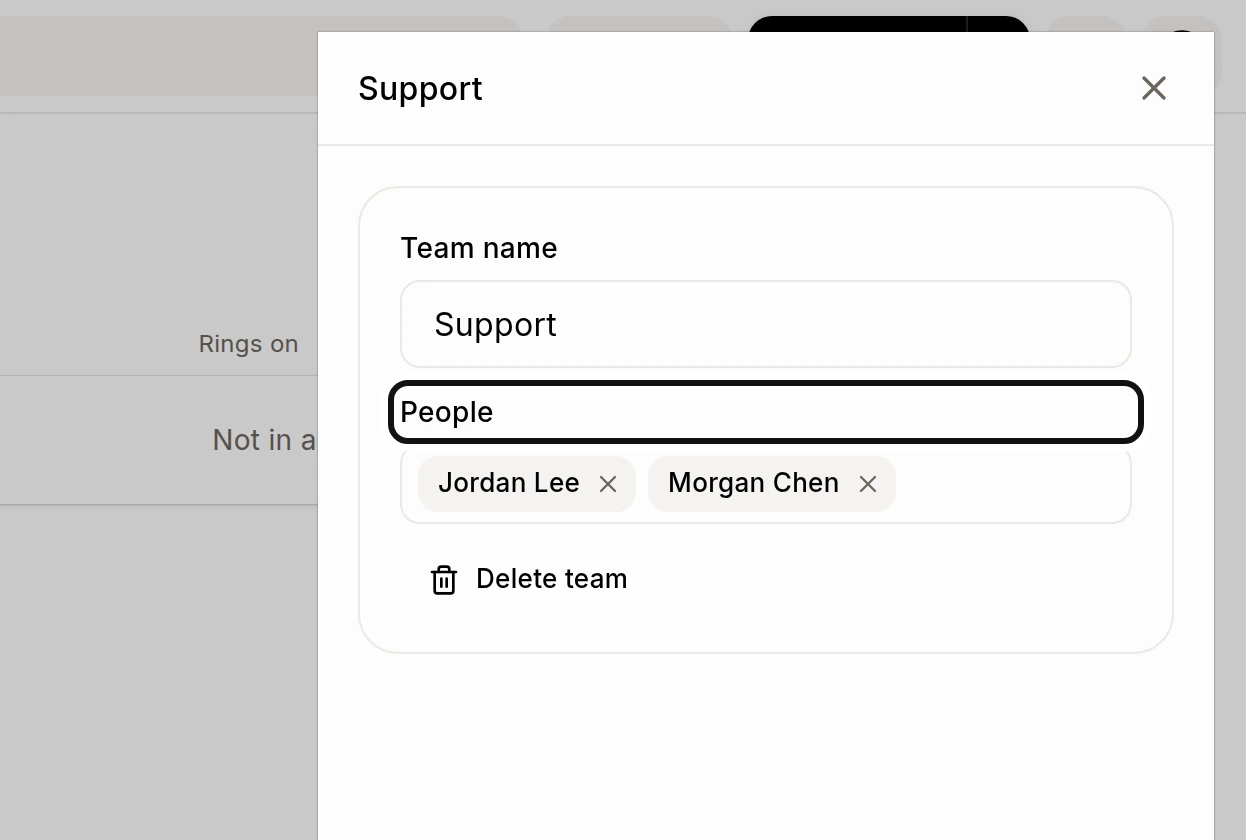
Name the team and add its People.
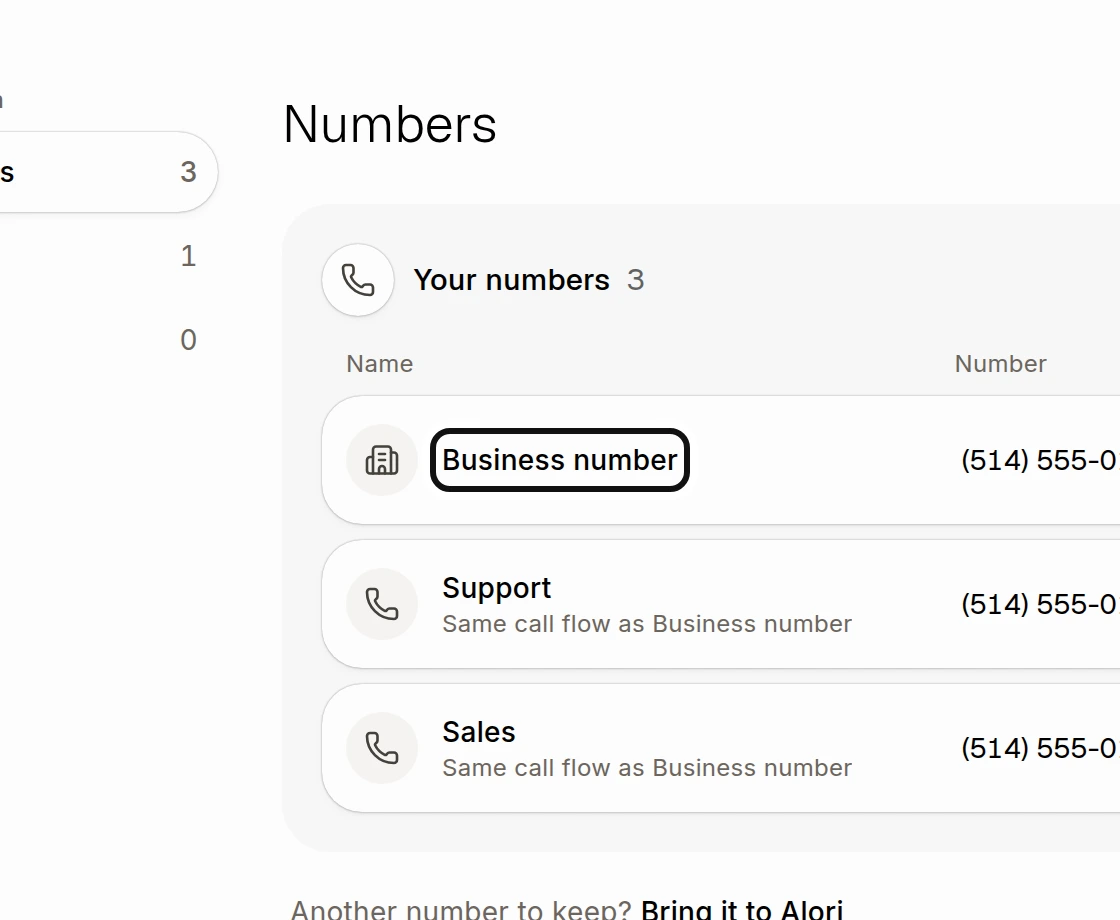
In Numbers, open the number whose calls you want to change.
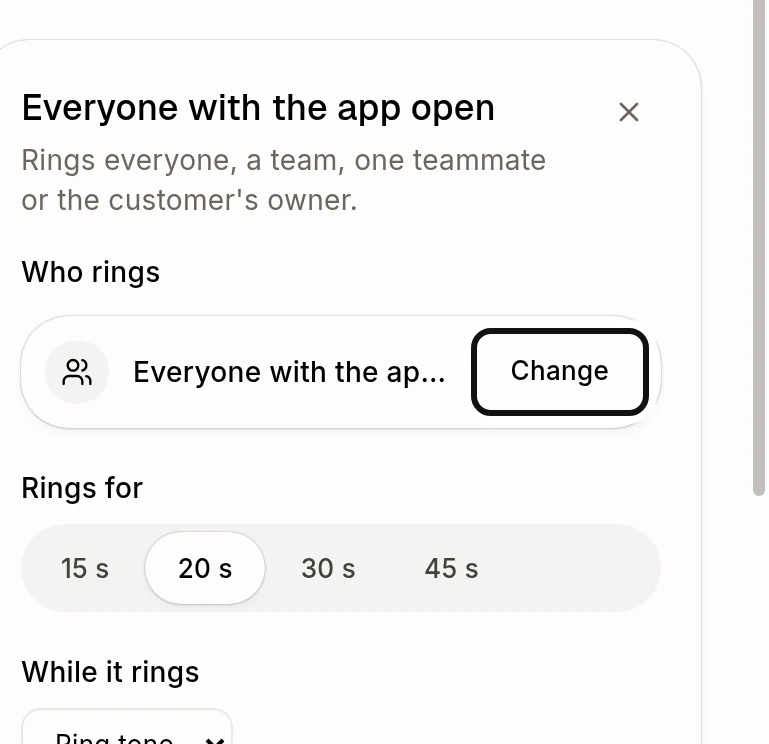
On Call flow, open the ring step and click Change under Who rings.
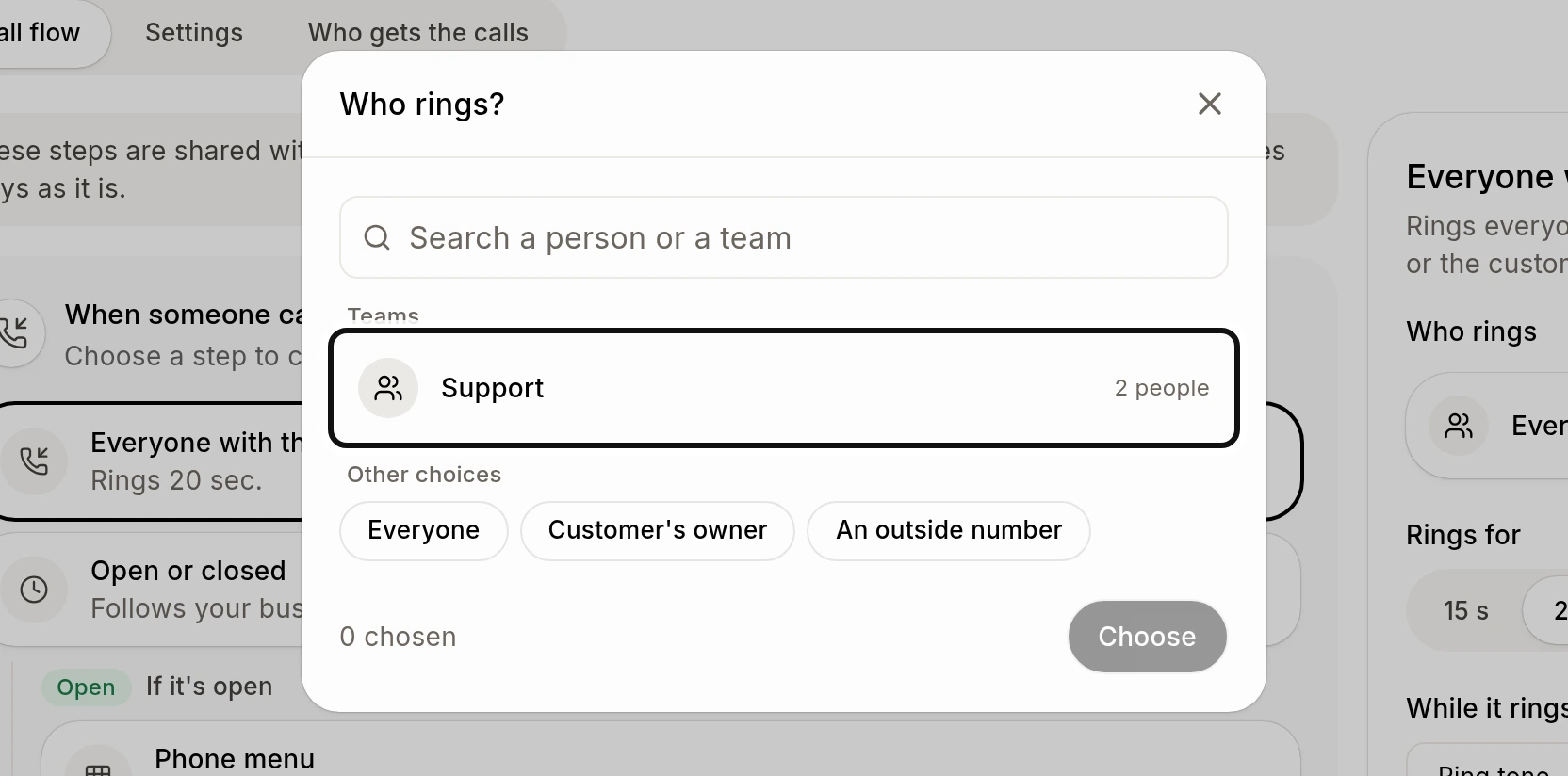
Choose a person, team or another option in Who rings?.
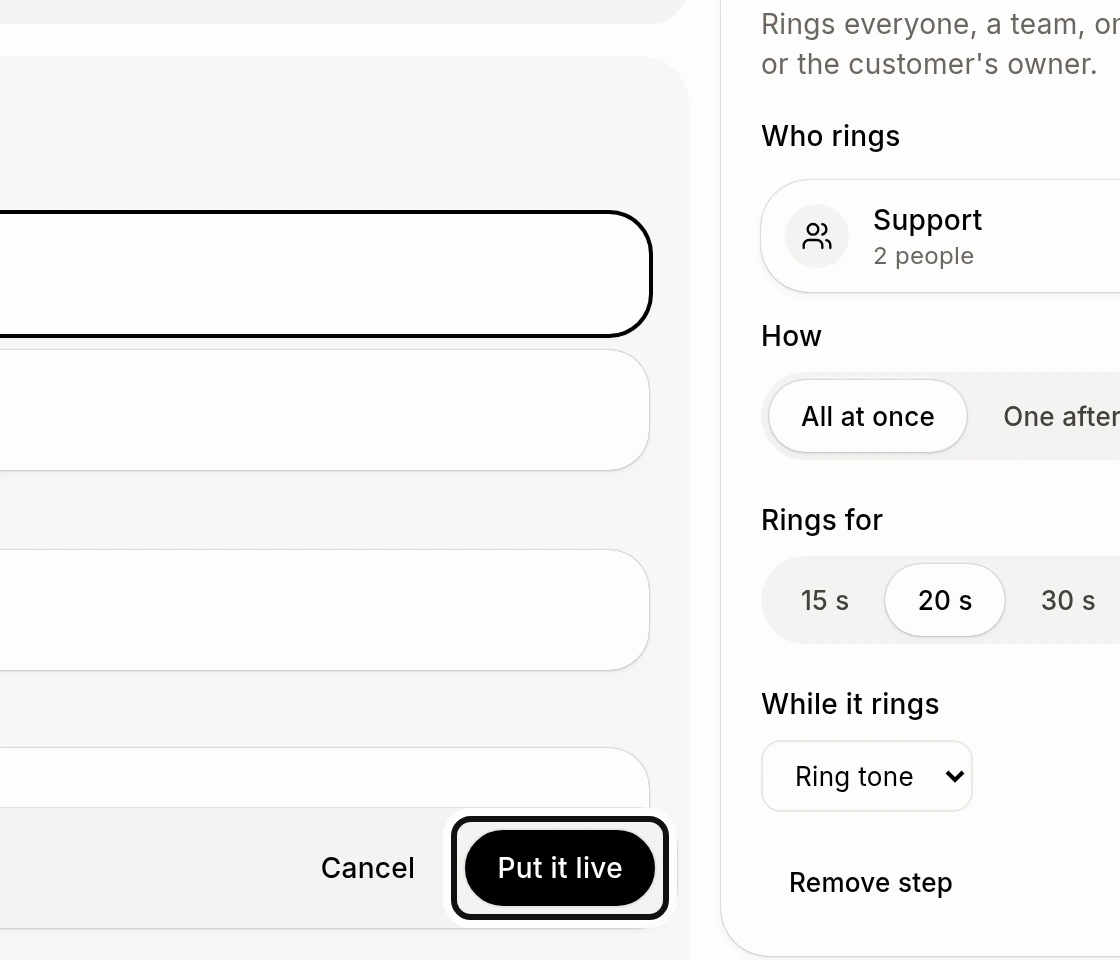
Click Put it live to save the call flow.
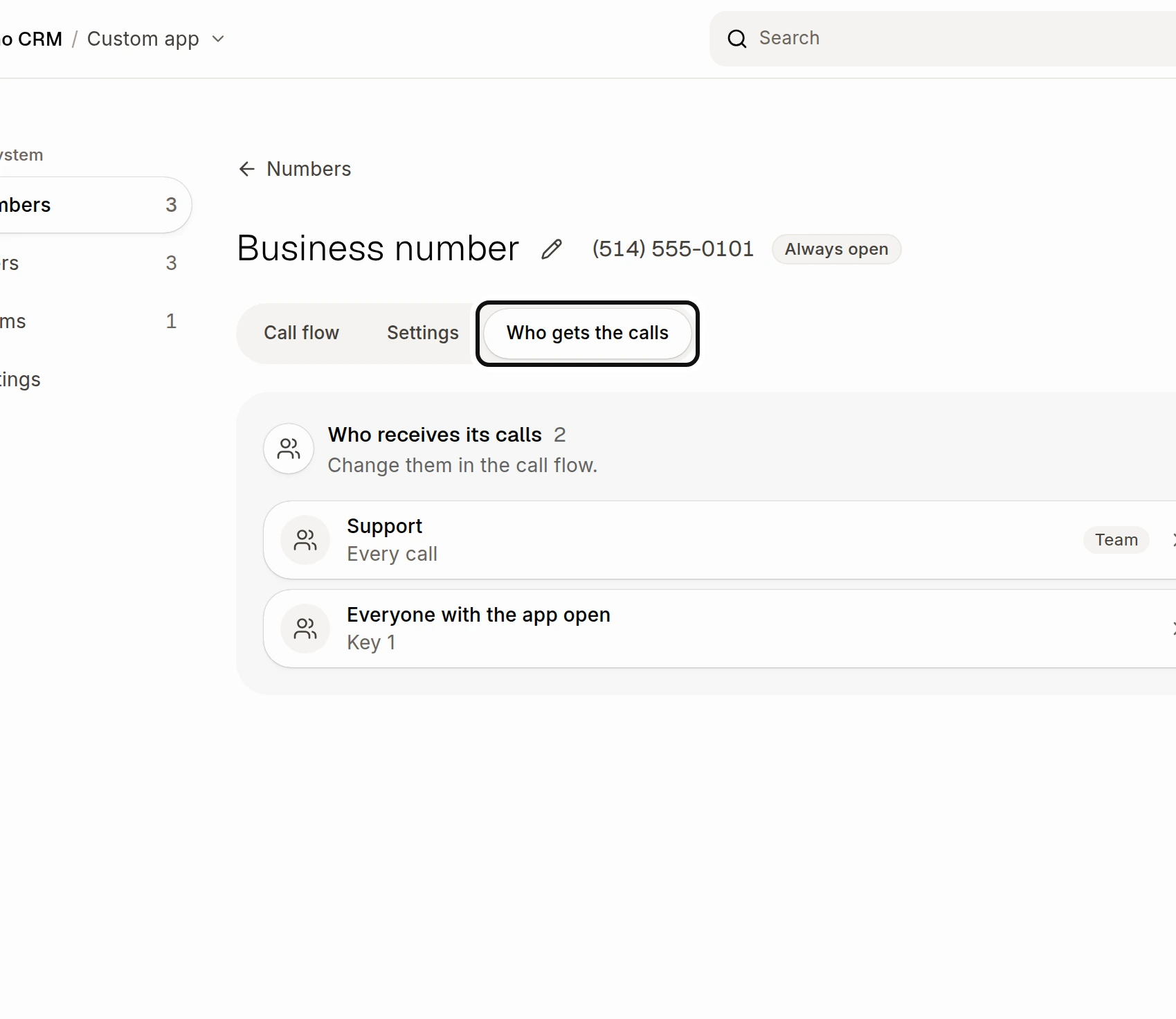
Open Who gets the calls on the number to see who receives its calls. Select an entry there to change its call-flow step.
Did this answer your question?