How do I connect monday.com so my bot works in my boards?
Click Connect on monday.com in Connectors and allow Alori. Then ask your bot to find, change, move, comment on or clean up items in your Monday boards.
Written by Philippe Genois
Connect monday.com once on the Connectors page and allow Alori in Monday. Your bot can then work in your Monday boards when you ask: find items, change them, move them, comment, build boards and clean them up. Nothing from Monday is copied into your CRM.
Also called: Monday, monday.com CRM, Monday boards, monday work management, tableaux Monday, brancher Monday
Step 1: Click Connect on monday.com
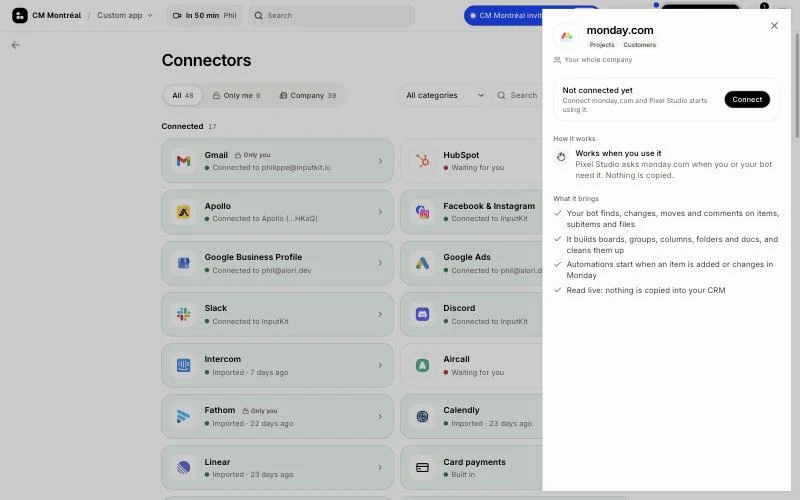
Click the grid menu at the top right, then Connectors (in the team app, Connectors is also at the bottom of the menu on the left). monday.com is under Projects: type "monday" in Search if you don't see it. Click the card, then Connect. Someone who builds the app (the owner or an Admin) connects it, once for the whole company.
Click: Connectors › monday.com › Connect
Step 2: Allow Alori in Monday
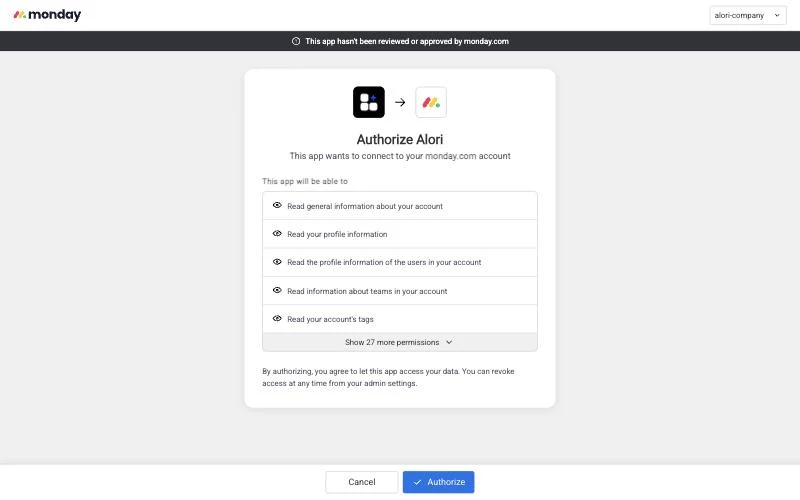
Monday opens. If you're asked, sign in and pick your account. Monday lists what Alori will be able to do. Click Authorize. Back in Alori, the card says "Connected to" and your Monday account's name.
Monday may show "This app hasn't been reviewed or approved by monday.com" at the top. That's expected: click Authorize all the same.
Click: Authorize
Step 3: Ask your bot
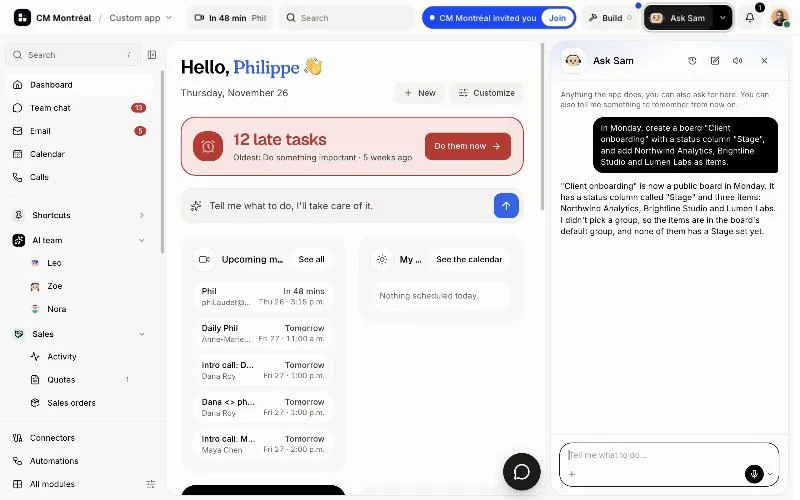
Open Ask Sam (or any of your bots) and say what you want done in Monday, in your own words. For example:
"What's stuck on the Projects board?"
"Create a board Client onboarding with a status column Stage."
"Move Acme to Done and comment that the kickoff is booked."
"Archive the items in Leads that have no email."
Changes happen in Monday right away. Click: Ask Sam › type your request › press Enter
What your bot can do in Monday
Find: boards, items and their columns, subitems, comments, your Monday team, workspaces, folders, docs and what changed on a board, across all your boards. It also reads the PDFs, Word and text files attached to items and comments.
Change: add items and subitems, change columns, move items to another group or board, copy items, comment and reply, add a file from a web address and send a Monday notification.
Build: create, rename, copy or archive boards, groups, columns, workspaces, folders and docs, write in a doc, and create tags.
Share: add or remove people and teams on a board or a workspace, as members or owners.
Clean up: archive up to 100 items at once. Monday keeps archived items 30 days, so you can restore them there.
Delete for good: only when you ask for a delete. Your bot checks with you first when there are several.
Start automations from Monday
An automation can start when an item is added, a column changes, or someone comments on an item. Ask your bot, for example: "When a status becomes Done on the Projects board, tell me in Team chat." Monday then tells Alori each time it happens, and your automation runs: a Team chat message, a text, or a task for your bot.
Good to know
Your bot works with the access of the person who connected Monday. Comments and changes show under their name.
Teammates whose role can see tasks can ask the bot to look in Monday. Changing things needs a role that can edit tasks.
To stop, click the monday.com card, then Disconnect.
If it doesn't work
monday.com shows "Needs reconnect" in Connectors. See What do I do when a connector says "Needs reconnect"?
The bot says Monday didn't allow something yet. Your connection is older than that feature. Click the monday.com card, Disconnect, then Connect again and click Authorize.
The bot says "monday.com isn't connected" when you set up an automation. Connect it first (Step 1), then ask again.
The bot says Monday's limit is used up. Monday allows a set number of requests per minute. Wait a minute and ask again.
Related
Did this answer your question?