What are connectors?
Connectors link the tools you already use to Alori. The Just for you tab holds your own Gmail, calendars and GitHub, private to you. The Company tab holds the tools your team shares, like QuickBooks and Slack.
A connector links a tool you already use to Alori, so you don't type things twice. The Connectors page has two tabs:
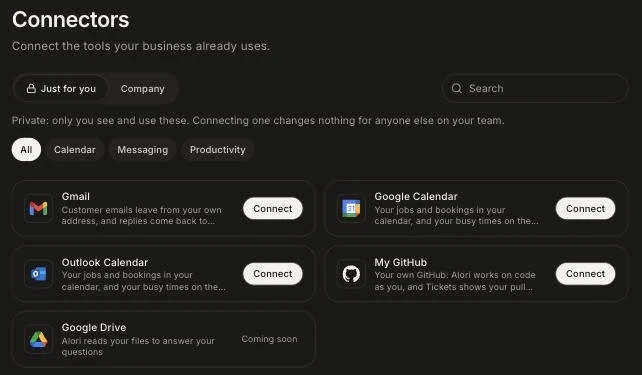
Just for you: your own Gmail, Google or Outlook calendars and GitHub. They are private: only you see and use them, and connecting one changes nothing for anyone else on your team. Each teammate connects their own.
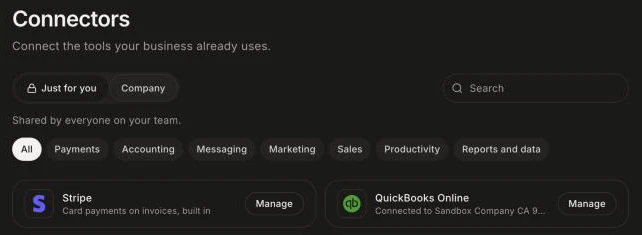
Company: the tools your team shares. You connect each one once, and it works for every project in your account.
Also called: integrations, apps, link a tool, sync, connecteurs, intégrations, connexions
What you can connect just for you
Gmail: customer emails leave from your own address. See How do I connect my Gmail?
Google Calendar and Outlook Calendar: your jobs and bookings in your calendar. See How do I connect my calendar?
My GitHub: Alori works on code as you. See How do I link my own GitHub?
Google Drive is coming soon.
What you can connect for the whole company
QuickBooks Online: customers, invoices and payments without double-entry.
Slack and Discord: your bot posts in your channels, and your team talks to it there.
GitHub: your company's GitHub, for automations: your bot reads your code and opens pull requests for your team to review.
Google Search Console: your bot tells you how your website does in Google.
Apollo: find a customer's email and phone number in one tap.
Facebook & Instagram: answer Messenger and Instagram messages in Conversations, and get your Facebook and Instagram lead ads in your CRM.
API: keys for Power BI, Excel and your scripts, to read your records for reports or to import. Manage opens the Data API page. See How do I pull my data into Power BI, Excel or another reporting tool?
Stripe: card payments on invoices are built in. There's nothing to connect: Manage opens your payments.
Step 1: Open Connectors
Click the grid menu at the top right, then Connectors. It opens on Just for you, your own accounts. Click Company for the tools your team shares. On either tab, type a name in Search, or pick a category like Calendar or Accounting. If your search finds nothing on this tab but something on the other, click the link under "No connectors match your search." to go there.
Click: Connectors
Step 2: Connect a tool
Click Connect on the tool. You sign in to that tool and allow Alori, then you come back. You see "QuickBooks Online is connected." (with the tool's name). For Apollo, you paste a key instead.
You can also type "connect QuickBooks" in the chat. A card shows up with a Connect button.
Click: Connectors › Connect
Step 3: Choose which projects use it
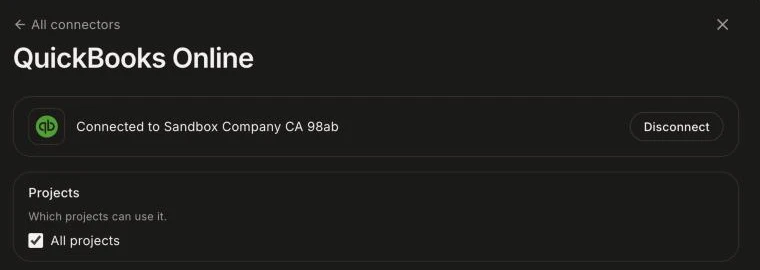
Once it's connected, click Manage. Under Projects, All projects is ticked. Untick it to pick only some projects.
Click: Connectors › Manage › Projects
Good to know
You need a saved account to use Connectors.
Each company tool connects once per account. Each person connects their own Gmail, calendars and GitHub.
To stop using a tool, click Manage › Disconnect. Projects in your account stop using it.
If it doesn't work
"Not configured on this deployment yet." That tool isn't ready on Alori's side yet. Contact support.
"… could not connect. Try again." The sign-in didn't finish. Click Connect again and allow what the tool asks for.
"Needs reconnect" shows under the tool. See What do I do when a connector says "Needs reconnect"?