How do I connect more than one Gmail?
On Connectors, click the Gmail card, then Add another Gmail. Up to 5 Gmails show in one inbox, and new emails leave from your main one.
Open Connectors, click the Gmail card, then Add another Gmail. You can connect up to 5 Gmail accounts. Your Email page shows all of them in one inbox, and new emails leave from your main Gmail.
Also called: several Gmail accounts, two inboxes, multiple email addresses, work and personal email, plusieurs Gmail, deux boîtes courriel, ajouter un compte Gmail
Step 1: Add another Gmail
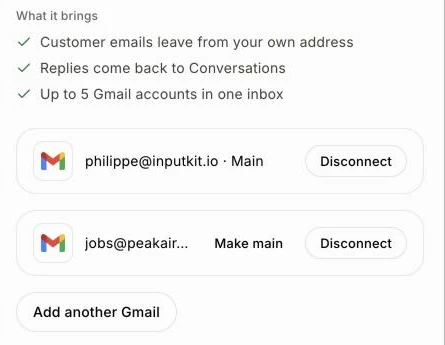
Open Connectors and click the Gmail card: its panel opens on the right, with your accounts. Click Add another Gmail. Google asks which account to use: pick the other one and allow the access it asks for.
Click: Connectors › Gmail › Add another Gmail
Step 2: Pick your main Gmail
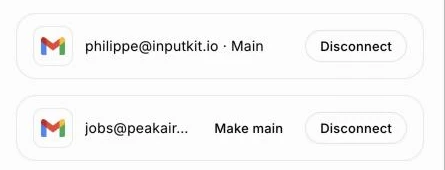
The first Gmail you connected is your Main one. New emails, quotes and invoices leave from it. To change it, click Make main next to another account.
Click: Gmail › Make main
Step 3: Read all your mail in one inbox
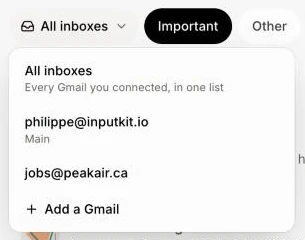
Open Email in the CRM. Mail from every Gmail shows in one list, newest first, and each email says which Gmail it came to. To see only one, click All inboxes above the list and pick that Gmail.
Click: Email › All inboxes › pick a Gmail
Good to know
When you write a new email, the From line lists the addresses of every Gmail you connected. Pick one, and the email leaves from that Gmail. A reply leaves from the Gmail the email came to.
Each Gmail stays private: nobody else on your team sees it.
Your Email settings (drafted replies, meeting times, adding emails to conversations) apply to every Gmail you connected.
A reply or forward you sent from another of your Gmail accounts shows in the email it answers, with Sent from and that Gmail's address. Answering it leaves from that Gmail.
When you email a customer from their conversation, it leaves from the Gmail they last wrote to, else your main one. The line under the email says which.
To remove one Gmail, click Disconnect next to it. The others stay. If it was your main one, the next one becomes main.
If it doesn't work
"You have connected every Gmail you can (5)." Disconnect one first, then add the other.
"… stopped syncing." on your Email page. Google cut that Gmail's access. Click Reconnect Gmail, then Reconnect next to it in the Gmail panel. Your other Gmail accounts keep working meanwhile.
Google connected the same account again. On Google's screen, pick the other account, or click Use another account there.