How do I import items from a spreadsheet?
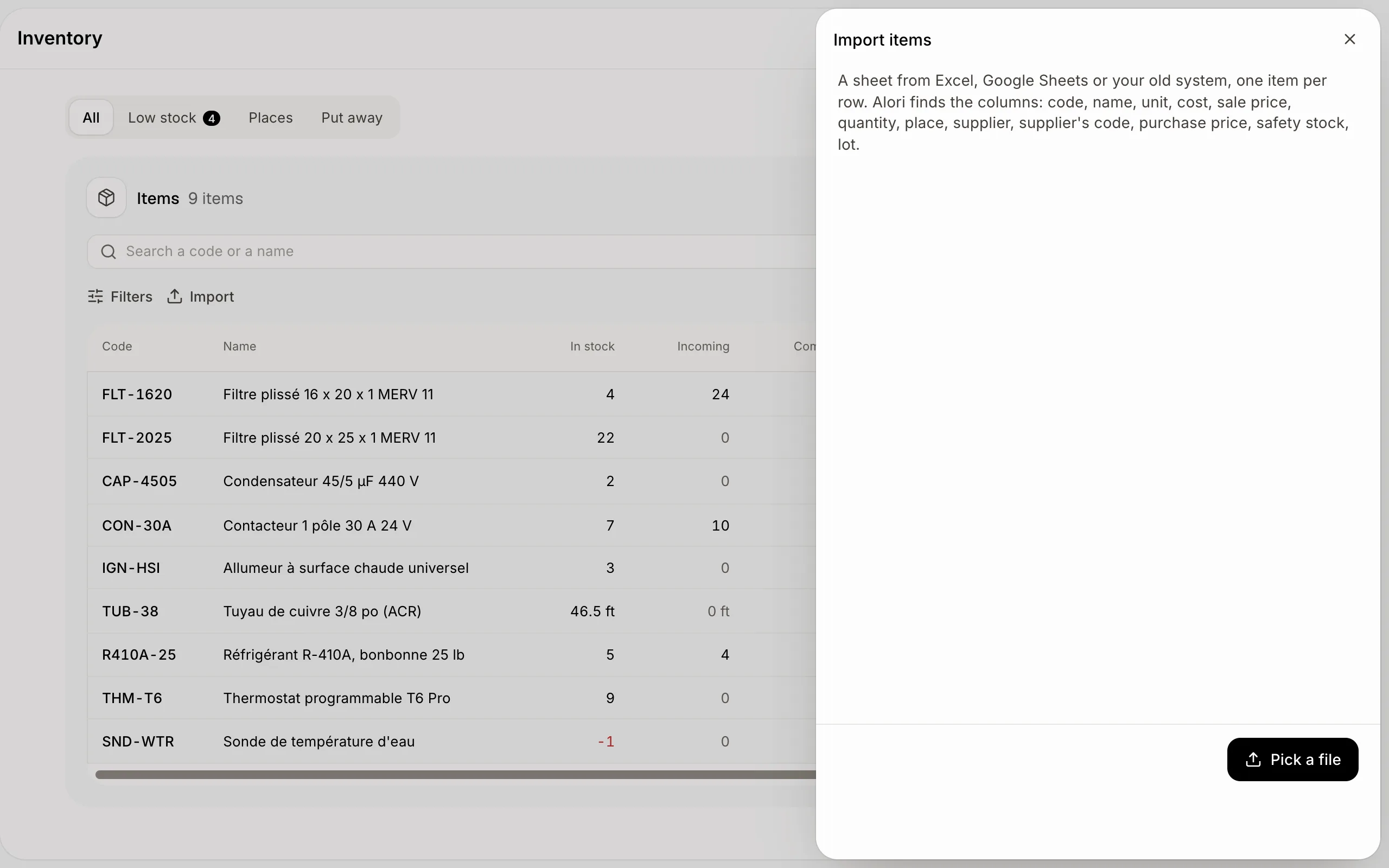
In Inventory, click Import and pick your CSV or Excel file. Alori finds the columns and adds or updates every item.
In Inventory, click Import, then Pick a file: a CSV or Excel sheet with one item per row. Alori finds the columns by their names and saves right away: an item whose code is already here is updated, the others are added.
Also called: import inventory, upload items, CSV, Excel, spreadsheet, bulk add, importer l'inventaire, importer des articles, chiffrier
Step 1: Pick your sheet
Click Import, then Pick a file. Alori reads these columns, named in English or French: code (or SKU), name, unit, cost, sale price, quantity, place, supplier, supplier's code, purchase price, safety stock and lot. A quantity is a count: the place then holds that many. A supplier or place it doesn't know is added.
Click: Inventory › Import › Pick a file
Step 2: Check what came in
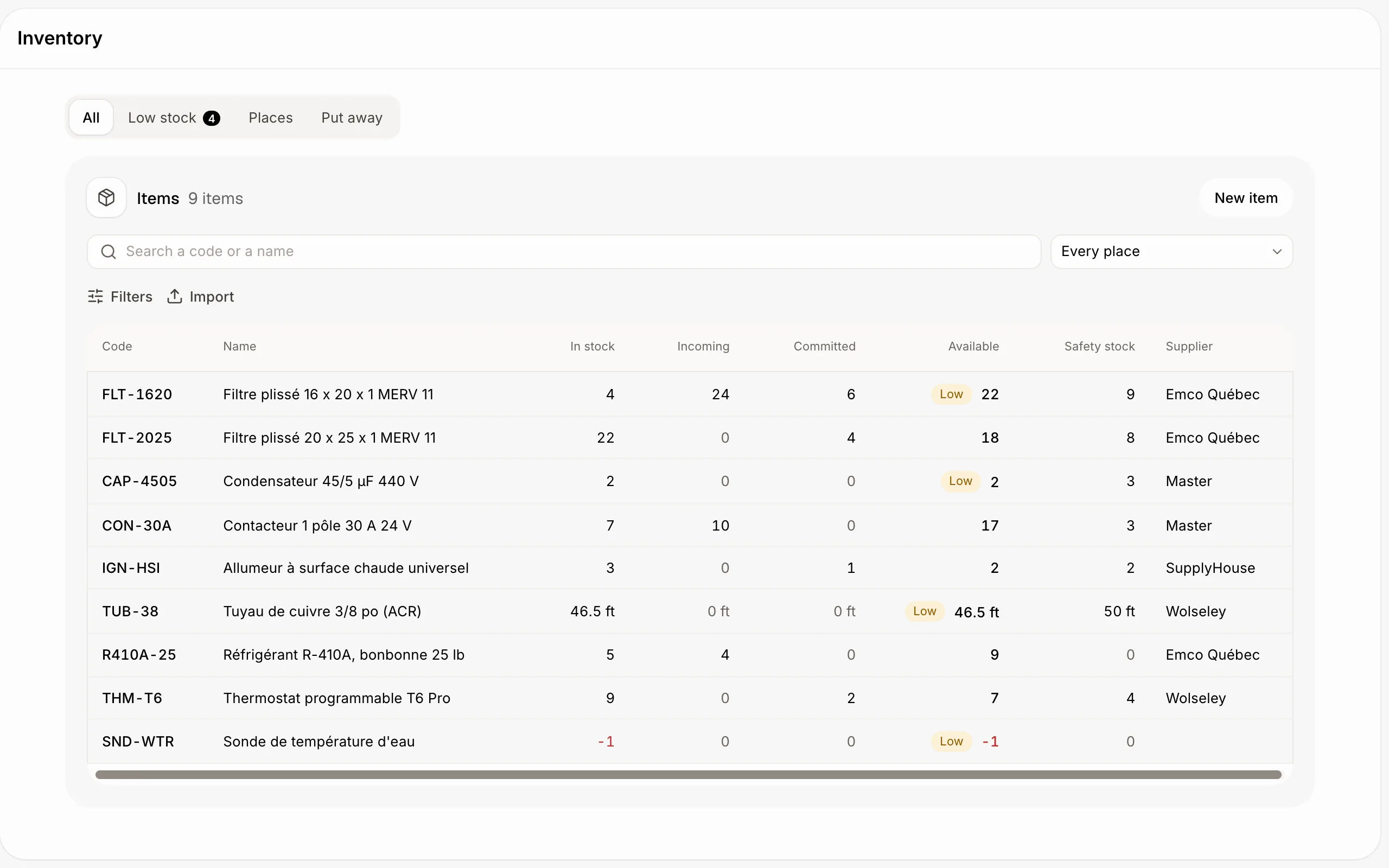
Alori says how many items were added and updated, and lists the rows it couldn't take with why. The items are in the list right away; fix any value on the item's page.
Click: Inventory
If it doesn't work
"Alori found no column with a code or a name." Name a column Code or SKU, and try again.
"Save it as .xlsx or .csv first." Old .xls files can't be read.
A row says "Enter the lot." The item is followed by lot: add a Lot column.