How do I log parts used on a job?
On the job's page, click Add parts under Parts used, pick the item and how many. They come out of your truck's stock.
Open the job and, under Parts used, click Add parts. Pick the Item, type How many and click Save. The parts come out of your truck's stock (or the main place) and show on the job.
Also called: materials used, parts on a job, job parts, consume stock, pièces utilisées, matériel utilisé, pièces sur un travail
Step 1: See the parts on a job
Open the job from Jobs or the Schedule. Parts used shows each part taken for it, with its code, the place it came from and how many. It shows in apps with Inventory turned on.
Click: Jobs › the job › Parts used
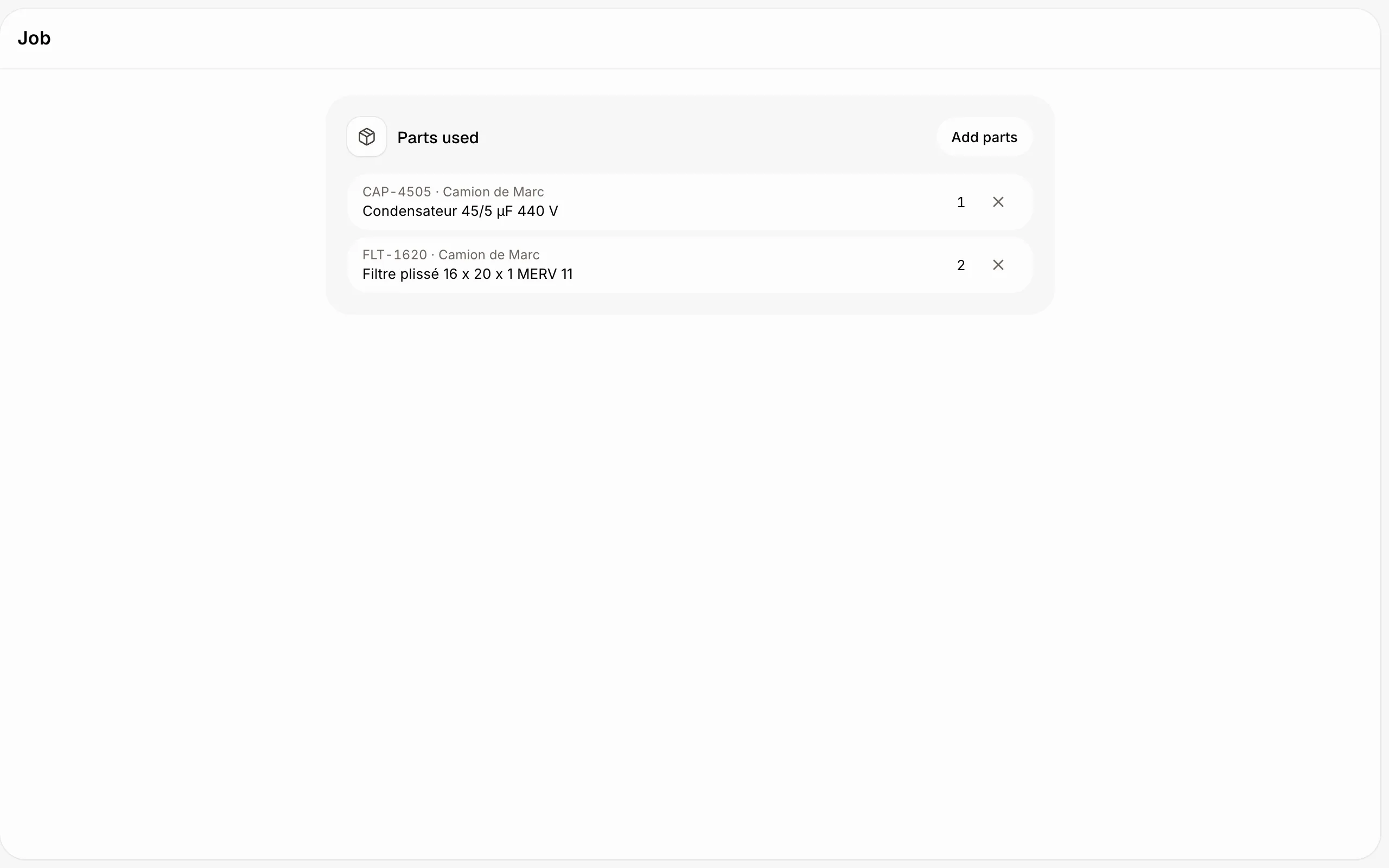
Step 2: Add a part
Click Add parts. Pick the Item (type its code or name), type How many, and check From: it starts with your own truck when it's set up as yours, otherwise the main place. Click Save. The part leaves that place's stock and shows as Used in the item's history.
Took the wrong part? Click the × beside it: it goes back into stock.
Click: Jobs › the job › Add parts › Save
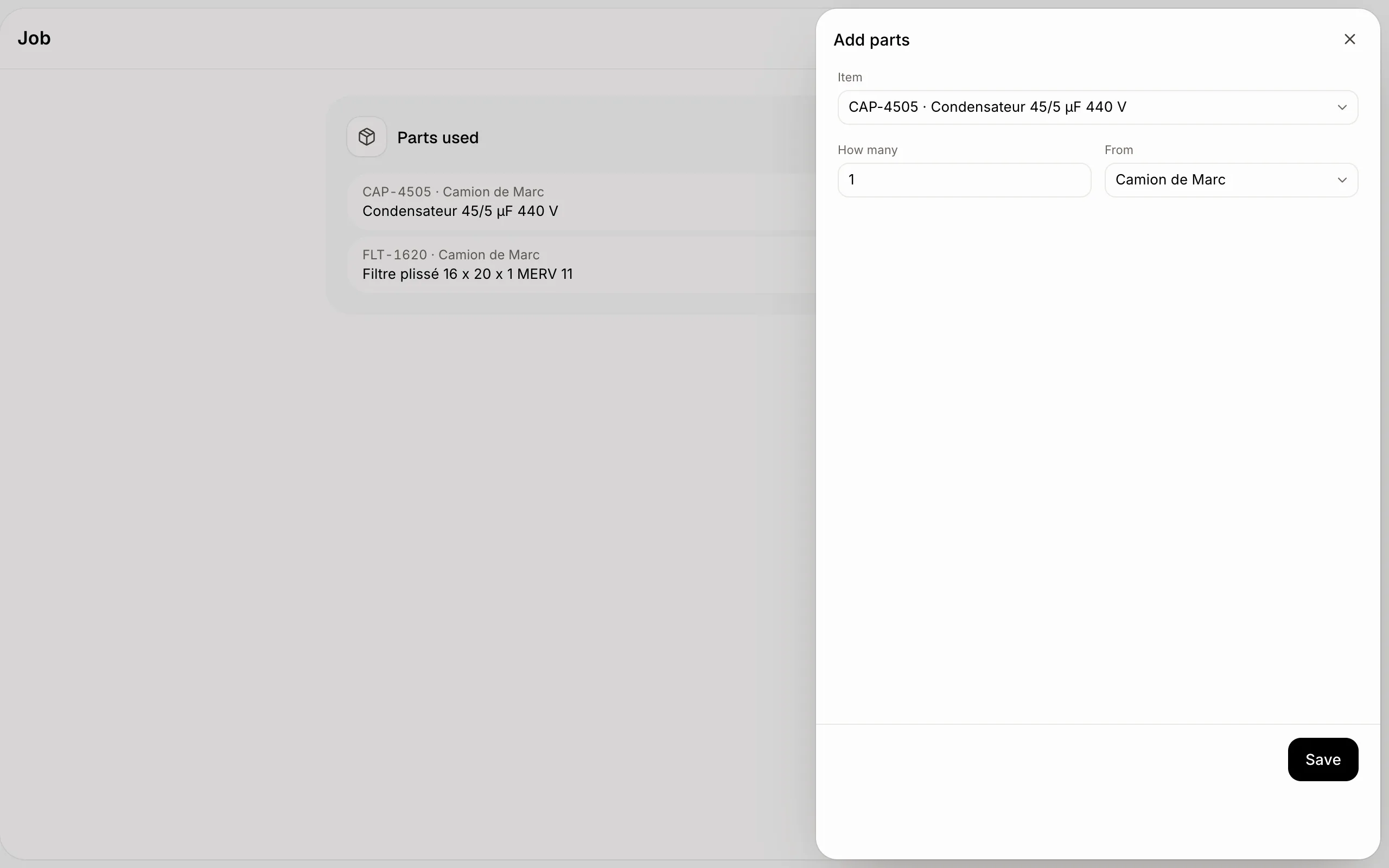
If it doesn't work
You don't see Parts used. Inventory isn't turned on, or your role can't see Inventory.
"This item isn't counted." Count its stock is off for this item.
The truck shows less than zero. A part was used before it was counted or received. Count the truck again.