How do I make ticket templates?
In Settings › Tickets › Templates, click New template and fill in what new tickets should start with. New ticket then shows it under Start from.
A template fills in a new ticket for you: its title, details, type, priority and labels. Make one in Settings › Tickets › Templates, then pick it under Start from when you click New ticket.
Also called: ticket template, form, checklist, prefilled ticket, modèle de billet, gabarit
Step 1: Make a template
Go to Settings › Tickets and click New template under Templates. Give it a Template name, like "Warranty return". Choose who it's For (one team or Every team). Write the Ticket title and Details new tickets start with, then pick a Type, a Priority and Labels. Click Save.
Click: Settings › Tickets › New template › Save
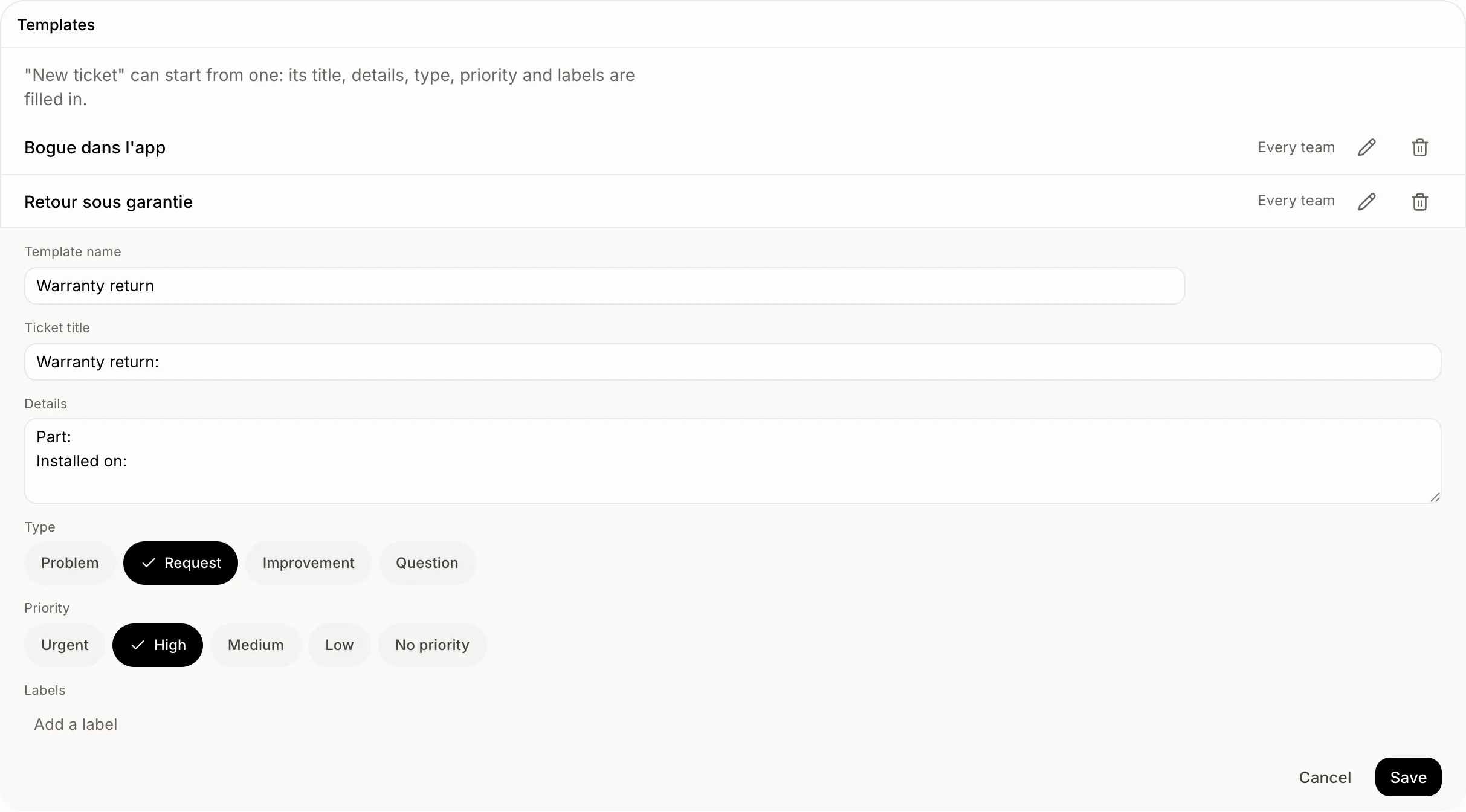
Step 2: File a ticket from it
Click New ticket (or press C). Under Start from, click the template. Its title, details, type, priority and labels fill in. A title or details you already typed stay. Tap the template again to let it go. Change anything, then click File ticket.
Click: Tickets › New ticket › the template
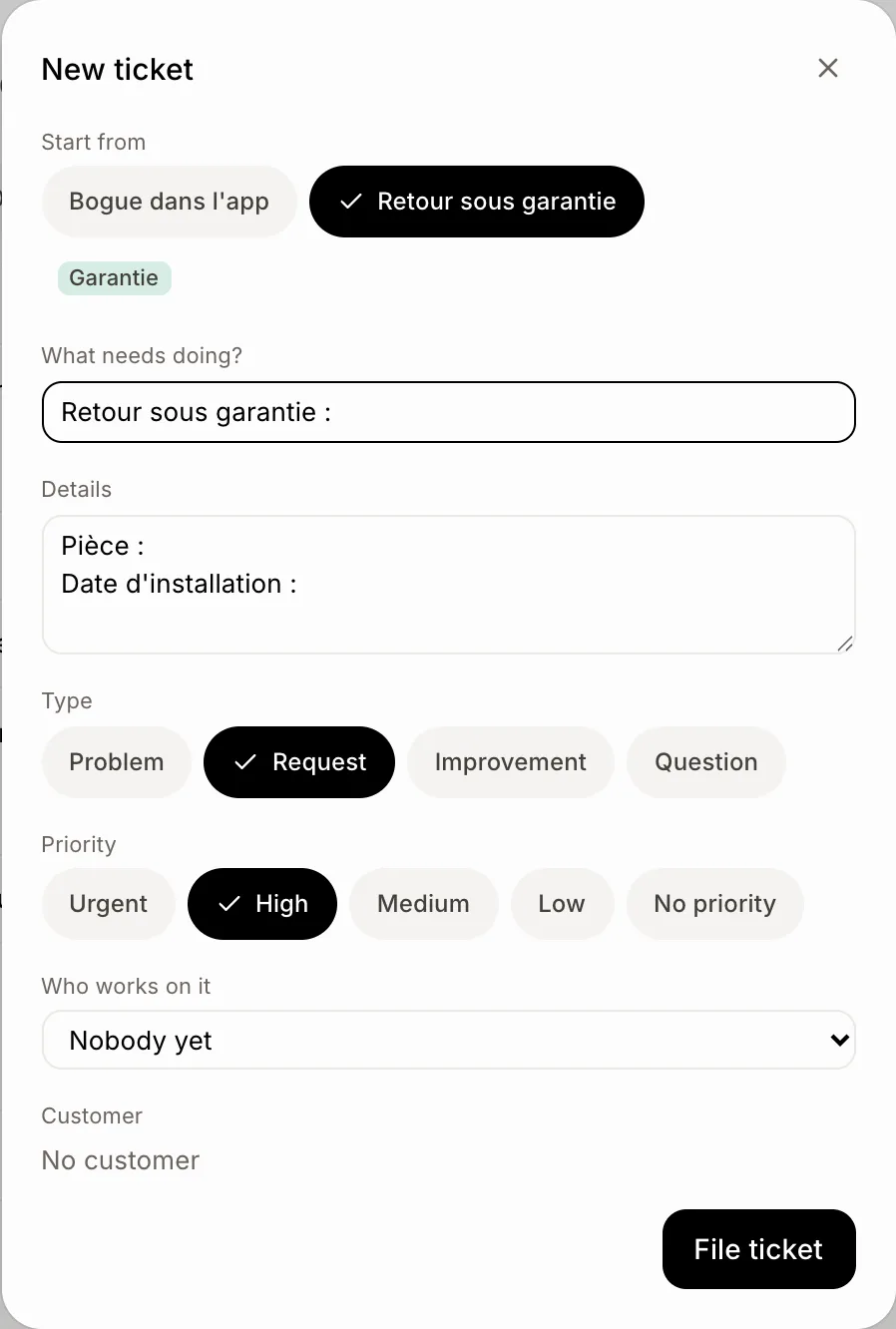
Step 3: Change or delete a template
In Settings › Tickets › Templates, click the pencil to change a template or the bin to delete it. Deleting one changes no ticket.
Good to know
You can ask Ask Sam: "file a warranty return for Marc Tremblay" when a template has that name.
If it doesn't work
"You have the most templates there can be. Delete one first." Delete a template you no longer use.
A template doesn't show in New ticket? It's for another team: pick that team in the window, or set it to Every team.