How do I see a teammate's booking links?
In Booking › Links, click My links and pick a person, a team or All people and teams. Admins can then change their links like their own.
On the Links tab of Booking, click My links and pick a person: you see their booking links and can copy, share, change or add one for them. Pick All people and teams, All people, All teams or one team to see several people at once. Only admins have this menu.
Also called: teammate's links, team's links, someone else's event types, My Calendly, liens d'un collègue, liens de l'équipe, Mes liens
Step 1: Open the menu
In Booking, on the Links tab, click My links at the top left. Type in Filter to find someone by name. Show more lists everyone past the first five people.
Click: Booking › Links › My links
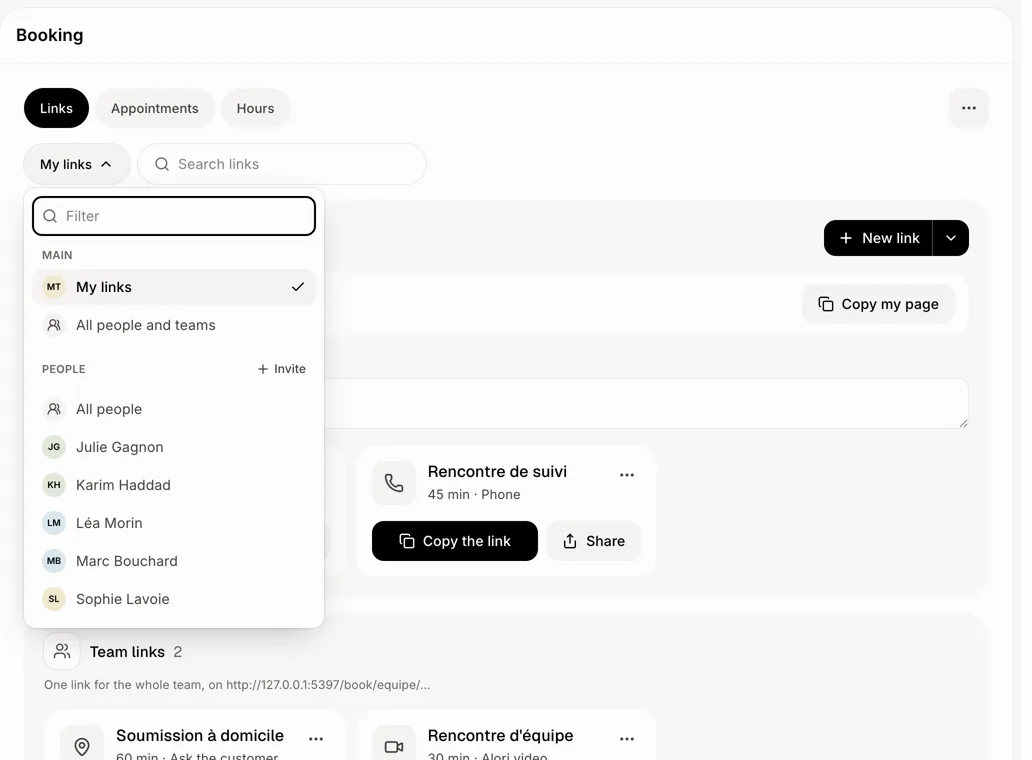
Step 2: Pick a person
Click a name under People. You see their page, its address and their links, as they see them. Everything works like on your own links: Copy the link, Share, and in a card's ⋯ menu Edit, Duplicate and Close link. New link makes a link in their name. You can also Copy their page, add their welcome message, or resume their bookings when they are paused.
Click: My links › a person's name
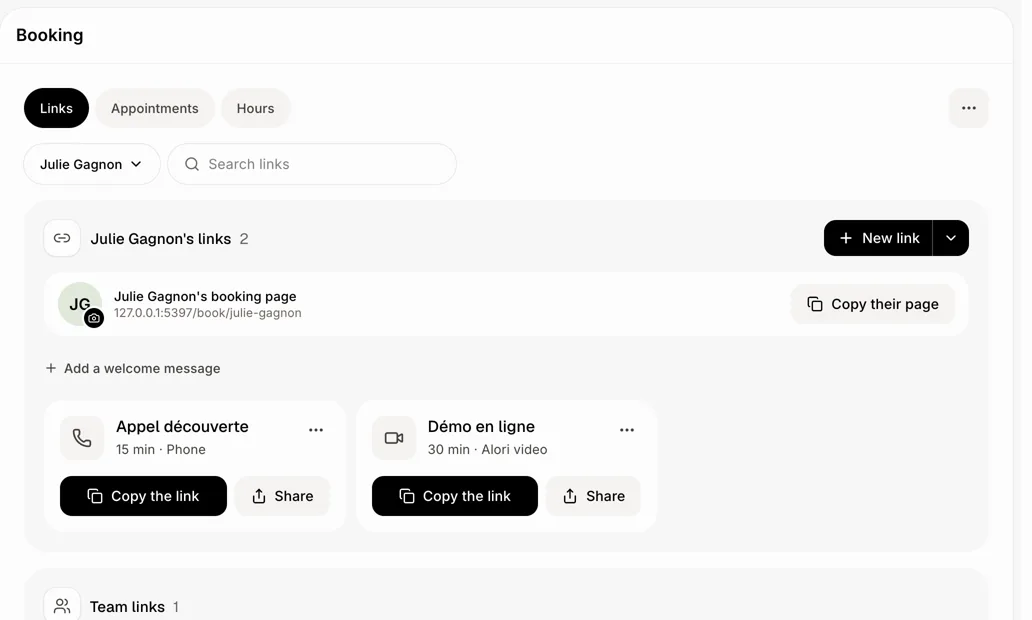
Step 3: See several people at once
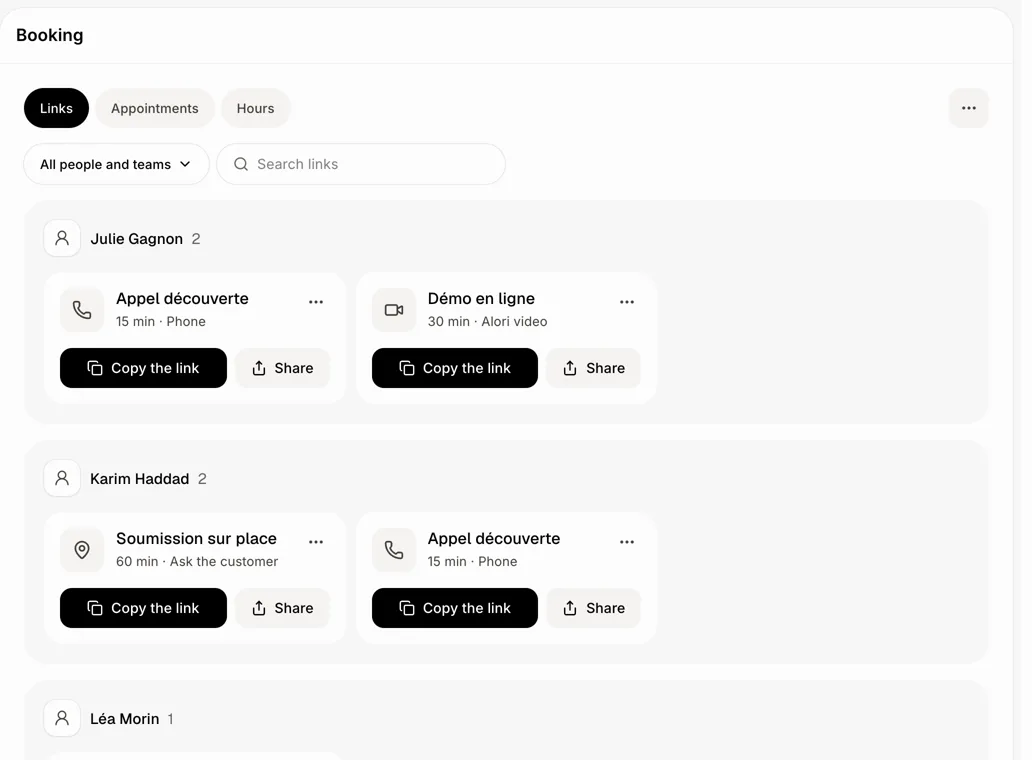
All people and teams: each person's links under their name, then the team links.
All people: each person's links under their name.
All teams: each team's name over its people, then the team links of people on a team.
A team's name: that team's people, then the team links they take part in.
Search links next to the menu finds a link by its name in what you see. A person who has no link yet doesn't show here: pick them under People to make their first one.
Click: My links › All people and teams
Good to know
Pick My links to come back to your own links.
Each choice has its own address, so you can bookmark it or send it to another admin.
+ Invite and + New team open the Users page, where you invite people and make teams.
Only people who take appointments are listed. A teammate who never turned on booking isn't in the menu.
You can also ask Alori: "Show me Julie's booking links."
If it doesn't work
I don't see My links. Only admins have it. Everyone else sees their own links and the team links they take part in.
"No link matches …" Nothing you see has that name. Clear Search links, or pick All people and teams.
"Nobody here takes appointments yet." No one in that view has a link. Pick a person under People to make one for them.