How do I set up price lists and customer terms?
Add price lists in Settings › Inventory, set an item's own price on its page, then pick a customer's list, billing address and days to pay on their page.
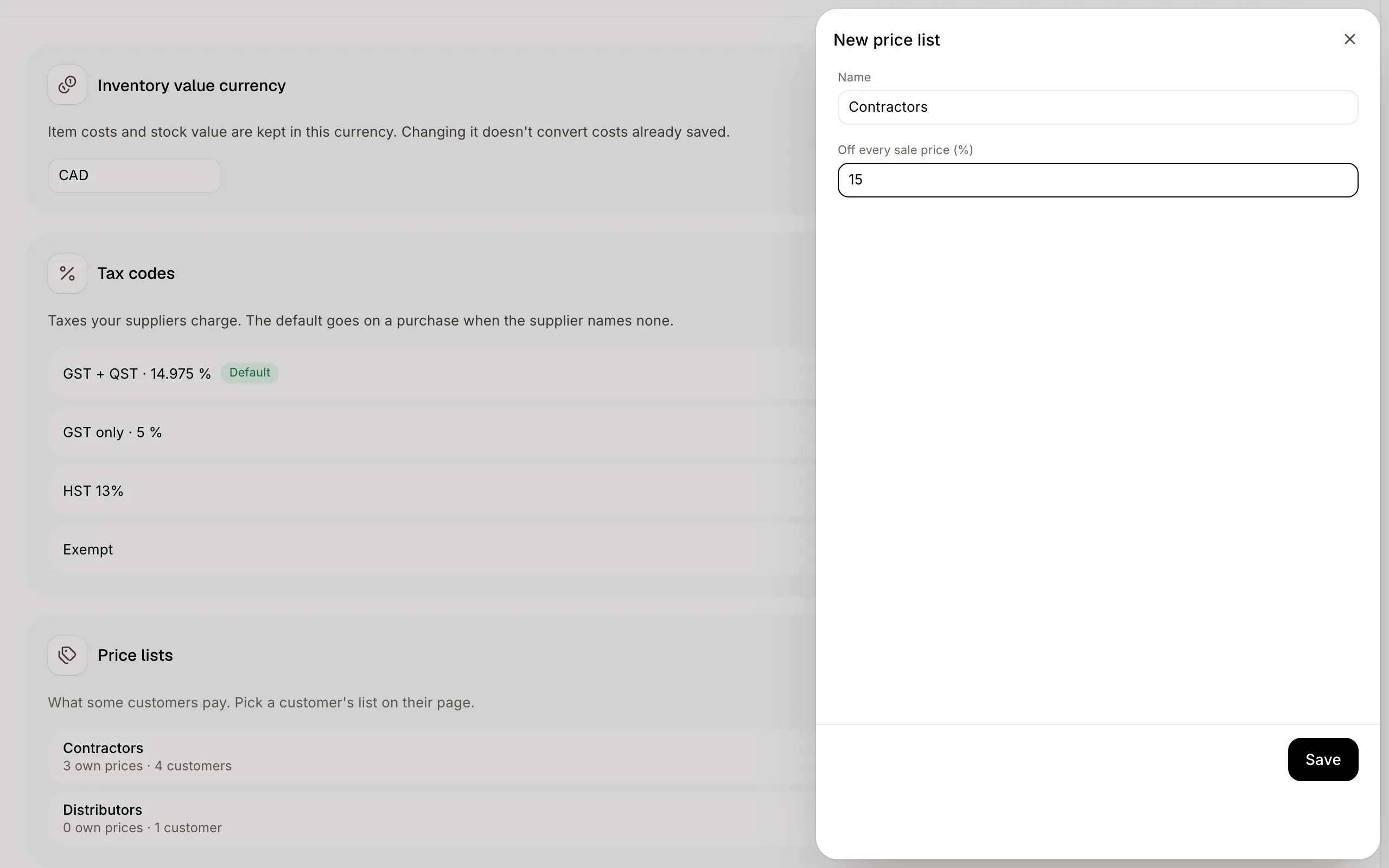
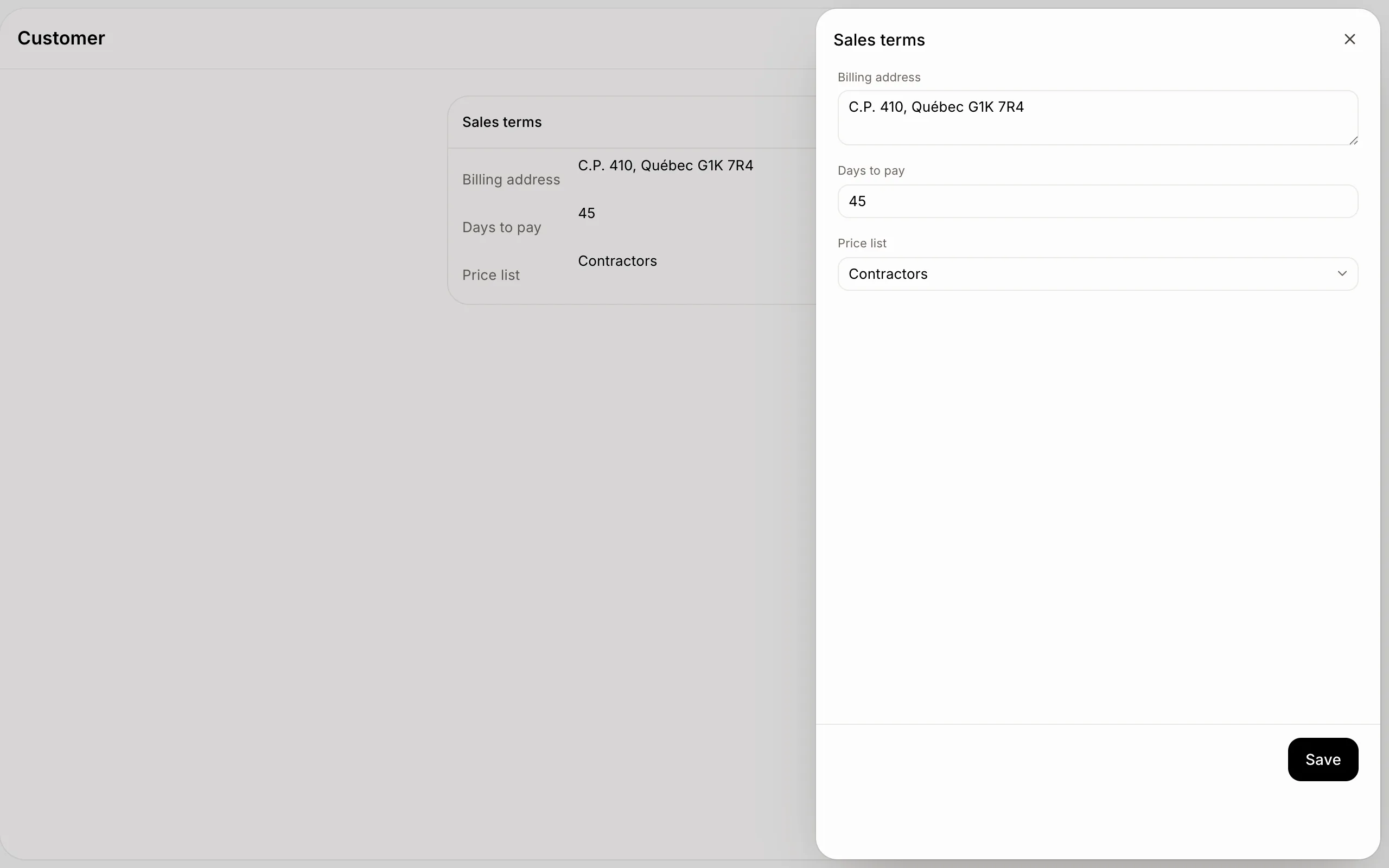
Go to Settings › Inventory › Price lists and click New price list: give it a name and a discount off every sale price. Then open a customer and, under Sales terms, pick their Price list, Billing address and Days to pay. Their sales orders take those prices, and their invoices those days.
Also called: price list, wholesale prices, customer pricing, payment terms, billing address, liste de prix, prix de gros, conditions de paiement, adresse de facturation
Step 1: Add a price list
In Settings › Inventory, under Price lists, click New price list. Type its Name (Contractors, Distributors) and how much Off every sale price (%). Click Save. Click a list to change it, or Put away to stop using it.
Click: Settings › Inventory › New price list › Save
Step 2: Give an item its own price on a list
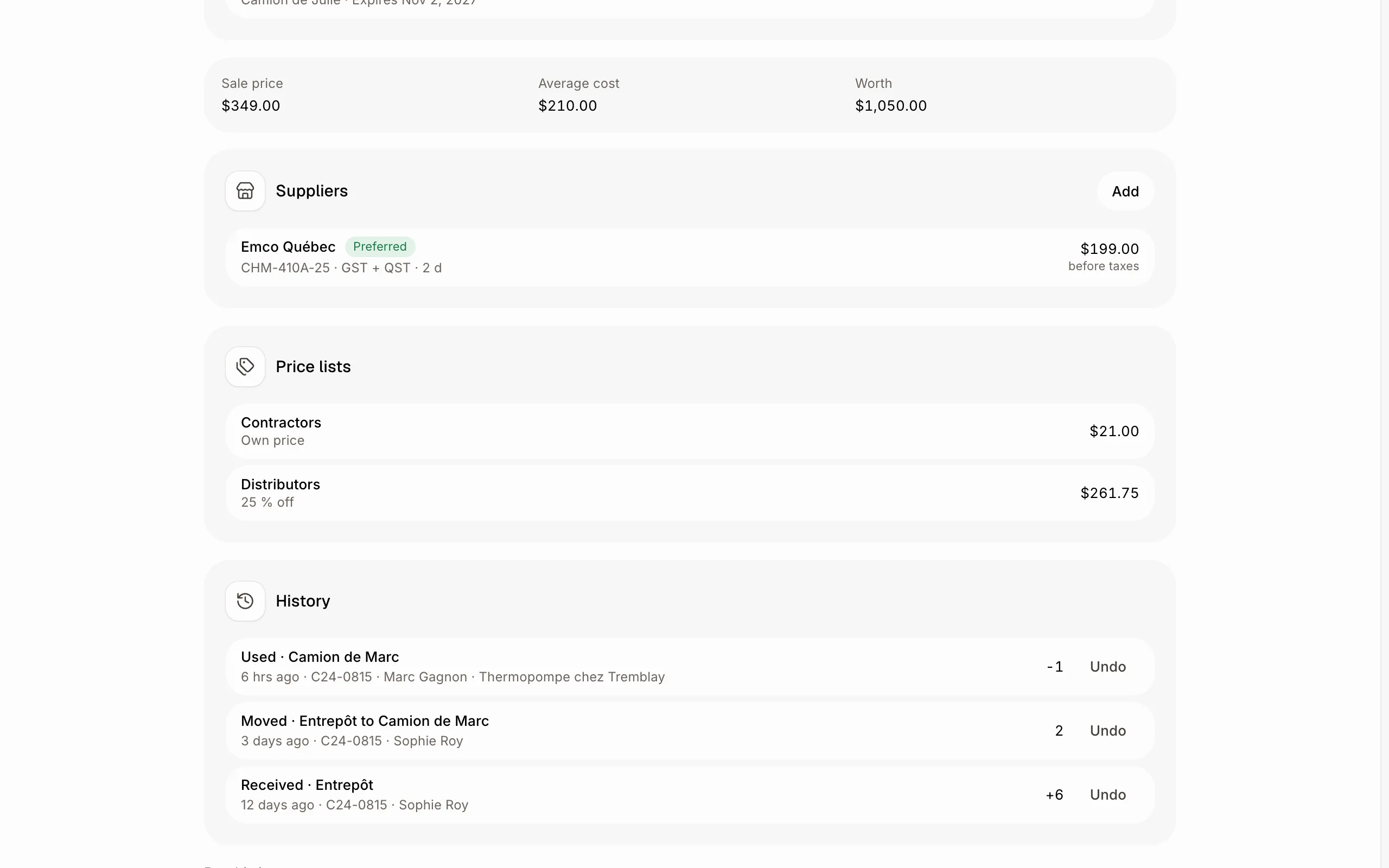
On the item's page, Price lists shows what it sells for on each list. Click a list to type its Own price there; Use the list's discount takes it off.
Click: Inventory › the item › Price lists › the list
Step 3: Set the customer's sales terms
Open the customer. Beside their record, Sales terms shows their Billing address, Days to pay and Price list. Click Edit to change them. A new sales order for them ships to their address, bills to their billing address, and takes each item's price from their list; its invoice is due after their days to pay.
Click: Customers › the customer › Sales terms › Edit
If it doesn't work
You don't see Sales terms. Inventory isn't turned on, or your role can't see it.
"Another price list has that name." Pick another name.
"Enter a discount from 0 to 99 %." Type the discount as a percentage, like 15.