How do I turn on a bot?
Pick a bot on the Bots page and click Turn on: it joins your team right away.
Pick a bot on the Bots page and click Turn on: it joins your team right away.
Also called: AI assistant, AI employee, virtual assistant, robot, assistant IA, employé virtuel, agent
You see the bots already on your team. A bot that's on shows On on its card, with what it does.
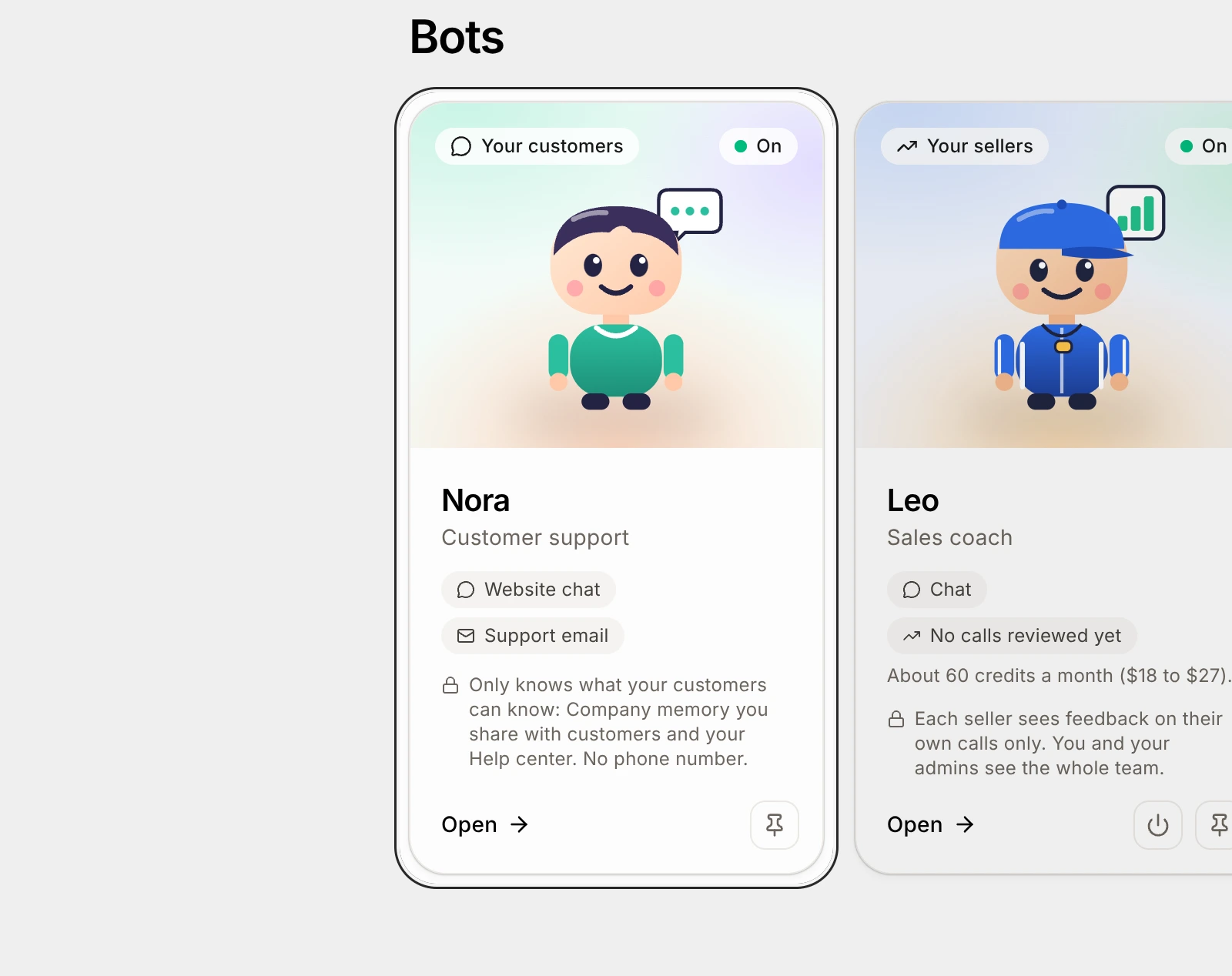
Click Add a bot to the team.
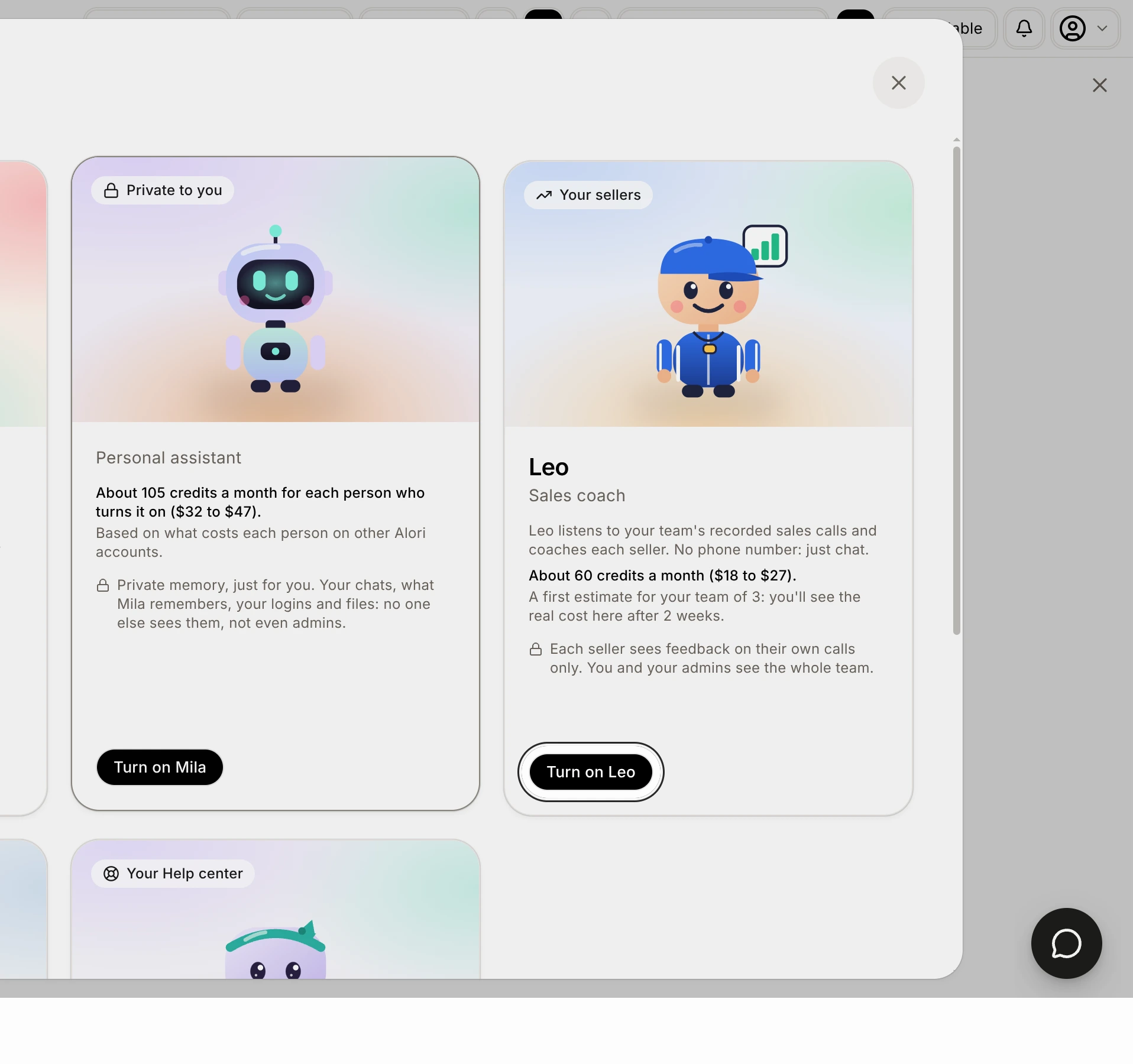
A list opens with every bot you can add, like Sam, Mila, John and Iris. Each card says what the bot does and about what it costs a month.
Click Turn on under the bot you want, like Turn on Leo.
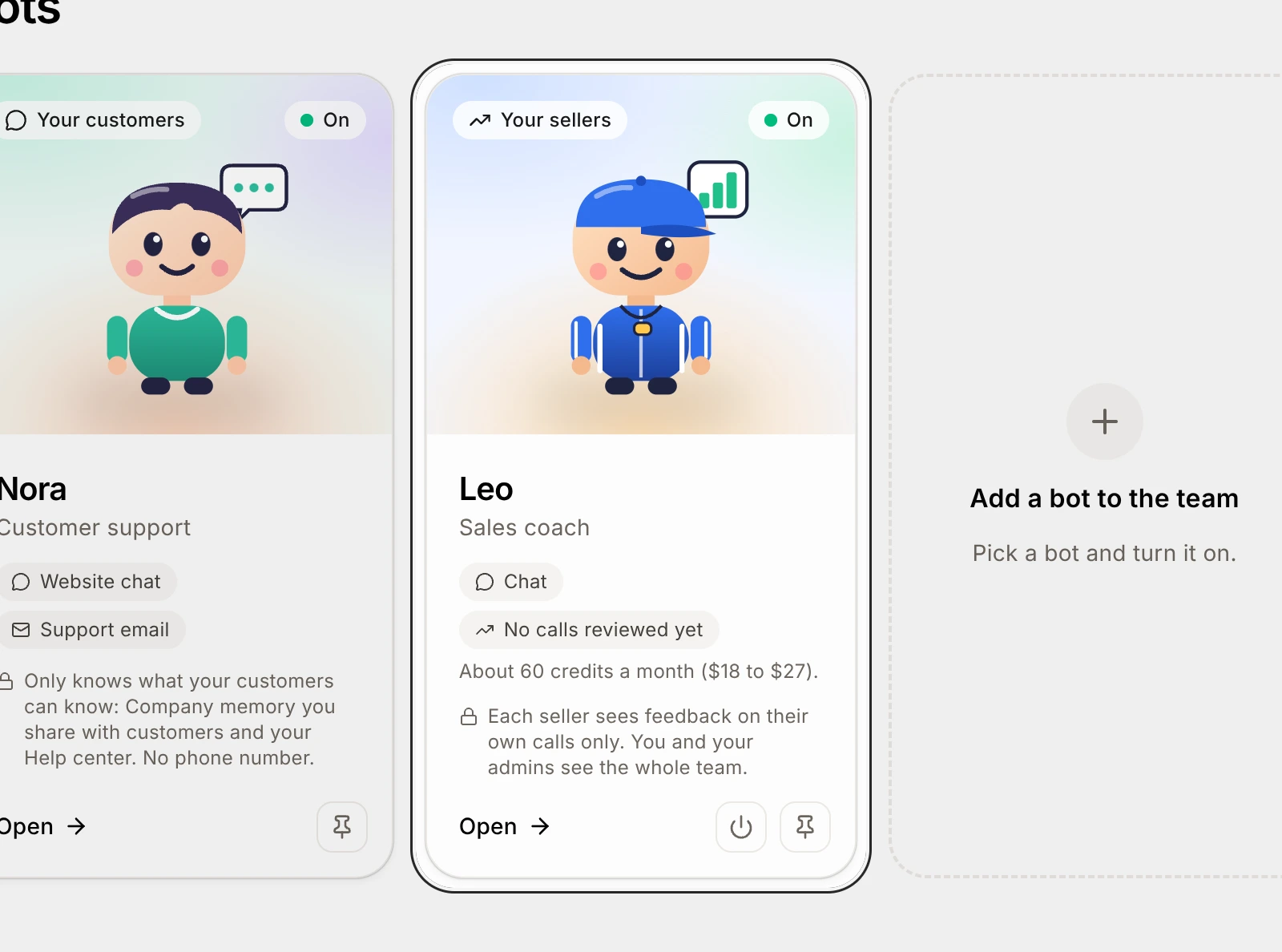
Look for the bot on the Bots page.
It now shows On on its card, with its monthly cost. To stop it later, click Turn off on its card.
Click the bot's card and tell it what to do.
Type in the box at the bottom and send, or tap a suggestion. The bot shows Working on it…, then says what it did.
Good to know
Each bot uses credits for its answers. See How much does a bot cost?
A bot asks before it sends anything to a customer, and before it deletes something. See What does the bot do on its own, and when does it ask first?
Sam gets a phone number of its own, for your team's texts and calls. Your business number stays for your customers. See How do I text or call my bot?
If it doesn't work
"Create your app first: your bot works inside it." Build your app first, then come back to Bots.
"Out of credits." Add credits, then try again.
"This bot isn't here anymore." The link is old. Open Bots again.