How do I turn on the chat on my website?
In your CRM, open Front desk and turn on On your website at the top. Nora, your support bot, then answers visitors on every page.
In your CRM, open Front desk and turn on On your website at the top. A chat bubble shows at the bottom of the pages of your website, and Nora, your support bot, answers visitors. When she needs a person, she passes the chat to you.
Also called: Nora, live chat, chat widget, chat bubble, website chat, front desk, clavardage, bulle de chat, accueil, chat du site
Step 1: Add Front desk to your app
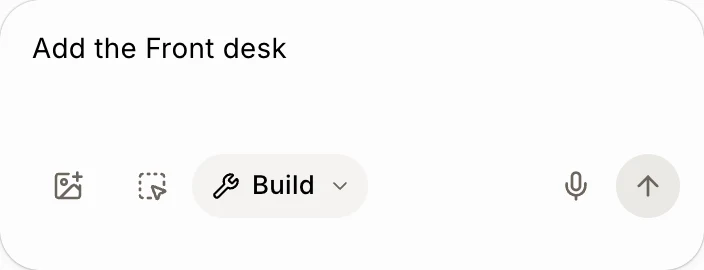
Front desk starts off in new apps. If you don't see it in your CRM's menu, ask Alori in the chat of your workspace: "Add the Front desk." It needs Customers, which turns on with it.
Click: the chat › "Add the Front desk"
Step 2: Open Front desk
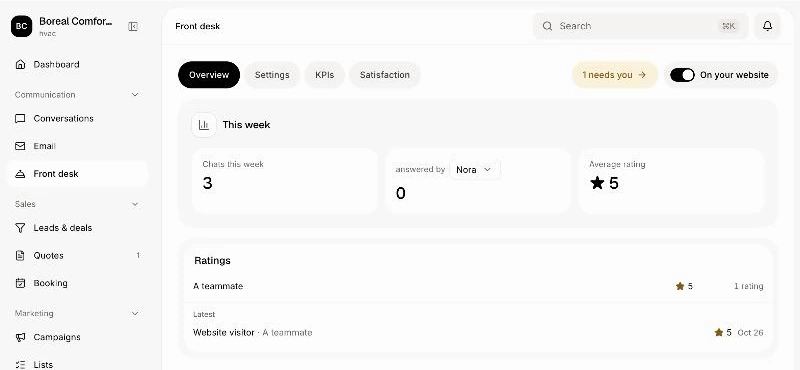
In your CRM (the team app), click Front desk in the menu.
Click: Front desk
Step 3: Turn on the bubble
At the top of the page, turn on On your website. It saves right away, and the Preview on the right shows the bubble as visitors see it. Visitors now see Chat with us at the bottom of each page.
Click: Front desk › On your website

Step 4: Choose who answers
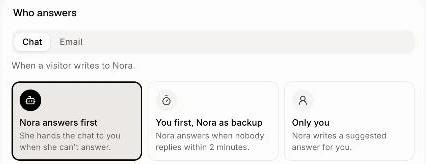
In Who answers, click Nora answers first (the usual choice), You first, Nora as backup, or Only you. See Who answers the chat: Nora, my team, or both?
Click: Front desk › Settings › Who answers
Good to know
What visitors see first. The bubble opens on How can we help? with big choices: Ask our assistant (Nora, instant answers; it shows her name when you gave her one), Talk to our team (the chat goes straight to you under New messages, and Nora stays out), Browse help articles (when your website has a Help center) and Hop on a video call (coming soon). A visitor with a chat going on lands straight back in it.
Choose what visitors see. In Front desk, under What visitors see, turn each choice on or off, like Help articles or Video call. The Preview changes as you go. Visitors always keep at least one way to write, and with a single way left the bubble opens straight on that chat.
Change the pictures. Under What visitors see, press a picture to change it (JPG, PNG or WebP, 5 MB at most). Talk to your team can show up to 3 people: press the + beside its picture to add another. The small cross takes a picture away.
Chats show in Conversations, tagged Website chat. The ones waiting for you are under New messages.
A visitor becomes a customer once they leave a name, phone or email. Only someone who wants work done (a quote, a visit, a repair) goes on your pipeline as a deal.
Credits. Nora uses credits when she answers visitors.
Not on booking pages. Your booking links (and the page to move or cancel a booking) show no bubble, so customers stay on picking a time.
Another website? Paste one line on it. See How do I put the chat on another website?
If it doesn't work
The settings are grey. Your role can't change them. Ask the owner.
I don't see the bubble. Check that On your website is on, then reload your website.
Visitors see "Too many messages right now. Try again in a little while." Too many messages came in at once. It passes in a little while.
Visitors see "Someone from the team will answer here soon." Nora couldn't answer, so the chat went to your team. Answer it in Conversations.