How do I add a supplier's bill and pay it?
On the purchase order, click Add a bill under Supplier bills, then Mark paid when you pay it, in full or in part.
Open the purchase order and, under Supplier bills, click Add a bill. Type their invoice number and the amount, and click Save. When you pay it, click the bill, then Mark paid. The order shows whether it's billed and paid.
Also called: supplier invoice, vendor bill, accounts payable, bill payment, facture fournisseur, comptes fournisseurs, payer un fournisseur
Step 1: Add the bill
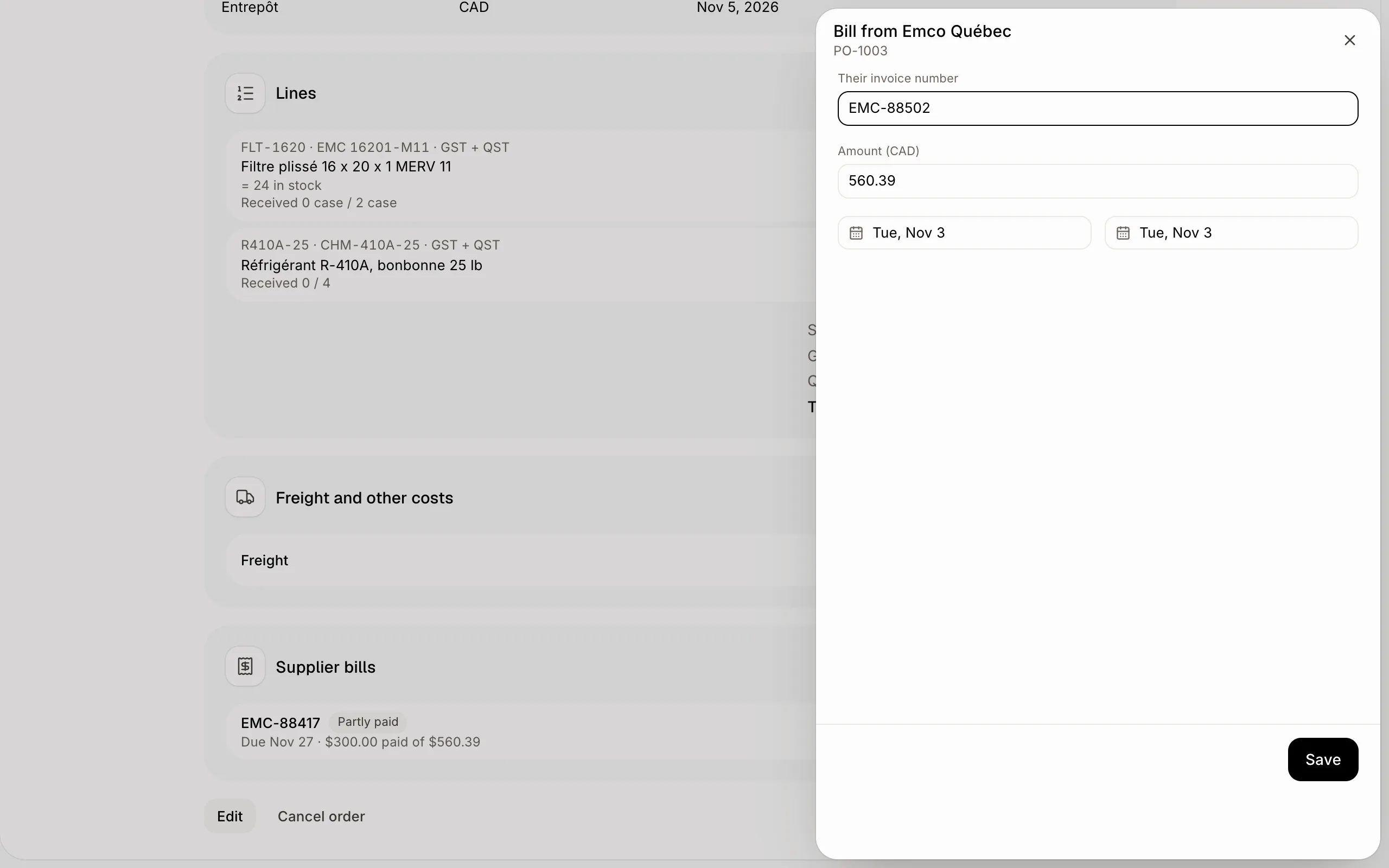
On a placed order, click Add a bill. Type Their invoice number. The Amount starts with what the order still has unbilled; change it for an order billed in several bills, or when the supplier billed more than ordered. Billed on is today and Due on follows the supplier's Days to pay. Click Save.
The order's pills show Partly billed, Billed or Billed more, and To pay, Partly paid or Paid. The purchase orders list can be filtered on both.
Click: Purchase orders › the order › Add a bill › Save
Step 2: Pay it
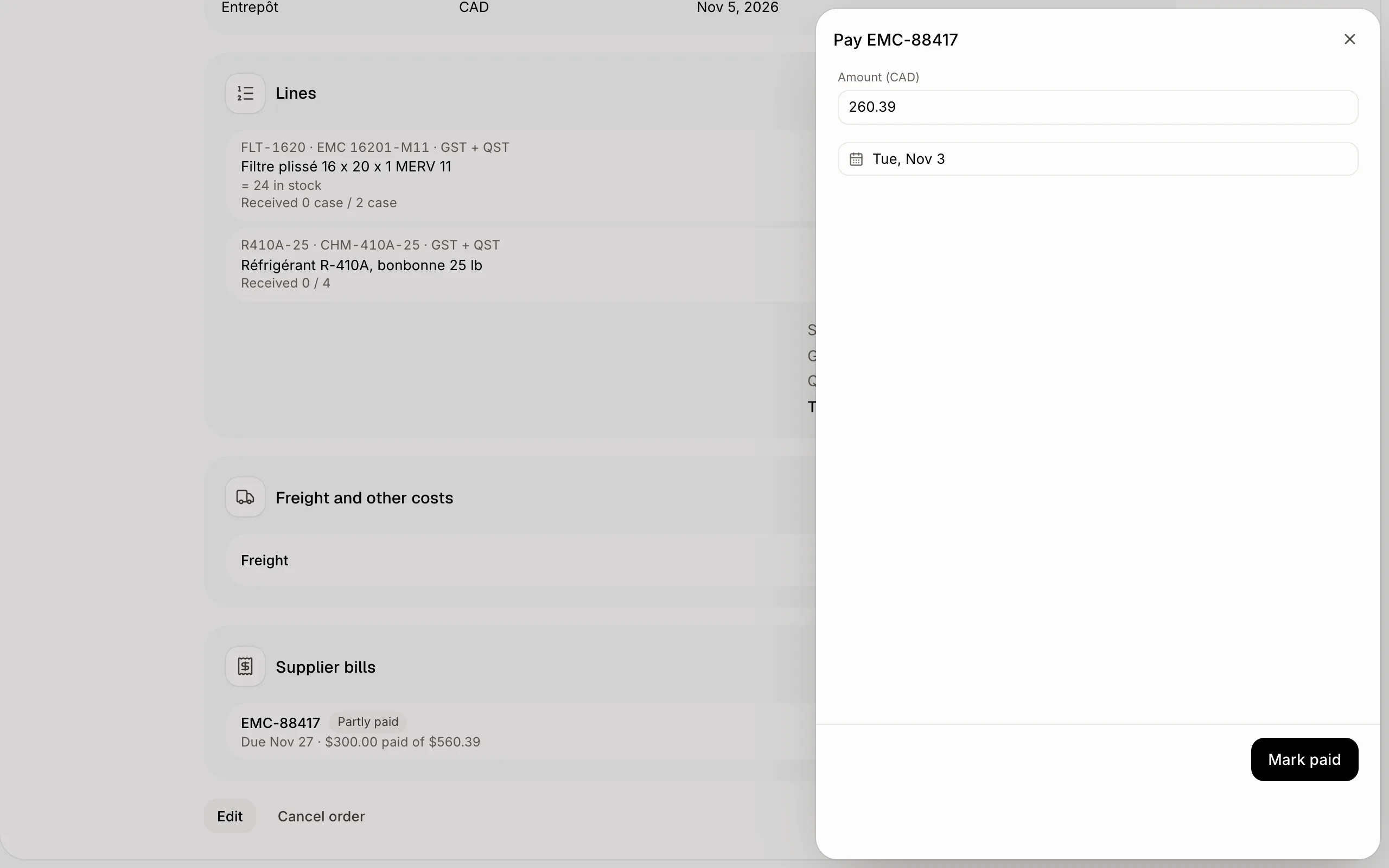
Click the bill, then Mark paid. The Amount is all that's left; type less to pay part of it. Pick the day you paid. A bill paid in full shows Paid and its day; one past its due day shows Late.
Click: Purchase orders › the order › the bill › Mark paid
If it doesn't work
You don't see Supplier bills. A draft has no bills: mark it ordered first.
"Enter an amount." The amount must be more than 0.
Paid by mistake? Click the bill, then Not paid. Remove this bill takes it off.