How do I change a ticket's status, cycle or assignee from the list?
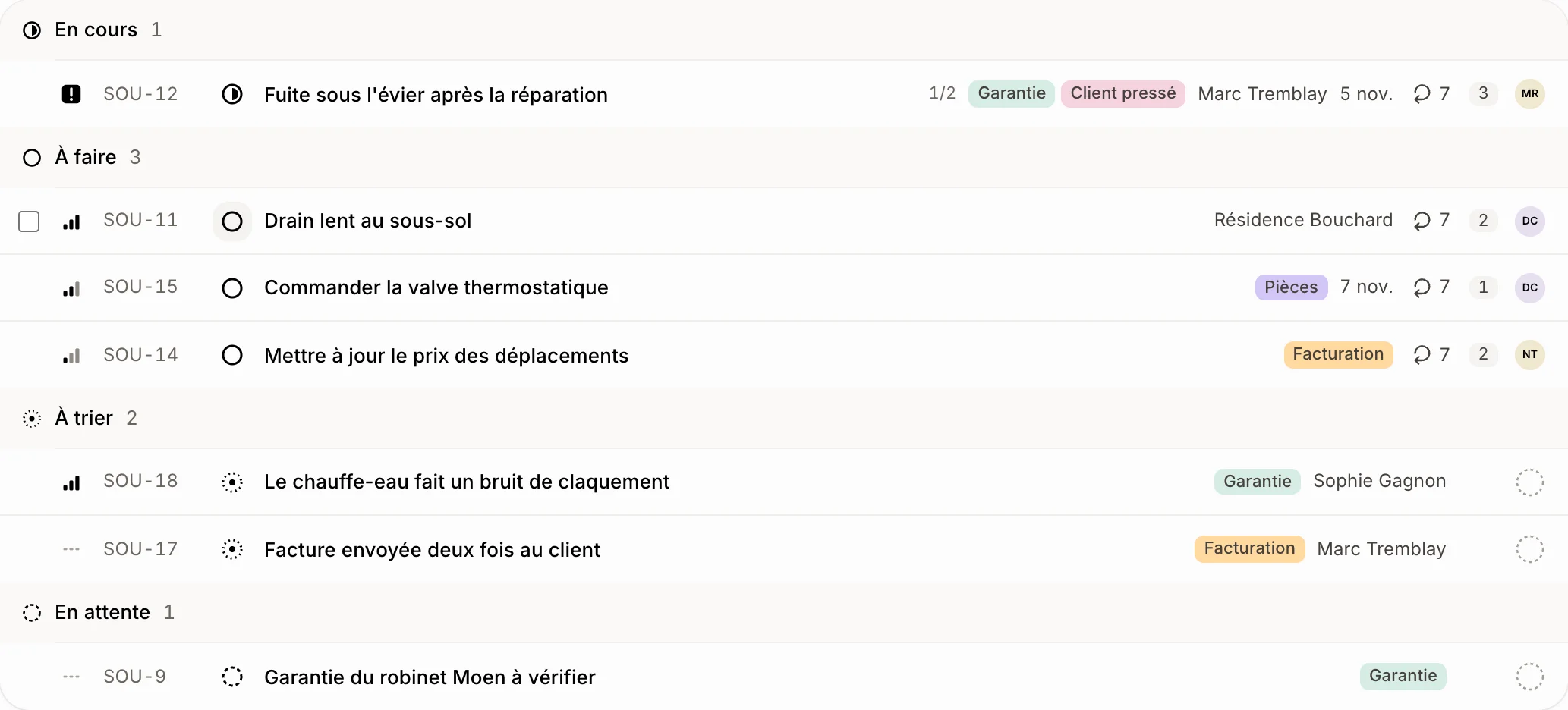
On the Tickets list, click a ticket's status icon, its cycle or its avatar and pick the new one. It saves at once, no need to open the ticket.
On the Tickets list, each ticket's icons are buttons: click the status icon, the priority bars, the cycle or the avatar, then pick the new one. It saves at once and the ticket moves to its new group, without opening it.
Also called: change status, assign, move to cycle, sprint, inline edit, changer l'étape, assigner, cycle, modifier depuis la liste
Step 1: Change the status or the priority
Click the round status icon before the title and pick a step of your team. Click the bars at the far left to change the Priority. On a computer, move with J and K, then press S for the status or P for the priority.
Click: Tickets › the status icon › a step
Step 2: Give it to someone
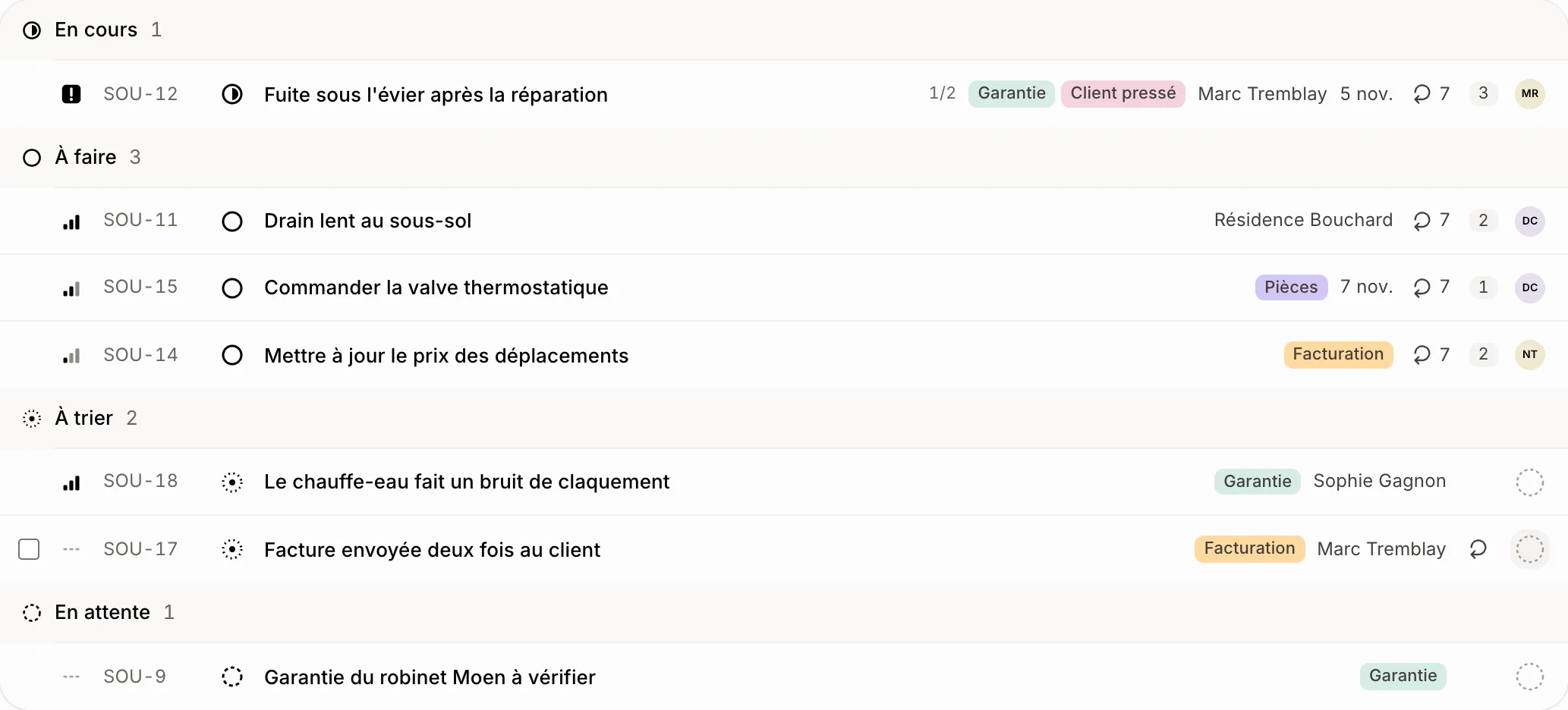
Click the avatar at the right end of the row. A dashed circle means nobody has it yet. Pick a teammate, or Nobody to take it off them. On a computer, A opens it for the ticket you're on.
Click: Tickets › the avatar › a teammate
Step 3: Put it in a cycle
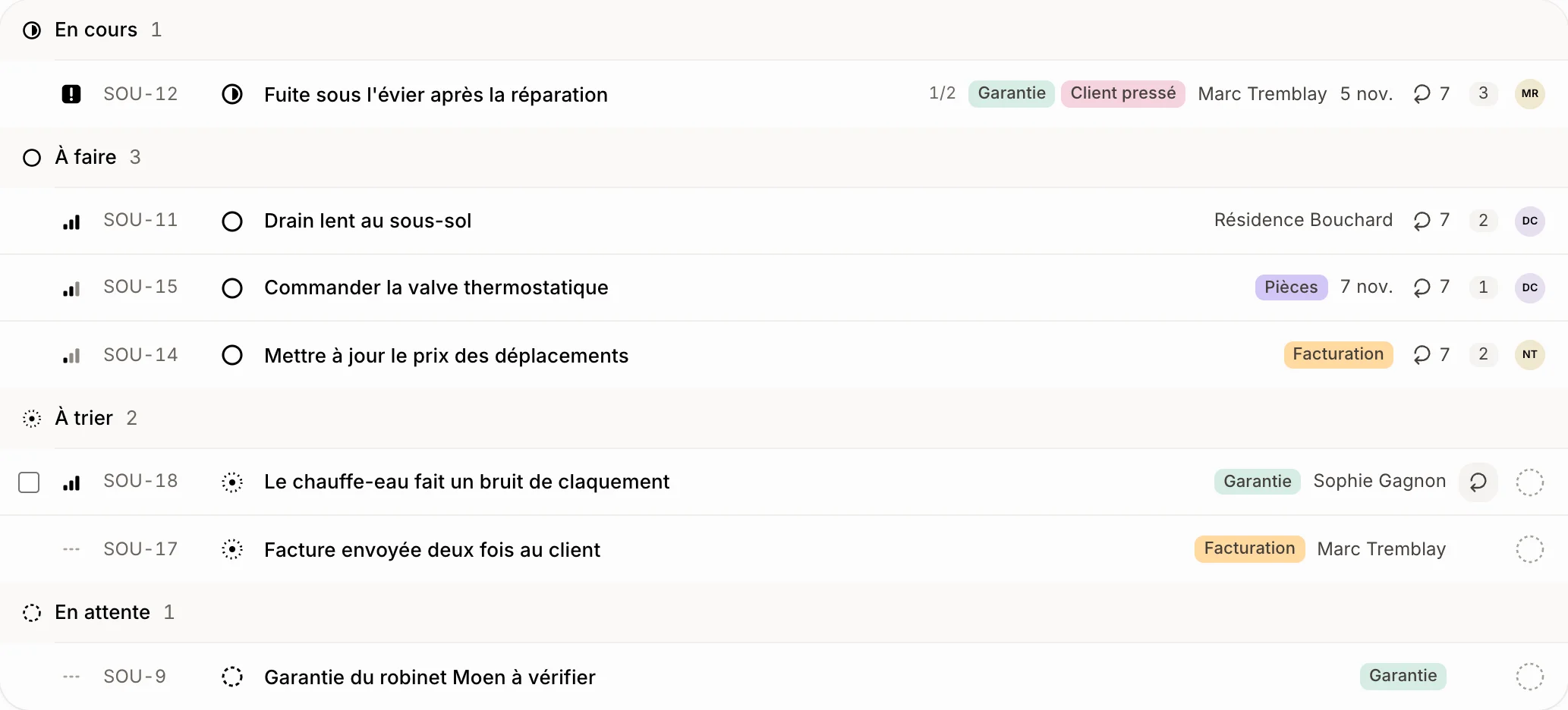
The cycle's number shows beside the ticket's size. On a ticket in no cycle, point at the row: a faint cycle icon shows up there. Click it and pick Current, Next or No cycle. The cycle only shows for a team that works in cycles, on a computer; on a phone, open the ticket to change it.
Click: Tickets › the cycle icon › Current
If it doesn't work
The icons can't be clicked. Your role may only view tickets. Ask the owner to let you change them.
No cycle on the rows. Turn cycles on for the team in Settings › Tickets.