How do I tag a conversation?
Open a conversation, click More actions › Tags, and tick a tag. Give a tag a sentence and your app adds it by itself when a customer's message fits.
Open a conversation in Conversations, click More actions (the three dots) at the top, then Tags…. Tick a tag, or type a new name and press Enter. Give a tag a sentence, like "the customer asks for something the app doesn't do yet", and your app puts it on by itself when a customer's message fits.
Also called: tags, labels, automatic tags, auto-tagging, filter by tag, label a conversation, étiquettes, étiquetage automatique, libellés
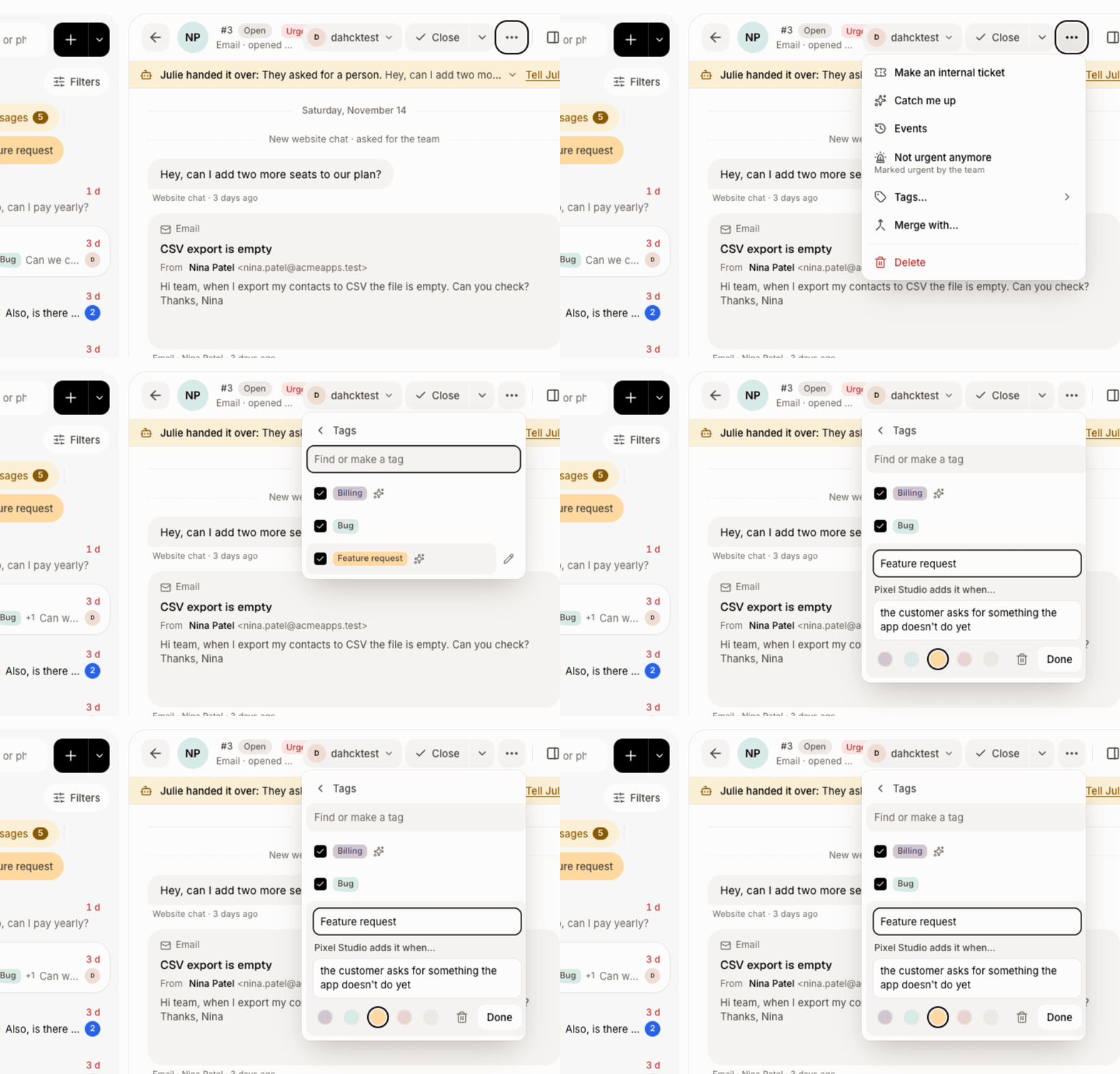
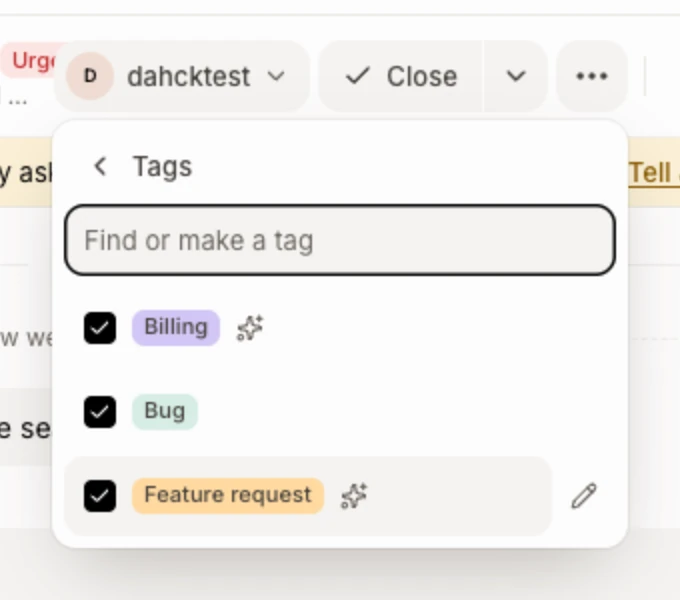
Step 1: Put a tag on a conversation
Click Conversations in the left menu and open a conversation. Click More actions, then Tags…. Tick a tag to put it on, tick it again to take it off. To make one, type its name in Find or make a tag and press Enter. Your whole team can use it.
Click: Conversations › More actions › Tags…
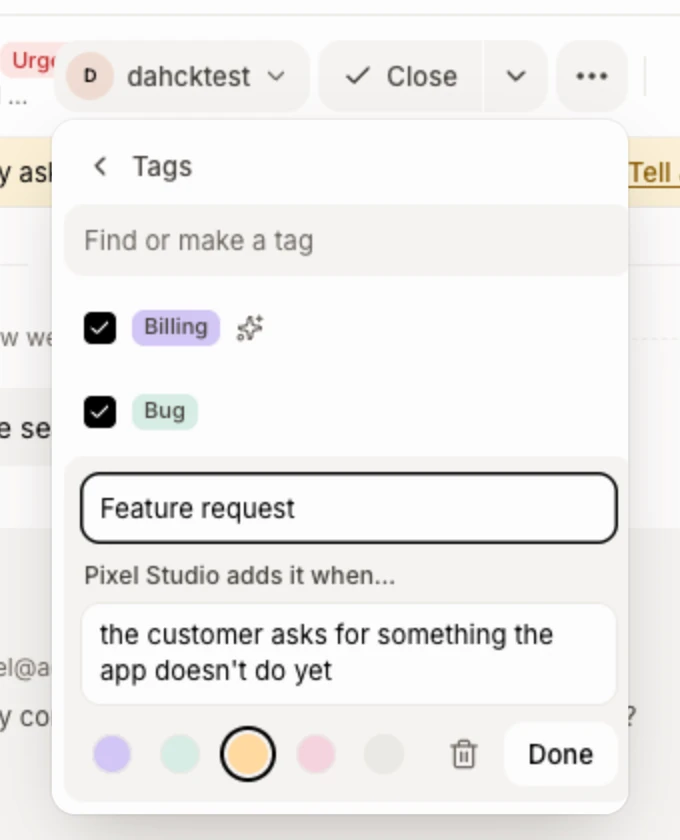
Step 2: Let your app add a tag by itself
In the tag menu, click the pencil next to a tag. In the … adds it when… box (it shows your app's name), write when it fits, in plain words, and press Enter. From then on, about a minute after a customer writes, your app reads their message and puts the tag on when it clearly fits. A tag with a sentence has a sparkle, and when your app added it, the menu says Added by and your app's name.
Leave the sentence empty and only your team adds that tag.
Click: the pencil › … adds it when…
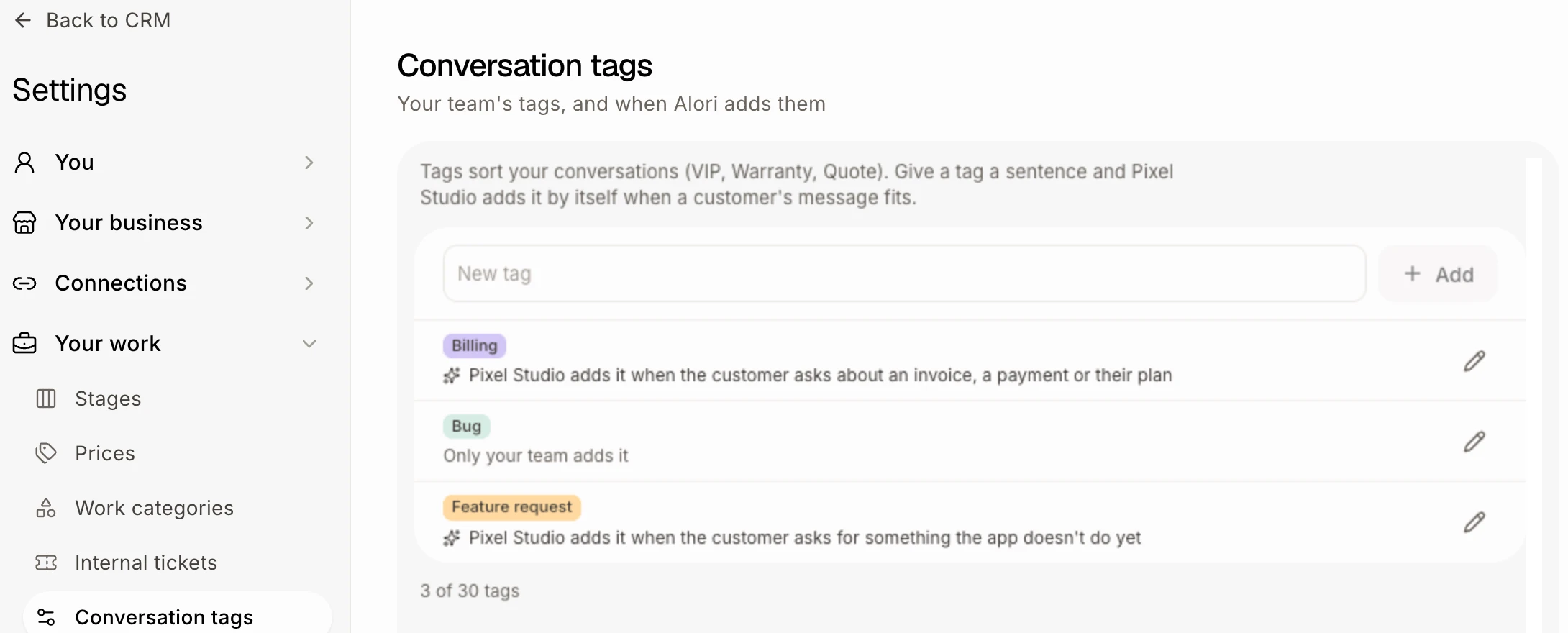
Step 3: See all your tags in one place
Open Settings › Conversation tags. Every tag is listed with its sentence (… adds it when…, with your app's name), or Only your team adds it. Type a name in New tag and click Add to make one: it opens on its sentence. Click a tag's pencil to rename it, change its sentence or colour, or delete it.
Click: Settings › Conversation tags
Step 4: See only one tag
Your tags show in the row of pills above the list of open conversations. Click one to see only the conversations that have it. Click it again to see them all.
Click: a tag in the row of pills
Good to know
Your app only adds tags. It never takes one off, never puts back a tag a teammate took off, and never tags a closed conversation.
A conversation holds up to 5 tags. Your team can have 30.
The conversation's Events say when your app added a tag.
Ask Sam: "tag Priya's conversation VIP", or "tag conversations Refund when a customer asks for their money back".
If it doesn't work
No Tags… in More actions. Your role can only view conversations. Ask the owner.
"A conversation holds 5 tags at most." Take one off first.
"Your team has 30 tags. Delete one to make another." Delete a tag you don't use.
"Another tag already has this name." Pick another name.
The app doesn't add a tag. Make the sentence plainer and closer to what customers write. It only adds a tag when the message clearly fits.
Related
Did this answer your question?